Docker Container Tutorial for Linux Beginners 2026

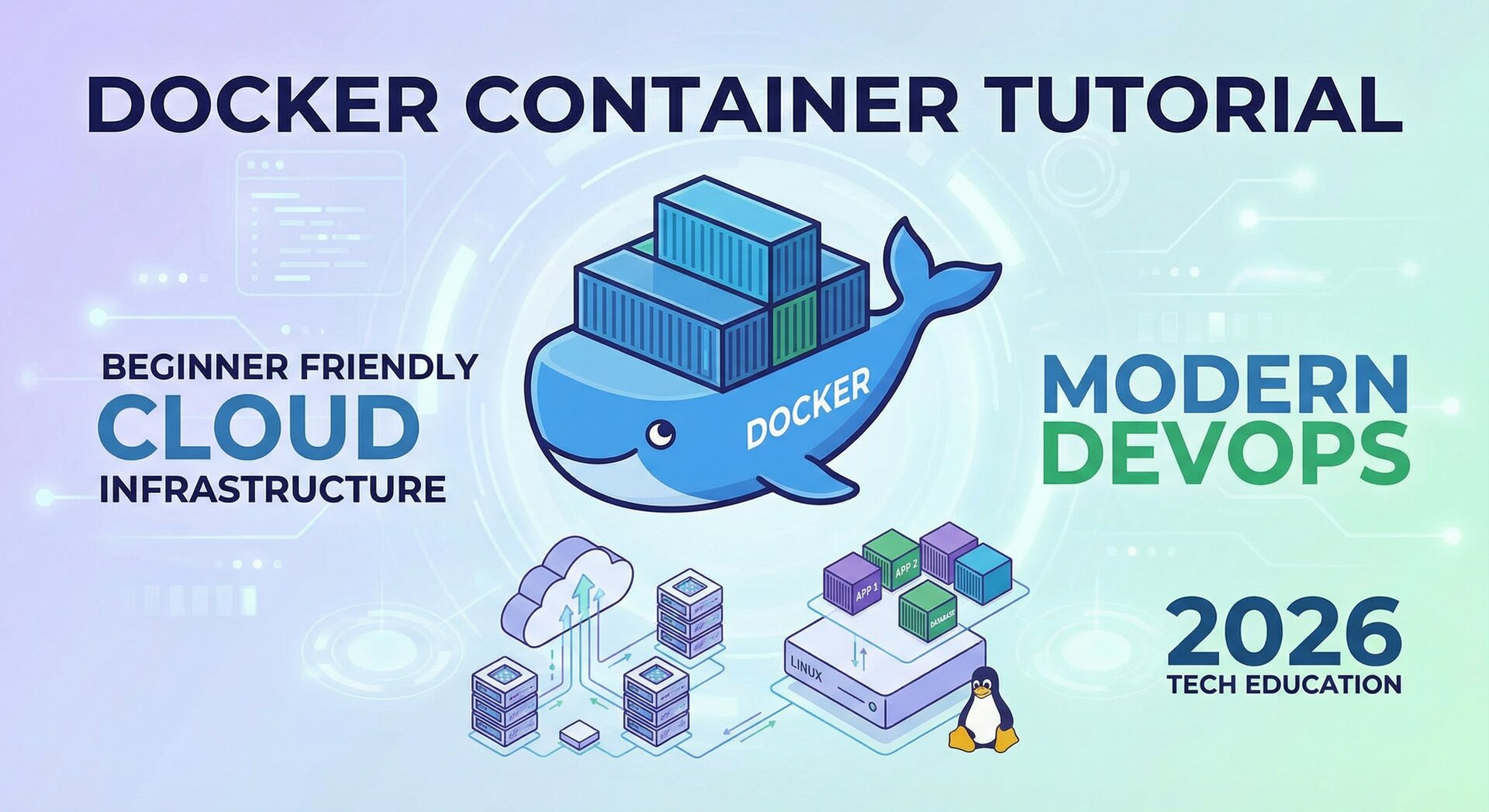
Docker container tutorial Linux beginners need a comprehensive, step-by-step guide to understand containerization technology from the ground up. This 2026 edition covers everything from Docker installation on Ubuntu to building custom containers, using Docker Compose, and implementing best practices for production deployments. Whether you are a developer, system administrator, or DevOps engineer, this tutorial will give you the foundation you need to work with Docker effectively.
What is Docker and Why Learn It in 2026?
Docker has revolutionized how applications are developed, shipped, and run. By packaging applications with their dependencies into portable containers, Docker eliminates the it works on my machine problem. For Linux beginners, Docker container tutorial Linux beginners provide an accessible entry point into modern DevOps practices.
In 2026, containerization is no longer optional knowledge. It is a fundamental skill for IT professionals. Docker containers are used in development environments, CI/CD pipelines, and production deployments across organizations of all sizes. Understanding Docker opens doors to cloud-native technologies like Kubernetes and modern application architectures.
Docker containers are lightweight, isolated environments that share the host operating system kernel. Unlike virtual machines, containers do not require a full OS for each instance, making them more efficient in terms of resource usage and startup time.
Installing Docker on Ubuntu: Step-by-Step Guide
The recommended method for installing Docker on Ubuntu is using the official Docker repository. This ensures you get the latest version with all security updates. Follow these steps to install Docker on Ubuntu 22.04 or 24.04:
First, update your package index and install prerequisite packages: sudo apt update && sudo apt install -y ca-certificates curl gnupg. These packages enable HTTPS repository access and secure key management.
Next, add Docker’s official GPG key: sudo install -m 0755 -d /etc/apt/keyrings && curl -fsSL https://download.docker.com/linux/ubuntu/gpg | sudo gpg –dearmor -o /etc/apt/keyrings/docker.gpg && sudo chmod a+r /etc/apt/keyrings/docker.gpg
Add the Docker repository to your system: echo deb [arch=$(dpkg –print-architecture) signed-by=/etc/apt/keyrings/docker.gpg] https://download.docker.com/linux/ubuntu $(. /etc/os-release && echo $VERSION_CODENAME) stable | sudo tee /etc/apt/sources.list.d/docker.list > /dev/null
Update the package index again and install Docker: sudo apt update && sudo apt install -y docker-ce docker-ce-cli containerd.io docker-buildx-plugin docker-compose-plugin. This installs the Docker engine, command-line tools, and modern plugins.
Finally, add your user to the docker group to run Docker without sudo: sudo usermod -aG docker $USER. Log out and back in for the group change to take effect, or use newgrp docker to apply it immediately.
Docker Basic Commands Every Beginner Should Know
Mastering basic Docker commands is essential for working with containers effectively. This Docker container tutorial Linux beginners covers the most important commands you will use daily.
docker run creates and starts a container from an image. For example, docker run hello-world runs a simple test container. The -d flag runs containers in detached mode (background), and -it provides an interactive terminal.
docker ps lists running containers, while docker ps -a shows all containers including stopped ones. docker stop container_name gracefully stops a running container, and docker rm container_name removes a stopped container.
docker images lists downloaded images, and docker pull image_name downloads an image from Docker Hub. docker rmi image_name removes an image to free up disk space.
docker logs container_name shows container output, useful for debugging. docker exec -it container_name /bin/bash opens a shell inside a running container for inspection or troubleshooting.
Building Custom Docker Containers
Building custom containers is where Docker’s power truly shines. This Docker container tutorial Linux beginners section covers creating container images tailored to your applications.
Docker images are built using Dockerfiles—text files containing instructions for creating the image. A basic Dockerfile starts with a FROM instruction specifying the base image, followed by commands to install dependencies, copy application files, and configure the container.
FROM ubuntu:24.04
RUN apt-get update && apt-get install -y nginx
COPY . /var/www/html
EXPOSE 80
CMD ["nginx", "-g", "daemon off;"]
Build an image with docker build -t myapp:latest .. The -t flag tags the image with a name and version. Best practices include using specific base image versions (not latest), combining RUN commands to reduce layers, and removing temporary files within the same layer.
Multi-stage builds allow you to build applications in one stage and copy only the necessary artifacts to a smaller final image. This significantly reduces image size and attack surface. For example, compile code in a full development environment, then copy binaries to a minimal runtime image.
Docker Compose: Multi-Container Applications
Docker Compose simplifies managing multi-container applications. Instead of running multiple docker run commands, you define your entire application stack in a docker-compose.yml file and manage it with simple commands.
A docker-compose.yml file defines services, networks, and volumes. Services are containers, networks enable communication between containers, and volumes provide persistent storage. Here is an example for a web application with a database:
version: '3.8'
services:
  web:
    build: .
    ports:
      - "80:80"
    depends_on:
      - db
  db:
    image: postgres:16
    environment:
      POSTGRES_PASSWORD: example
    volumes:
      - db_data:/var/lib/postgresql/data
volumes:
  db_data:
Start all services with docker compose up -d. The -d flag runs containers in the background. Stop services with docker compose down. View logs with docker compose logs, and scale services with docker compose up -d –scale web=3.
Docker Compose is invaluable for development environments, allowing you to define complex application stacks that can be started with a single command. It also supports environment variables and overrides for different deployment scenarios.
Docker Networking: Connecting Containers
Docker provides several networking options for container communication. Understanding these is crucial for building applications with multiple interacting components.
The bridge network is the default network type. Containers on the same bridge network can communicate using container names as hostnames. Docker automatically creates a default bridge network, but user-defined bridge networks provide better isolation and DNS resolution.
Host networking removes network isolation, using the host’s network directly. This provides better performance but reduces isolation. Overlay networks enable multi-host communication for Docker Swarm clusters. Macvlan networks give containers their own MAC addresses, appearing as physical devices on the network.
For most applications, user-defined bridge networks provide the right balance of features and simplicity. Create a network with docker network create mynetwork and attach containers with docker run –network mynetwork.
Docker Storage: Volumes and Bind Mounts
Containers are ephemeral by design—when a container is removed, its filesystem changes are lost. For persistent data, Docker provides volumes and bind mounts.
Volumes are managed by Docker and stored in a special directory on the host. They are the preferred method for persistent data because they are portable, easier to back up, and can be managed with Docker commands. Create a volume with docker volume create myvolume and mount it with docker run -v myvolume:/data.
Bind mounts link a host file or directory directly into a container. They are useful for development, allowing you to edit files on the host and see changes immediately in the container. Use bind mounts with docker run -v /host/path:/container/path.
tmpfs mounts store data in host memory, useful for sensitive data that should not be written to disk. Choose the appropriate storage type based on your data persistence, performance, and security requirements.
Docker Security Best Practices
Security is critical when running containers in production. This Docker container tutorial Linux beginners section covers essential security practices.
Run containers with least privilege using the –user flag or USER instruction in Dockerfiles. Avoid running containers as root when possible. Use read-only filesystems with –read-only to prevent runtime modifications.
Limit container resources with –memory and –cpu flags to prevent resource exhaustion attacks. Use security profiles like AppArmor or SELinux to restrict container capabilities. Drop unnecessary capabilities with –cap-drop and add only required ones with –cap-add.
Scan images for vulnerabilities with tools like Docker Scout, Trivy, or Clair. Keep base images updated to receive security patches. Use private registries for sensitive images and sign images with Docker Content Trust.
Troubleshooting Common Docker Issues
Even experienced users encounter Docker issues. Here are common problems and solutions. If a container fails to start, check logs with docker logs. Permission errors often result from volume ownership mismatches—ensure the container user can access mounted files.
Networking issues may require inspecting the container’s network configuration with docker inspect. Resource constraints can cause mysterious failures—check if the container is hitting memory or CPU limits.
Image build failures are usually due to Dockerfile errors or network issues during package installation. Use docker build –no-cache to ensure a clean build, and check that all referenced files exist in the build context.
For related container topics, explore our guides on Linux containerization and DevOps practices.
External resources: The official Docker documentation provides comprehensive reference material. Docker Hub is the default registry for Docker images.
Conclusion
This Docker container tutorial Linux beginners has covered the essential knowledge you need to start working with Docker effectively. From installation and basic commands to building custom images, using Docker Compose, and implementing security best practices, you now have a solid foundation for containerization.
Docker’s ecosystem continues to evolve, but the core concepts remain stable. Master these fundamentals, and you will be well-prepared to explore advanced topics like Docker Swarm, Kubernetes orchestration, and cloud-native application development. The skills you have learned here are directly transferable to professional DevOps and cloud computing roles.
- About the Author
- Latest Posts

Mark is a senior content editor at Text-Center.com and has more than 20 years of experience with linux and windows operating systems. He also writes for Biteno.com