How to Set Up a Secure Linux Server with UFW Firewall in 2026

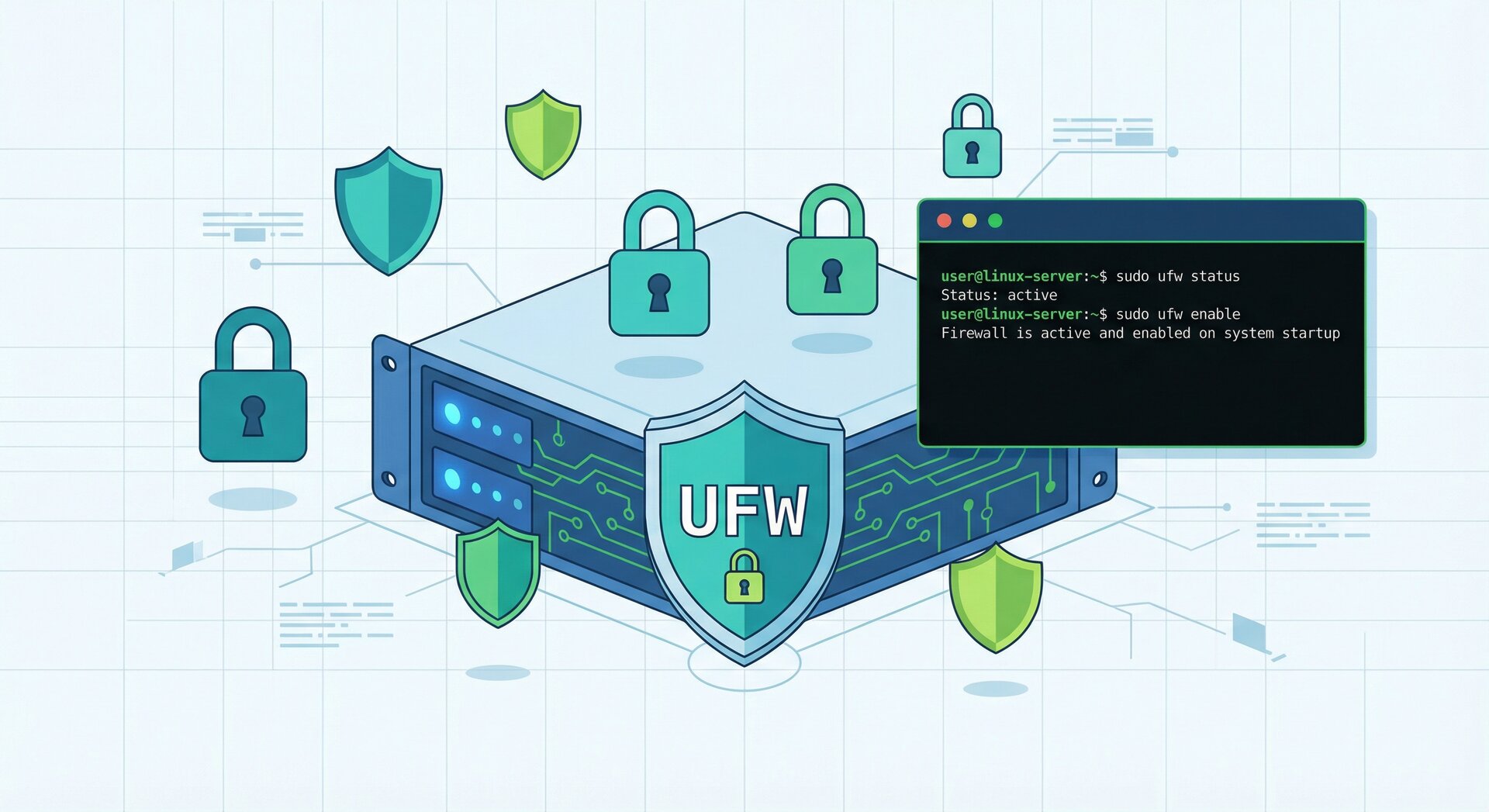
If you want to secure linux server ufw firewall properly, this comprehensive guide walks you through every step from installation to advanced hardening techniques. Setting up a secure Linux server with UFW firewall is essential for protecting your infrastructure from unauthorized access and cyber threats in 2026. Whether you are running Ubuntu or Debian, implementing proper firewall rules with UFW (Uncomplicated Firewall) provides a robust first line of defense.
Why UFW Firewall is Essential for Linux Server Security
secure linux server ufw firewall
UFW has become the go-to firewall solution for system administrators managing Linux servers. Unlike complex iptables configurations, UFW simplifies firewall management while maintaining powerful security capabilities. When you secure Linux server with UFW firewall, you gain granular control over incoming and outgoing traffic, reducing your attack surface significantly.
Prerequisites for Securing Your Linux Server
secure linux server ufw firewall
Before implementing UFW firewall on your Linux server, ensure you have:
- A fresh Ubuntu 22.04/24.04 or Debian 11/12 server installation
- Root or sudo access to execute administrative commands
- Basic knowledge of terminal commands and SSH connectivity
- A reliable backup of your server configuration
- Alternative access method (console/VNC) in case of SSH lockout
Understanding SSH authentication methods is crucial before applying firewall rules. Never apply restrictive firewall policies without a backup access route.
Step 1: Install UFW on Your Linux Server
secure linux server ufw firewall
Most modern Ubuntu distributions include UFW by default, but Debian servers may require manual installation. Start by updating your package repositories and installing UFW:
sudo apt update && sudo apt upgrade -y
sudo apt install ufw -y
Verify the installation and check UFW status:
sudo ufw version
sudo ufw status verbose
Initially, UFW will show as inactive. This is expected behavior—we will enable it after configuring essential rules to prevent accidentally locking yourself out.
Step 2: Configure Default UFW Policies
When you secure linux server ufw firewall, establishing sensible default policies is critical. The principle of least privilege dictates denying all incoming traffic by default while allowing outgoing connections:
sudo ufw default deny incoming
sudo ufw default allow outgoing
sudo ufw default deny routed
These commands establish a restrictive baseline. Incoming connections are blocked unless explicitly permitted, outgoing traffic flows freely (allowing your server to access updates and external services), and routed traffic is denied (important for servers not functioning as routers).
Step 3: Allow SSH Before Enabling UFW
Critical security note: Before activating UFW, you must allow SSH access. Failure to do so will immediately lock you out of your server upon enabling the firewall.
Allow SSH on the default port 22:
sudo ufw allow 22/tcp
sudo ufw allow ssh
Both commands achieve the same result. If you are using a non-standard SSH port (recommended for security), replace 22 with your custom port number. Learn more about Linux security hardening techniques to further protect your SSH service.
Step 4: Enable UFW Firewall
With SSH access protected, safely enable UFW:
sudo ufw --force enable
The –force flag bypasses the confirmation prompt. UFW will now activate automatically at system boot. Verify the active status and rules:
sudo ufw status numbered
You should see your SSH rule listed. The numbered output format simplifies rule management when you need to delete or modify specific entries later.
Step 5: Configure Common Service Rules
Depending on your server’s role, you will need to open additional ports. Here are common scenarios when you secure linux server ufw firewall:
Web Server (Apache/Nginx):
sudo ufw allow 80/tcp
sudo ufw allow 443/tcp
Or use predefined application profiles:
sudo ufw allow 'Nginx Full'
sudo ufw allow 'Apache Full'
Mail Server (SMTP/IMAP/POP3):
sudo ufw allow 25/tcp
sudo ufw allow 587/tcp
sudo ufw allow 465/tcp
sudo ufw allow 143/tcp
sudo ufw allow 993/tcp
Database Server (PostgreSQL/MySQL):
sudo ufw allow from 192.168.1.0/24 to any port 5432
sudo ufw allow from 192.168.1.0/24 to any port 3306
Notice the subnet restriction—database ports should never be publicly exposed. Always limit database access to specific IP ranges or individual addresses.
Step 6: Implement IP-Based Access Control
For enhanced security, restrict administrative access to trusted IP addresses only. This technique dramatically reduces brute-force attack vectors:
sudo ufw delete allow 22/tcp
sudo ufw allow from 203.0.113.10 to any port 22 proto tcp
sudo ufw allow from 198.51.100.0/24 to any port 22 proto tcp
This configuration permits SSH connections exclusively from the specified IP address and subnet. All other SSH attempts are blocked silently. Consider implementing Fail2Ban alongside UFW for dynamic IP blocking based on failed authentication attempts.
Step 7: Configure Rate Limiting for Brute-Force Protection
UFW includes built-in rate limiting to mitigate brute-force attacks. Enable it for SSH:
sudo ufw limit 22/tcp
This rule permits a maximum of 6 connection attempts from a single IP within 30 seconds. Exceeding this threshold results in automatic blocking. Rate limiting works seamlessly with legitimate users while frustrating automated attack scripts.
Step 8: Advanced UFW Configuration
Logging and Monitoring:
Enable UFW logging to track blocked connection attempts:
sudo ufw logging on
sudo ufw logging medium
Logs are written to /var/log/ufw.log. Review them regularly:
sudo tail -f /var/log/ufw.log
Port Range Rules:
Allow entire port ranges when necessary:
sudo ufw allow 60000:61000/tcp
Protocol-Specific Rules:
sudo ufw allow proto tcp from 192.168.1.0/24 to any port 22
Step 9: Disable IPv6 (Optional but Recommended)
If you are not using IPv6, disable it to reduce complexity and potential attack vectors. Edit the UFW configuration:
sudo nano /etc/default/ufw
Change IPV6=yes to IPV6=no, then restart UFW:
sudo ufw disable
sudo ufw enable
Step 10: Test and Validate Your Firewall Configuration
Always validate your UFW configuration from an external location. Use Nmap or online port scanners:
nmap -sS -p 1-65535 your-server-ip
Only explicitly allowed ports should appear as open. Verify SSH access still works, then test from unauthorized IPs to confirm blocking functions correctly.
UFW Management Commands Reference
Essential commands for ongoing secure linux server ufw firewall management:
-
1sudo ufw status numbered
– List rules with numbers
-
1sudo ufw delete [number]
– Remove specific rule by number
-
1sudo ufw reset
– Reset all rules to defaults
-
1sudo ufw reload
– Reload firewall without disconnecting
-
1sudo ufw disable
– Temporarily disable firewall
-
1sudo ufw show added
– Display rules before enabling
Best Practices for Linux Server Security Beyond UFW
While UFW provides excellent network-level protection, comprehensive server security requires multiple layers:
- SSH Hardening: Disable password authentication, use key-based auth exclusively, change default port
- Regular Updates: Implement automated security patching with unattended-upgrades
- Intrusion Detection: Install and configure AIDE or Tripwire for file integrity monitoring
- SELinux/AppArmor: Enable mandatory access controls for additional process isolation
- Backup Strategy: Maintain automated, encrypted, off-site backups tested regularly
- Monitoring: Deploy centralized logging with Elasticsearch, Logstash, and Kibana (ELK stack)
Consider implementing DDoS mitigation services for public-facing servers, especially those hosting critical business applications.
Troubleshooting Common UFW Issues
Locked Out After Enabling UFW:
Access your server via console (VNC/IPMI) and run:
sudo ufw disable
sudo ufw allow 22/tcp
sudo ufw enable
Rules Not Taking Effect:
Force reload UFW:
sudo ufw reload
sudo systemctl restart ufw
Conflicts with Docker:
Docker manipulates iptables directly, potentially bypassing UFW. Configure Docker to respect UFW by editing /etc/docker/daemon.json:
{
  "iptables": false
}
Conclusion: Maintaining a Secure Linux Server with UFW Firewall
secure linux server ufw firewall
Implementing UFW firewall is a fundamental step in establishing robust Linux server security. By following this comprehensive guide, you have created multiple defensive layers protecting your infrastructure from common attack vectors. Remember that security is an ongoing process—regularly review your firewall rules, monitor logs for suspicious activity, and stay informed about emerging threats.
The combination of properly configured UFW firewall rules, SSH hardening, regular updates, and proactive monitoring creates a formidable security posture. Whether you are managing a single VPS or an entire server fleet, these principles scale effectively across all deployment scenarios.
Take time to document your firewall configuration, automate rule deployment with configuration management tools like Ansible, and conduct periodic security audits to ensure your secure Linux server with UFW firewall continues protecting your critical assets throughout 2026 and beyond.
- About the Author
- Latest Posts

Mark is a senior content editor at Text-Center.com and has more than 20 years of experience with linux and windows operating systems. He also writes for Biteno.com