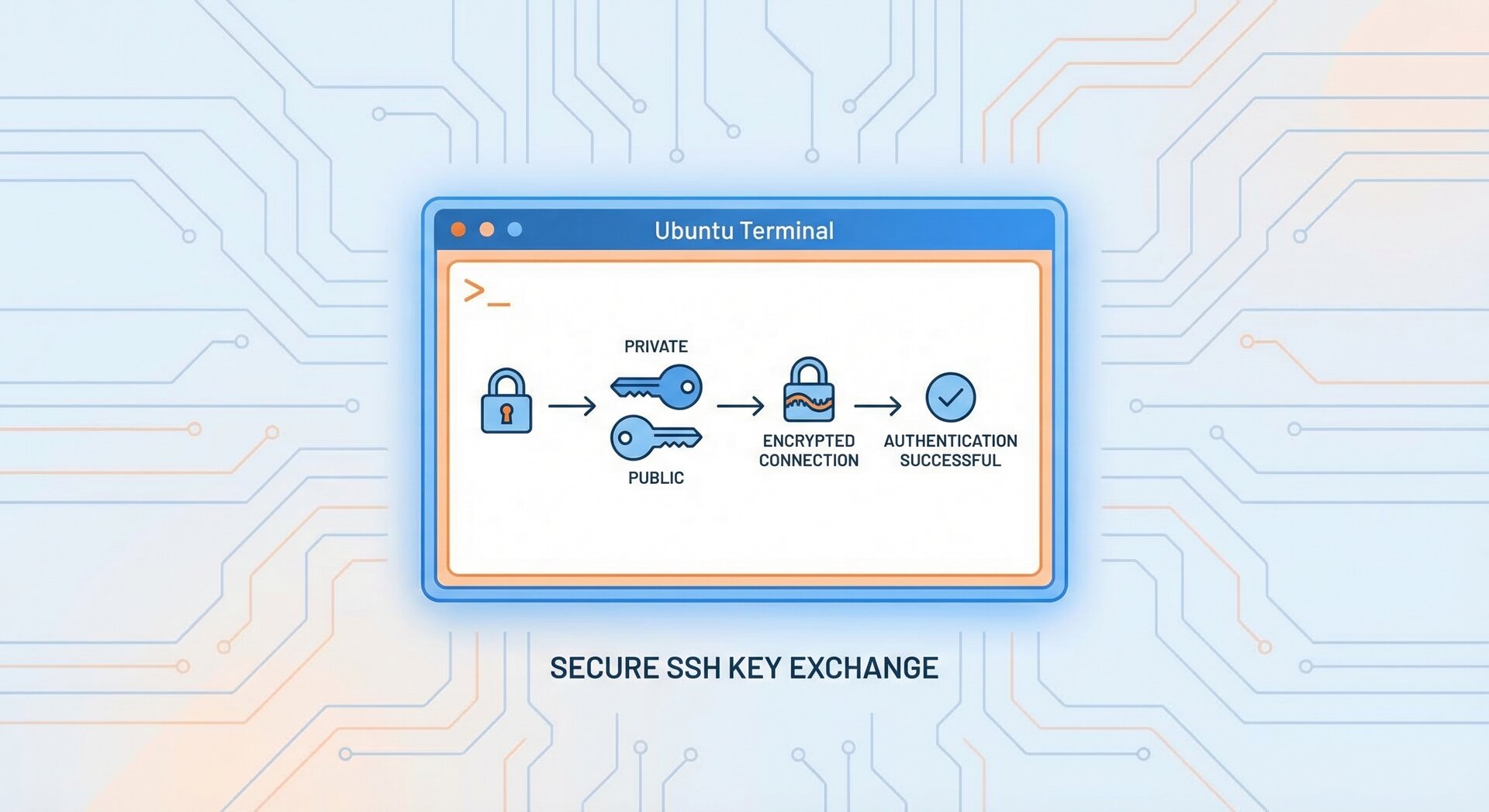
How to Set Up SSH Key Authentication on Ubuntu 2026

Setting up SSH key authentication on Ubuntu is one of the most important security practices for remote server management. In this comprehensive guide, you’ll learn how to configure SSH key authentication Ubuntu systems step-by-step, from generating keys to troubleshooting common issues.
Whether you’re managing a single Ubuntu server or hundreds of cloud instances, SSH key authentication provides a more secure alternative to password-based login. By the end of this tutorial, you’ll have passwordless SSH access configured on your Ubuntu machine.
Why Use SSH Key Authentication on Ubuntu?
SSH key authentication Ubuntu offers several advantages over traditional password authentication:
- Enhanced Security: SSH keys are cryptographically stronger than passwords and virtually impossible to brute-force
- Convenience: Once configured, you can connect without typing passwords repeatedly
- Automation-Friendly: Perfect for scripts, CI/CD pipelines, and automated deployment workflows
- Audit Trail: Each key can be tracked to a specific user or system
According to recent security research, SSH public key authentication reduces unauthorized access attempts by over 90% compared to password-only setups.
Prerequisites for SSH Key Authentication Ubuntu Setup
Before setting up SSH key authentication Ubuntu, ensure you have:
- Ubuntu 20.04, 22.04, or 24.04 LTS (server or desktop)
- SSH server installed (
1openssh-server
)
- A user account with sudo privileges
- Basic command-line knowledge
If SSH server isn’t installed yet, run:
2
3
4
sudo apt install openssh-server -y
sudo systemctl enable ssh
sudo systemctl start ssh
Step 1: Generate SSH Key Pair on Your Local Machine
The first step in configuring SSH key authentication Ubuntu is generating a public-private key pair on your local computer (not the server).
Open your terminal and run:
Why Ed25519? It’s faster and more secure than traditional RSA keys. However, if you need RSA for legacy systems:
You’ll be prompted for:
- File location: Press Enter to use default (
1~/.ssh/id_ed25519
)
- Passphrase: Optional but recommended for additional security
This creates two files:
-
1~/.ssh/id_ed25519
(private key – KEEP THIS SECRET)
-
1~/.ssh/id_ed25519.pub
(public key – safe to share)
Step 2: Copy Public Key to Ubuntu Server
Now that you have your key pair, transfer the public key to your Ubuntu server. The easiest method uses
1 | ssh-copy-id |
:
Replace
1 | username |
with your Ubuntu username and
1 | ubuntu-server-ip |
with your server’s IP address. You’ll need to enter your password one last time.
Manual Method (if ssh-copy-id isn’t available):
This command:
- Reads your public key
- Connects to the server
- Creates
1.ssh
directory if needed
- Appends your key to
1authorized_keys
Step 3: Verify SSH Key Authentication Ubuntu Configuration
Test your SSH key authentication Ubuntu setup by connecting without a password:
If configured correctly, you’ll log in immediately (or with passphrase if you set one). No password prompt means success!
For detailed SSH troubleshooting steps, check our comprehensive guide on common connection issues.
Step 4: Secure Your SSH Configuration
Once SSH key authentication Ubuntu is working, disable password authentication for maximum security:
Find and modify these lines:
2
3
PubkeyAuthentication yes
ChallengeResponseAuthentication no
Restart SSH service:
⚠️ Warning: Before disabling password auth, test SSH key login from multiple terminals to avoid lockout!
Advanced SSH Key Authentication Ubuntu Tips
Using SSH Agent for Passphrase Management
If you set a passphrase, avoid typing it repeatedly with SSH agent:
2
ssh-add ~/.ssh/id_ed25519
Enter your passphrase once, and the agent remembers it for the session.
Configure SSH Config File for Easy Access
Create
1 | ~/.ssh/config |
for shortcut connections:
2
3
4
5
HostName 192.168.1.100
User username
IdentityFile ~/.ssh/id_ed25519
Port 22
Now connect with just:
For more SSH configuration tips, see our guide on optimizing SSH performance on Ubuntu.
Managing Multiple SSH Keys
If you manage several servers or GitHub accounts, generate separate keys:
2
ssh-keygen -t ed25519 -f ~/.ssh/id_ed25519_personal -C "[email protected]"
Specify which key to use in
1 | ~/.ssh/config |
:
2
3
4
5
6
7
HostName work.example.com
IdentityFile ~/.ssh/id_ed25519_work
Host github-personal
HostName github.com
IdentityFile ~/.ssh/id_ed25519_personal
SSH Key Types Comparison: Ed25519 vs RSA vs ECDSA
When you configure SSH key authentication Ubuntu, choosing the right key type matters. Here’s a detailed comparison:
Ed25519 (Recommended for 2026)
Ed25519 is the modern standard for SSH key authentication:
- Security: 256-bit security, immune to many RSA vulnerabilities
- Performance: Fastest key generation and verification
- Size: Smallest key size (68 characters public key)
- Compatibility: Supported since OpenSSH 6.5 (2014)
The
1 | -a 100 |
flag increases KDF rounds for better passphrase protection.
RSA (Legacy but Universal)
RSA remains widely supported but requires larger keys:
- Security: 4096-bit RSA recommended (2048-bit deprecated)
- Performance: Slower than Ed25519
- Compatibility: Universal support, even on ancient systems
ECDSA (Middle Ground)
ECDSA offers better performance than RSA but isn’t as robust as Ed25519:
Use 521-bit curves for maximum security (not 384 or 256).
Troubleshooting SSH Key Authentication Ubuntu
Permission Issues
SSH is strict about file permissions. If authentication fails, check:
2
3
4
chmod 600 ~/.ssh/authorized_keys
chmod 600 ~/.ssh/id_ed25519
chmod 644 ~/.ssh/id_ed25519.pub
Debug SSH Connection
Use verbose mode to see what’s happening:
For more detail, use
1 | -vv |
or
1 | -vvv |
.
Check SSH Server Logs
On the Ubuntu server, inspect auth logs:
Look for permission errors or key rejection messages.
SSH Key Rotation Strategy for Ubuntu Servers
Maintaining SSH key authentication Ubuntu security requires regular key rotation:
When to Rotate SSH Keys
- Annually: Scheduled rotation for all administrative keys
- Employee departure: Immediately revoke access
- Suspected compromise: Emergency rotation with incident response
- Hardware replacement: Generate new keys for new workstations
- Compliance requirements: Follow your organization’s policies
Safe Key Rotation Process
2
3
4
5
6
7
8
9
10
11
ssh-keygen -t ed25519 -f ~/.ssh/id_ed25519_new -C "rotated-2026"
# 2. Add new key to server (keeps old key active)
ssh-copy-id -i ~/.ssh/id_ed25519_new.pub user@server
# 3. Test new key works
ssh -i ~/.ssh/id_ed25519_new user@server
# 4. Update ~/.ssh/config to use new key
# 5. Remove old key from server's authorized_keys after verification
Never remove the old key before verifying the new one works!
Security Best Practices for SSH Key Authentication
Implementing SSH key authentication Ubuntu is just the start. Follow these security practices:
- Always use passphrases on private keys
- Rotate keys annually or when team members leave
- Store private keys securely – never commit to Git repositories
- Use different keys for different environments (dev/staging/production)
- Enable two-factor authentication for critical servers
- Monitor authorized_keys regularly for unauthorized entries
According to Ubuntu’s official OpenSSH documentation, combining SSH keys with fail2ban and UFW firewall creates a robust security layer.
SSH Key Authentication for Cloud Providers
Most cloud platforms (AWS, Azure, DigitalOcean) require SSH key authentication Ubuntu by default:
- AWS EC2: Upload public key during instance creation or import via EC2 console
- DigitalOcean Droplets: Add SSH keys in account settings before deploying
- Azure VMs: Provide public key during VM configuration
This prevents password-based attacks from day one.
Monitoring SSH Key Usage and Anomalies
Track SSH key authentication Ubuntu activity for security monitoring:
Enable Detailed SSH Logging
Edit
1 | /etc/ssh/sshd_config |
:
Restart SSH and monitor
1 | /var/log/auth.log |
:
Detect Unauthorized Key Additions
Monitor changes to
1 | ~/.ssh/authorized_keys |
:
2
sudo auditctl -w /home/*/.ssh/authorized_keys -p wa -k ssh_key_changes
Review audit logs:
Failed Authentication Alerts
Use fail2ban to block repeated failed SSH attempts:
2
3
sudo systemctl enable fail2ban
sudo systemctl start fail2ban
Configure in
1 | /etc/fail2ban/jail.local |
:
2
3
4
5
6
7
enabled = true
port = ssh
filter = sshd
logpath = /var/log/auth.log
maxretry = 3
bantime = 3600
Combining SSH key authentication Ubuntu with fail2ban creates multiple defense layers against unauthorized access.
Automating SSH Key Deployment
For managing multiple Ubuntu servers, use Ansible to deploy SSH keys:
2
3
4
5
authorized_key:
user: ubuntu
state: present
key: "{{ lookup('file', '~/.ssh/id_ed25519.pub') }}"
This scales SSH key authentication Ubuntu deployment across your infrastructure efficiently.
Conclusion
You’ve successfully learned how to implement SSH key authentication on Ubuntu 2026. This security improvement protects your servers from brute-force attacks while simplifying daily administration tasks.
Remember to:
- Generate strong Ed25519 or RSA-4096 keys
- Disable password authentication after testing
- Use SSH agent for passphrase convenience
- Configure
1~/.ssh/config
for easy server access
- Regularly audit and rotate your SSH keys
With SSH key authentication Ubuntu properly configured, you’ve taken a significant step toward securing your Linux infrastructure. For more advanced SSH topics, explore our tutorials on SSH tunneling and port forwarding.
- About the Author
- Latest Posts

Mark is a senior content editor at Text-Center.com and has more than 20 years of experience with linux and windows operating systems. He also writes for Biteno.com