How to Configure SSH Key Authentication on Ubuntu 24.04 Server (2026)

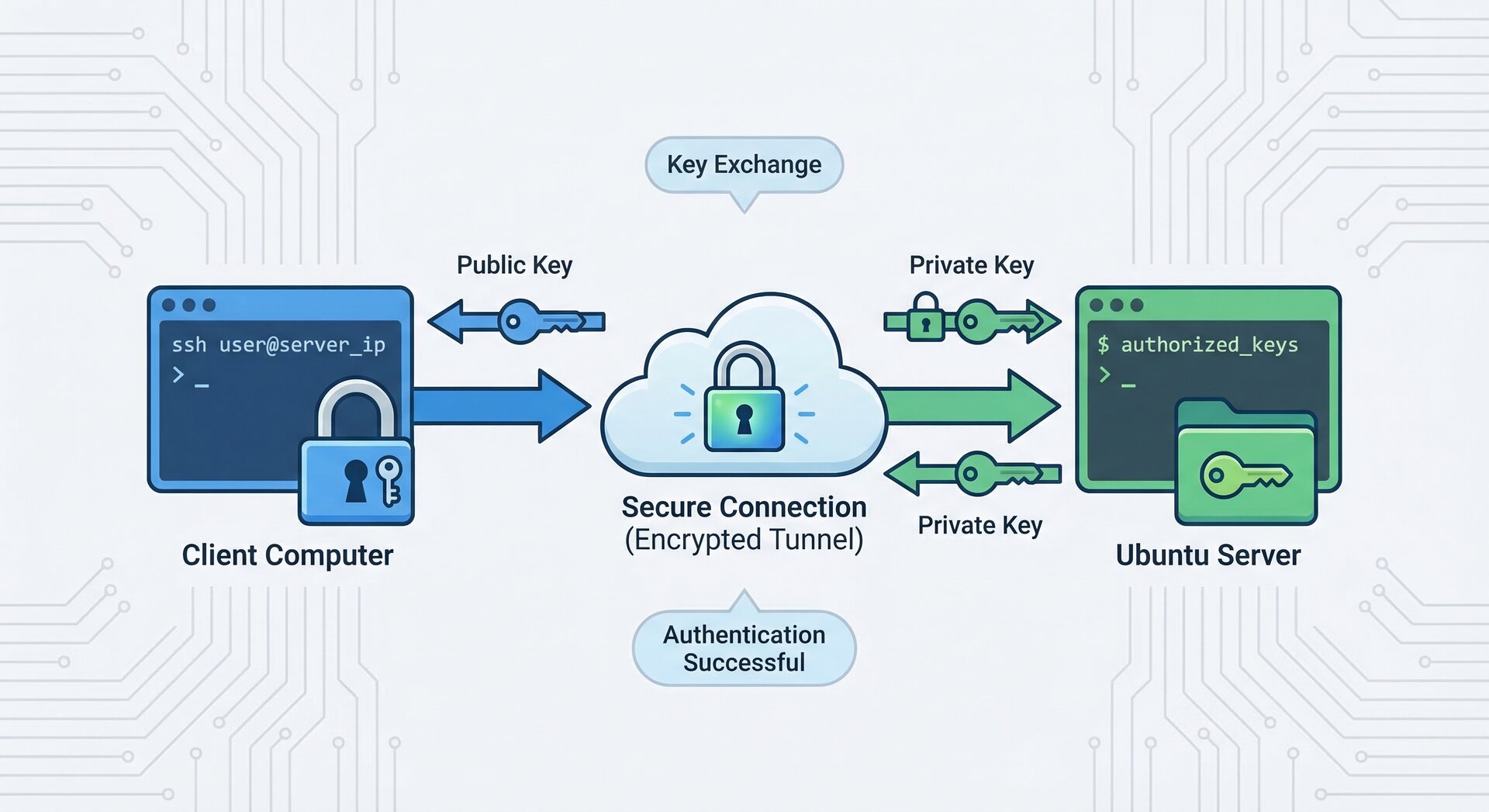
Setting up SSH key authentication ubuntu servers is one of the most important security measures for system administrators. In this comprehensive guide, we’ll walk you through configuring ssh key authentication ubuntu 24.04 servers step by step. By the end of this tutorial, you’ll understand how ssh key authentication ubuntu works and why it’s superior to password-based authentication.
Why Use SSH Key Authentication on Ubuntu?
SSH key authentication ubuntu systems provide significantly better security than traditional password authentication. When you configure ssh key authentication ubuntu servers, you eliminate the risk of brute-force password attacks. The cryptographic key pair used in ssh key authentication ubuntu setups is virtually impossible to crack with current computing power.
Here are the key benefits of using ssh key authentication ubuntu:
- Enhanced Security: SSH key authentication ubuntu uses 2048-bit or 4096-bit encryption, far stronger than typical passwords
- No Password Transmission: With ssh key authentication ubuntu, passwords never travel over the network
- Automated Access: SSH key authentication ubuntu enables passwordless login for scripts and automation
- Audit Trail: Each ssh key authentication ubuntu key can be tracked to a specific user
According to the official SSH Academy documentation, key-based authentication is the recommended approach for all production systems.
Prerequisites for SSH Key Authentication Ubuntu Setup
Before configuring ssh key authentication ubuntu on your server, ensure you have:
- An Ubuntu 24.04 server with root or sudo access
- A client machine (Linux, macOS, or Windows with SSH client)
- Basic command-line knowledge
- SSH service running on the server (usually pre-installed)
Step 1: Generate SSH Key Pair on Client Machine
The first step in setting up ssh key authentication ubuntu is generating a key pair on your client machine. This creates both a private key (kept secret on your client) and a public key (copied to the server).
Generate RSA Key for SSH Key Authentication Ubuntu
Open your terminal and run:
This command creates a 4096-bit RSA key pair for your ssh key authentication ubuntu setup. You’ll see output like:
2
Enter file in which to save the key (/home/username/.ssh/id_rsa):
Press Enter to accept the default location, or specify a custom path.
Set a Strong Passphrase (Recommended)
When prompted for a passphrase, enter a strong one. This adds an extra layer of security to your ssh key authentication ubuntu configuration:
2
Enter same passphrase again:
While optional, a passphrase protects your private key if your client machine is compromised.
Step 2: Copy Public Key to Ubuntu Server
Now that you’ve generated your key pair, you need to copy the public key to your Ubuntu server. There are several methods for this step of ssh key authentication ubuntu setup.
Method 1: Using ssh-copy-id (Easiest)
The simplest way to configure ssh key authentication ubuntu is using the
1 | ssh-copy-id |
utility:
Enter your password when prompted. The utility automatically adds your public key to the server’s
1 | ~/.ssh/authorized_keys |
file.
Method 2: Manual Copy (Alternative)
If
1 | ssh-copy-id |
isn’t available, manually copy your public key:
Copy the output, then SSH to your server:
On the server, create the .ssh directory and authorized_keys file if they don’t exist:
2
3
4
chmod 700 ~/.ssh
echo "YOUR_PUBLIC_KEY_HERE" >> ~/.ssh/authorized_keys
chmod 600 ~/.ssh/authorized_keys
Replace
1 | YOUR_PUBLIC_KEY_HERE |
with your actual public key content.
Step 3: Configure SSH Server Settings
To properly secure your ssh key authentication ubuntu setup, you should configure the SSH daemon settings. Edit the SSH configuration file:
Enable Public Key Authentication
Ensure these lines are set correctly for ssh key authentication ubuntu:
2
AuthorizedKeysFile .ssh/authorized_keys
Disable Password Authentication (Recommended)
Once your ssh key authentication ubuntu is working, disable password authentication for maximum security:
2
3
ChallengeResponseAuthentication no
UsePAM no
Warning: Only disable password authentication after verifying that ssh key authentication ubuntu is working! Test it first by opening a new SSH session without closing your current one.
Additional Security Hardening
Consider these additional settings for your ssh key authentication ubuntu configuration:
2
3
MaxAuthTries 3
LoginGraceTime 30
After making changes, restart the SSH service:
Step 4: Test SSH Key Authentication Ubuntu Connection
Before closing your existing SSH session, test your ssh key authentication ubuntu setup in a new terminal window:
If configured correctly, you should be logged in without entering a password (or only your key passphrase if you set one). If it doesn’t work, keep your original SSH session open and troubleshoot.
Troubleshooting SSH Key Authentication Ubuntu Issues
If your ssh key authentication ubuntu setup isn’t working, check these common issues:
Check File Permissions
Incorrect permissions are the most common problem with ssh key authentication ubuntu:
2
chmod 600 ~/.ssh/authorized_keys
Verify SSH Service Status
Check SSH Logs
Review authentication logs for ssh key authentication ubuntu errors:
Look for lines containing “sshd” to diagnose connection issues.
Verify Public Key Format
Ensure your public key in
1 | ~/.ssh/authorized_keys |
is on a single line without line breaks. Each key should start with
1 | ssh-rsa |
or
1 | ssh-ed25519 |
.
Advanced SSH Key Authentication Ubuntu Configurations
Using ED25519 Keys (Recommended for 2026)
For modern ssh key authentication ubuntu setups, consider using ED25519 keys instead of RSA. They’re more secure and faster:
The setup process for ED25519 ssh key authentication ubuntu is identical to RSA, just with better cryptographic properties.
Multiple SSH Keys Management
If you manage multiple servers with ssh key authentication ubuntu, create an SSH config file:
Add entries like:
2
3
4
5
6
7
8
9
HostName 192.168.1.100
User username
IdentityFile ~/.ssh/id_rsa_server1
Host server2
HostName 192.168.1.101
User admin
IdentityFile ~/.ssh/id_ed25519_server2
Then connect simply with
1 | ssh server1 |
or
1 | ssh server2 |
.
SSH Agent for Passphrase Management
If you use passphrases with your ssh key authentication ubuntu keys, use ssh-agent to avoid repeated entry:
2
ssh-add ~/.ssh/id_rsa
Enter your passphrase once, and ssh-agent will remember it for the session.
Security Best Practices for SSH Key Authentication Ubuntu
Follow these best practices to maintain secure ssh key authentication ubuntu systems:
- Use Strong Keys: Generate 4096-bit RSA or ED25519 keys for ssh key authentication ubuntu
- Protect Private Keys: Never share your private key; it should stay on your client machine only
- Use Passphrases: Always set a strong passphrase for your ssh key authentication ubuntu keys
- Regular Key Rotation: Rotate your ssh key authentication ubuntu keys annually
- Disable Root Login: Use
1PermitRootLogin no
in your SSH configuration
- Monitor Access: Regularly review
1/var/log/auth.log
for suspicious activity
- Backup Keys Securely: Store backup copies of your ssh key authentication ubuntu keys in encrypted storage
The Ubuntu Server documentation provides additional security recommendations for SSH configurations.
Automating Tasks with SSH Key Authentication Ubuntu
One major advantage of ssh key authentication ubuntu is enabling automation. You can run scripts and tasks without manual password entry:
2
3
4
ssh user@server "sudo systemctl status nginx"
scp /local/file user@server:/remote/path/
rsync -avz /local/dir/ user@server:/remote/dir/
This makes ssh key authentication ubuntu essential for DevOps workflows, backup scripts, and monitoring systems.
Revoking SSH Access
If you need to revoke ssh key authentication ubuntu access for a specific key, edit the
1 | authorized_keys |
file on the server:
Delete the line containing the public key you want to revoke. Save and exit. The change takes effect immediately without restarting SSH.
Monitoring SSH Key Authentication Ubuntu Activity
Keep track of ssh key authentication ubuntu login attempts and successful connections:
2
sudo grep 'Failed password' /var/log/auth.log
Consider setting up automated alerts for unusual ssh key authentication ubuntu activity using tools like fail2ban or custom scripts.
Conclusion
Implementing ssh key authentication ubuntu on your servers is a crucial security step that every system administrator should take. By following this guide, you’ve learned how to generate SSH keys, copy them to your Ubuntu 24.04 server, configure the SSH daemon, and apply security best practices for ssh key authentication ubuntu systems.
Remember that ssh key authentication ubuntu is just one part of a comprehensive security strategy. Combine it with regular system updates, firewall configuration, and monitoring for a truly secure server environment. For more information about securing your Ubuntu server, check out our guides on configuring UFW firewall on Ubuntu and Ubuntu server security hardening.
The OpenSSH manual is an excellent resource for advanced ssh key authentication ubuntu configurations and troubleshooting.
- About the Author
- Latest Posts

Mark is a senior content editor at Text-Center.com and has more than 20 years of experience with linux and windows operating systems. He also writes for Biteno.com