Ubuntu 26.04 LTS Installation and New Features Guide (2026)

If you are looking for a comprehensive ubuntu 26.04 lts installation guide, you have come to the right place. Canonical is preparing to release Ubuntu 26.04 LTS, codenamed “Resolute Raccoon,” in April 2026, and this long-term support version brings significant improvements that every Linux enthusiast should know about. This tutorial covers everything from downloading the ISO to configuring your system for optimal performance.
Ubuntu 26.04 LTS represents a major leap forward in the Linux desktop experience. With GNOME 50, Linux kernel 7.0, and revolutionary Rust-based core utilities, this release is designed for both newcomers and experienced administrators. Whether you are upgrading from Ubuntu 24.04 LTS or performing a fresh installation, this guide provides step-by-step instructions to ensure a smooth transition.
What is New in Ubuntu 26.04 LTS
The latest Ubuntu LTS release introduces several groundbreaking features that enhance security, performance, and user experience. Understanding these changes before installation helps you take full advantage of the new capabilities.
GNOME 50 Desktop Environment
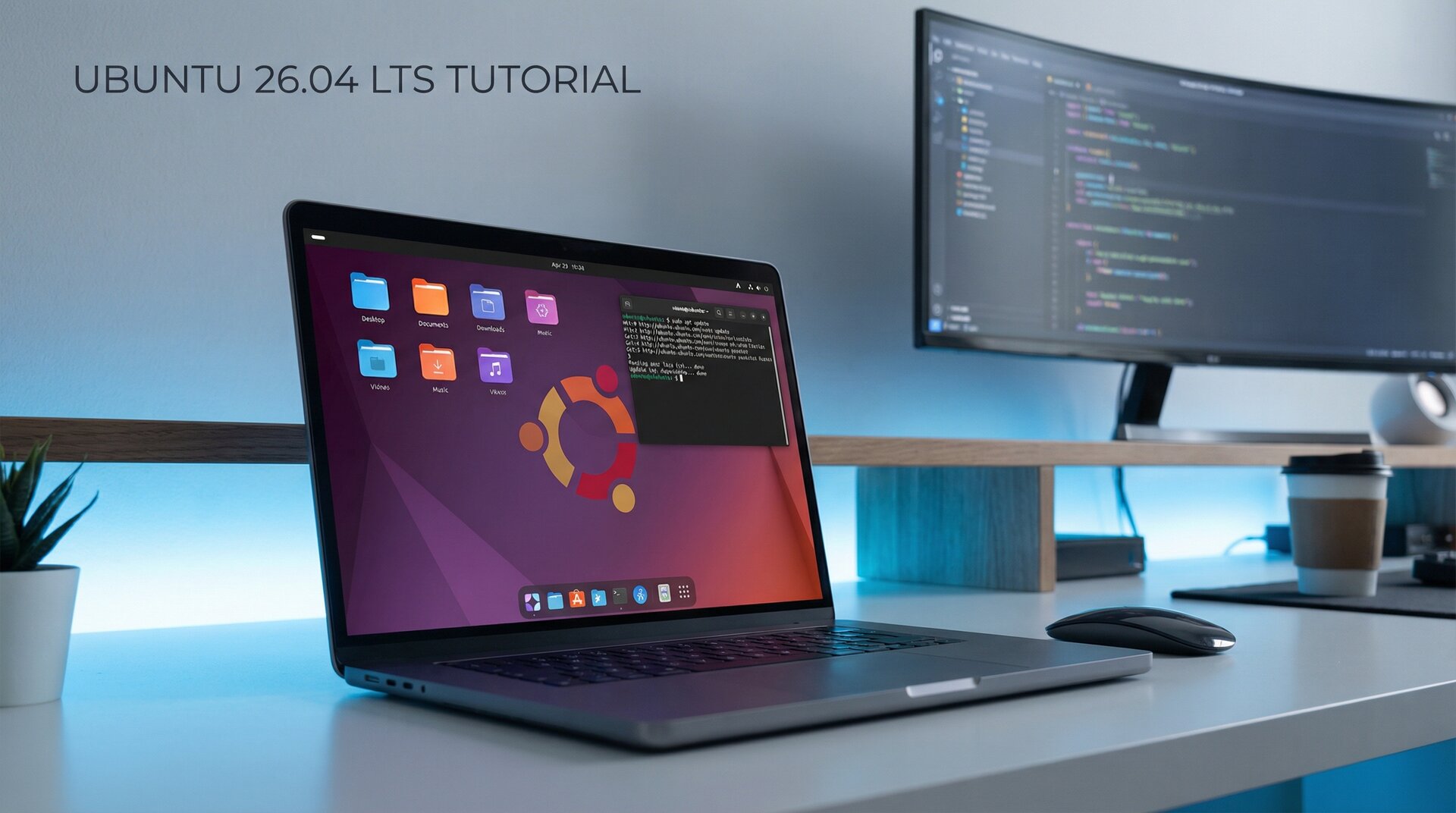
Ubuntu 26.04 ships with GNOME 50, offering a refined Wayland-only desktop experience. The new release features colorful folder icons, improved Nautilus file manager functionality, and better color management. Users will appreciate the fully opaque dock, adaptive Calculator icon, and redesigned LibreOffice icons that create a more cohesive visual experience.
Linux Kernel 7.0
The inclusion of Linux kernel 7.0 brings substantial improvements including sched_ext for eBPF-based scheduling, enhanced NVIDIA Wayland support through NVK, and post-quantum key exchange capabilities. These advancements ensure better hardware compatibility and future-proof security for your system.
Rust-Based Core Utilities
A significant innovation in Ubuntu 26.04 LTS is the introduction of Rust-based tools including sudo-rs and uutils coreutils. These memory-safe alternatives to traditional C-based utilities reduce security vulnerabilities while maintaining full compatibility with existing workflows.
TPM-Backed Full Disk Encryption
Security receives a major boost with TPM-backed full disk encryption. This feature integrates with your hardware security module to provide seamless encryption without requiring manual passphrase entry on every boot, while still maintaining recovery key options.
System Requirements for Ubuntu 26.04 LTS
Before beginning your ubuntu 26.04 lts installation, verify that your hardware meets the minimum requirements:
- Processor: 2 GHz dual-core processor or better
- Memory: 4 GB RAM minimum, 8 GB recommended
- Storage: 25 GB available disk space for standard installation
- Graphics: Supports most modern Intel, AMD, and NVIDIA graphics cards
- Internet: Broadband connection for updates and software installation
For optimal performance with GNOME 50 and Wayland, systems with dedicated graphics cards will benefit from the improved NVIDIA and AMD ROCm support.
Downloading Ubuntu 26.04 LTS
Follow these steps to download the official Ubuntu 26.04 LTS ISO image:
- Visit the official Ubuntu website at ubuntu.com/download
- Select “Ubuntu 26.04 LTS” from the available versions
- Choose the appropriate architecture (64-bit for most modern systems)
- Click the download button and save the ISO file to your computer
- Verify the download using the provided SHA256 checksum
The ISO file size is approximately 4-5 GB, so ensure you have a stable internet connection before starting the download.
Creating a Bootable USB Drive
After downloading the ISO, you need to create a bootable installation medium. Here are the recommended tools for different operating systems:
Using Rufus on Windows
Rufus is the most reliable tool for creating bootable USB drives on Windows systems:
- Download Rufus from rufus.ie
- Insert a USB drive with at least 8 GB capacity
- Open Rufus and select your USB device
- Click “SELECT” and choose the Ubuntu 26.04 LTS ISO
- Leave partition scheme as GPT for UEFI systems or MBR for legacy BIOS
- Click “START” and wait for the process to complete
Using BalenaEtcher on macOS and Linux
BalenaEtcher provides a cross-platform solution for creating bootable drives:
- Download BalenaEtcher from balena.io/etcher
- Insert your USB drive
- Click “Flash from file” and select the ISO
- Choose your USB drive as the target
- Click “Flash” to begin the process
Alternatively, on existing Linux systems, you can use the dd command for direct image writing.
Installing Ubuntu 26.04 LTS
With your bootable USB ready, proceed with the installation:
Booting from USB
- Insert the bootable USB drive into your computer
- Restart your system
- Enter the boot menu (usually F12, F10, or Esc depending on manufacturer)
- Select the USB drive as the boot device
- Choose “Try or Install Ubuntu” from the GRUB menu
Installation Options
The Ubuntu installer provides several installation methods:
Standard Installation: Recommended for most users, includes essential applications and utilities.
Minimal Installation: Includes only the browser and basic utilities, ideal for advanced users who want a clean slate.
Disk Partitioning
The installer offers multiple partitioning options:
- Erase disk and install Ubuntu: Simplest option for dedicated installations
- Install alongside Windows: Preserves existing Windows installation with dual-boot capability
- Manual partitioning: Full control for advanced users with specific requirements
For systems with BitLocker-encrypted Windows partitions, the installer now provides improved handling and guidance.
User Account Setup
Create your user account with the following information:
- Your full name
- Computer name
- Username
- Secure password
The installation process typically takes 15-30 minutes depending on your hardware specifications.
Post-Installation Configuration
After completing the ubuntu 26.04 lts installation, follow these essential configuration steps:
System Updates
Immediately update your system to ensure you have the latest security patches:
sudo apt update
sudo apt upgrade -y
Installing Additional Drivers
Open “Software & Updates” and navigate to the “Additional Drivers” tab to install proprietary drivers for NVIDIA or AMD graphics cards.
Enabling TPM Encryption
If your system supports TPM 2.0, configure full disk encryption through Settings > Security > Encryption.
Troubleshooting Common Installation Issues
Here are solutions to frequent problems encountered during installation:
Secure Boot Issues
If you encounter Secure Boot errors, you may need to:
- Enter BIOS/UEFI settings
- Navigate to Secure Boot options
- Temporarily disable Secure Boot during installation
- Re-enable after installation and register the Ubuntu keys
Graphics Problems
For systems with NVIDIA graphics experiencing display issues:
- Boot with the “nomodeset” parameter
- Complete the installation
- Install proprietary NVIDIA drivers post-installation
Upgrading from Ubuntu 24.04 LTS
If you are currently running Ubuntu 24.04 LTS, you can upgrade directly:
sudo do-release-upgrade
Ensure you have a complete backup before attempting the upgrade, and verify that all critical applications are compatible with the new version.
Conclusion
This ubuntu 26.04 lts installation guide has covered everything from preparation to post-installation configuration. Ubuntu 26.04 LTS represents a significant advancement in Linux desktop technology, offering enhanced security through Rust-based utilities, improved performance with kernel 7.0, and a refined user experience with GNOME 50.
Whether you are a Linux newcomer or experienced administrator, Ubuntu 26.04 LTS provides a solid foundation for productivity, development, and server applications. With ten years of support planned, this LTS release ensures stability and security for the long term.
For additional Linux tutorials and guides, explore our other articles on system administration and open-source software.
- About the Author
- Latest Posts

Mark is a senior content editor at Text-Center.com and has more than 20 years of experience with linux and windows operating systems. He also writes for Biteno.com