Ubuntu Server Setup Guide 2026: Complete Configuration Tutorial

Ubuntu Server Setup Guide 2026: Your Complete Configuration Tutorial
If you are looking for a comprehensive Ubuntu Server setup guide 2026, you have come to the right place. This complete configuration tutorial will walk you through every step of installing and securing your Ubuntu Server for production use. Whether you are a beginner or an experienced system administrator, this guide provides actionable instructions to get your server running smoothly.
The Ubuntu Server setup guide 2026 covers everything from initial installation to advanced security configurations. By following this tutorial, you will learn how to set up a robust, secure, and high-performing server environment that meets modern infrastructure requirements.
Why Choose Ubuntu Server in 2026?
Ubuntu Server remains the most popular Linux distribution for servers in 2026. With long-term support (LTS) releases, extensive documentation, and a massive community, it is the ideal choice for businesses and developers alike. The Ubuntu Server setup guide 2026 ensures you leverage all these benefits effectively.
Key advantages include:
- Five years of security updates with LTS releases
- Enterprise-grade stability and performance
- Compatibility with cloud platforms like AWS, Azure, and Google Cloud
- Free and open-source with no licensing costs
- Extensive package repository with over 60,000 packages
Prerequisites for This Ubuntu Server Setup Guide 2026
Before starting with this Ubuntu Server setup guide 2026, ensure you have the following:
- A physical server, virtual machine, or cloud instance
- Minimum 2GB RAM (4GB recommended for production)
- 10GB free disk space (25GB recommended)
- Internet connection for downloading packages
- Ubuntu Server 24.04 LTS ISO file
Step 1: Download and Install Ubuntu Server 2026
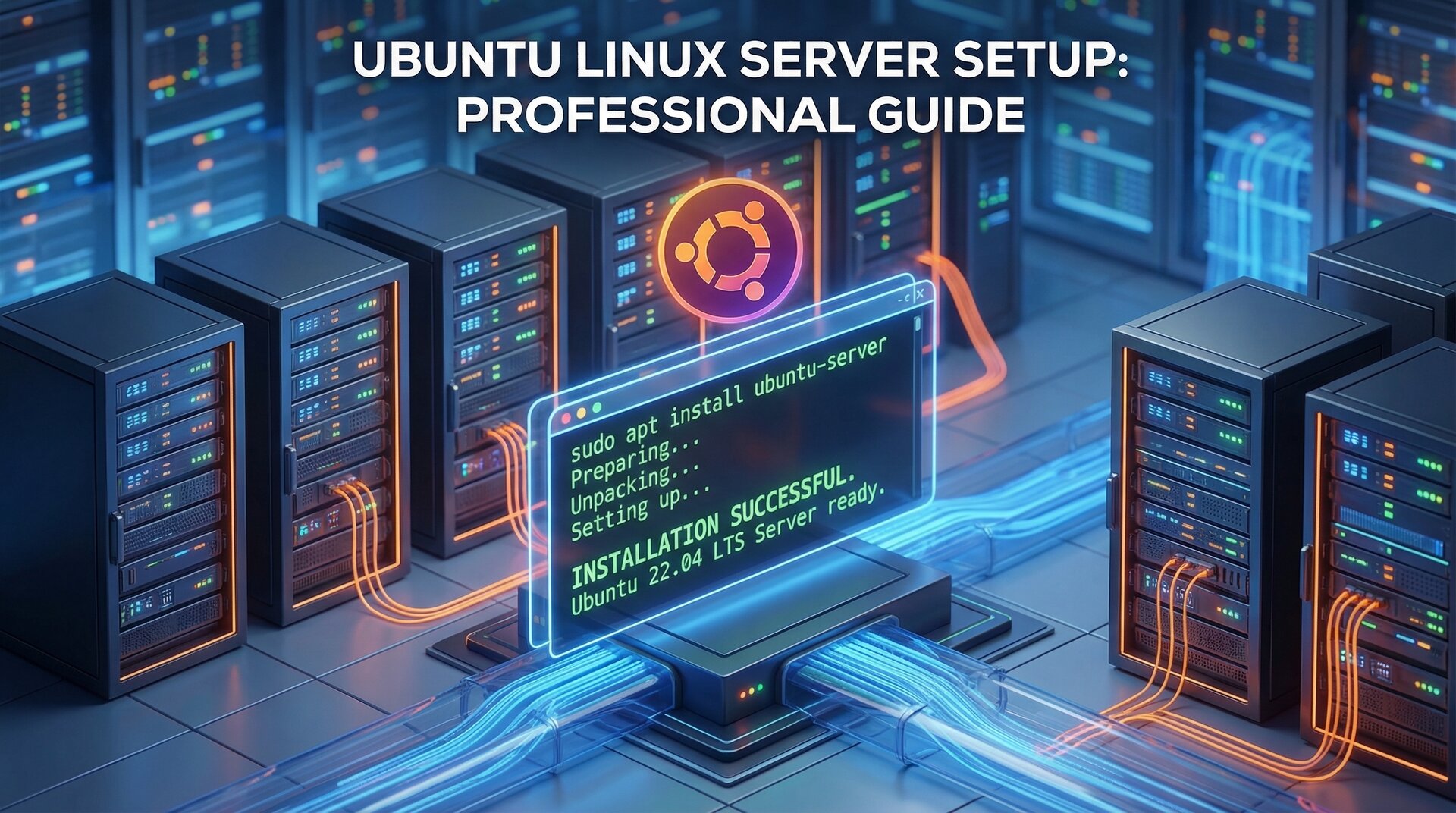
The first step in our Ubuntu Server setup guide 2026 is obtaining the installation media. Visit the official Ubuntu website and download the Ubuntu Server 24.04 LTS ISO file. This version provides support until April 2029, making it perfect for production environments.
Create a bootable USB drive using tools like Rufus (Windows) or Etcher (cross-platform). Insert the USB drive into your server and boot from it. The installation wizard will guide you through the process:
- Select your language and keyboard layout
- Choose “Install Ubuntu Server”
- Configure network settings (DHCP or static IP)
- Set up your user account and hostname
- Select disk partitioning (use entire disk for simplicity)
- Choose additional software (OpenSSH server is recommended)
Step 2: Initial Configuration After Installation
Once installation completes, this Ubuntu Server setup guide 2026 recommends immediate security hardening. Log in with your created user account and update the system using sudo apt update and sudo apt upgrade -y. This ensures all packages are current with the latest security patches. Regular updates are crucial for maintaining a secure server environment.
Step 3: Configure SSH for Secure Remote Access
SSH is the primary method for managing your Ubuntu Server remotely. This Ubuntu Server setup guide 2026 recommends the following SSH security configurations. Edit the SSH configuration file with sudo nano /etc/ssh/sshd_config and make these essential changes: Disable root login with PermitRootLogin no, change the default port to 2222, disable password authentication after setting up keys, and limit users with AllowUsers yourusername. Restart SSH to apply changes with sudo systemctl restart sshd.
Step 4: Set Up Firewall with UFW
The Uncomplicated Firewall (UFW) is Ubuntu user-friendly firewall interface. Every Ubuntu Server setup guide 2026 should include firewall configuration. Run the following commands: sudo ufw default deny incoming, sudo ufw default allow outgoing, sudo ufw allow 2222/tcp for your SSH port, sudo ufw allow 80/tcp for HTTP, sudo ufw allow 443/tcp for HTTPS, and finally sudo ufw enable. Verify the firewall status with sudo ufw status verbose.
Step 5: Install Essential Server Software
Depending on your server purpose, install necessary software. This Ubuntu Server setup guide 2026 covers common server roles. For a web server using Nginx, run sudo apt install nginx -y, then sudo systemctl enable nginx and sudo systemctl start nginx. For a database server using MariaDB, run sudo apt install mariadb-server mariadb-client -y followed by sudo mysql_secure_installation. For PHP support, install sudo apt install php-fpm php-mysql php-curl php-gd php-mbstring php-xml php-zip -y.
Step 6: Configure Automatic Security Updates
Security is paramount in any Ubuntu Server setup guide 2026. Configure automatic security updates by running sudo apt install unattended-upgrades -y and sudo dpkg-reconfigure unattended-upgrades. Edit the configuration with sudo nano /etc/apt/apt.conf.d/50unattended-upgrades and uncomment the security updates line.
Step 7: Set Up Fail2Ban for Intrusion Prevention
Fail2Ban protects your server from brute-force attacks. Install and configure it with sudo apt install fail2ban -y, sudo systemctl enable fail2ban, and sudo systemctl start fail2ban. Create a custom configuration by copying the default file and editing it.
Step 8: Configure Time Synchronization
Accurate time is essential for logs and security certificates. Set your timezone with sudo timedatectl set-timezone Europe/Berlin, install chrony with sudo apt install chrony -y, and enable it with sudo systemctl enable chrony.
Step 9: Set Up Regular Backups
No Ubuntu Server setup guide 2026 is complete without backup strategies. Install backup tools with sudo apt install rsync cron -y. Create a backup script that uses rsync to backup web files and mysqldump for databases. Schedule it with cron to run automatically.
Step 10: Monitor Server Performance
Install monitoring tools to track server health with sudo apt install htop iotop nethogs -y. For advanced monitoring, consider installing Netdata using their official installation script.
Best Practices for Ubuntu Server Management
This Ubuntu Server setup guide 2026 concludes with essential best practices. Always test changes in a staging environment first. Keep comprehensive documentation of your configuration. Use configuration management tools like Ansible for multiple servers. Regularly review logs using sudo journalctl -xe. Implement log rotation to prevent disk space issues. Use strong, unique passwords and SSH keys. Disable unnecessary services to reduce attack surface.
Troubleshooting Common Issues
Even with the best Ubuntu Server setup guide 2026, issues can occur. For network connectivity problems, check network configuration with ip addr show, ip route show, and ping 8.8.8.8. For disk space issues, monitor usage with df -h and du -sh /var/log/*. For high memory usage, identify memory hogs with free -h and ps aux –sort=-%mem | head -10.
Conclusion
This Ubuntu Server setup guide 2026 has covered everything from installation to advanced security configurations. By following these steps, you have created a robust, secure, and well-configured Ubuntu Server ready for production workloads.
Remember that server administration is an ongoing process. Regular updates, monitoring, and maintenance are essential for keeping your server secure and performing optimally. Bookmark this Ubuntu Server setup guide 2026 for future reference and share it with your team.
Ready to take your Ubuntu Server skills further? Explore our other tutorials on Linux administration, security hardening, and cloud deployment strategies.
Additional Resources
For more information on Ubuntu Server administration, check out these related tutorials on our site and external resources. Visit our guides on How to Secure SSH Server 2026, UFW Firewall Complete Guide 2026, and Linux Server Hardening Checklist 2026. External resources include the Official Ubuntu Server Documentation, Debian System Administrator Manual, and Ansible Configuration Management documentation.
- About the Author
- Latest Posts

Mark is a senior content editor at Text-Center.com and has more than 20 years of experience with linux and windows operating systems. He also writes for Biteno.com