Batocera Linux: We Simplify Retro Gaming Emulation

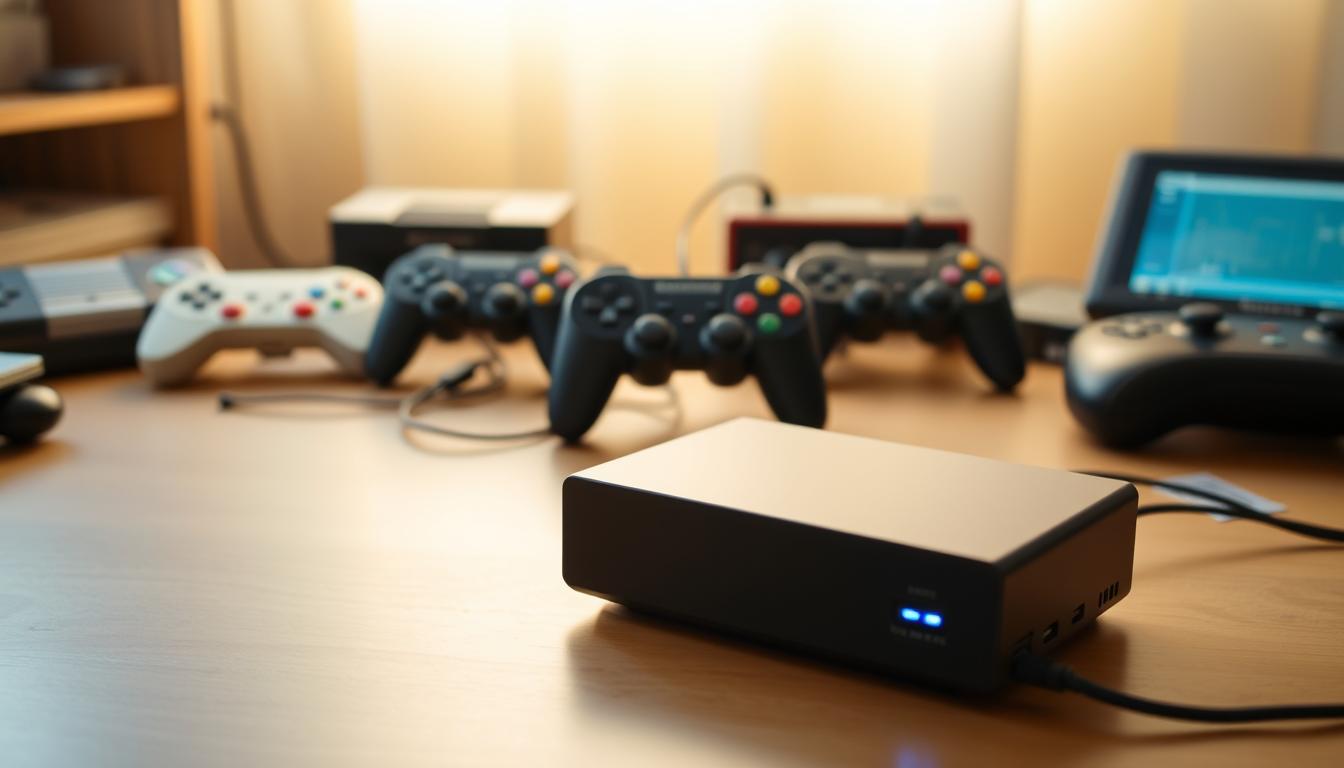
What if you could turn any computer into a dedicated arcade for classic games without needing a computer science degree? For many, the technical maze of emulation software and system settings is the biggest barrier to enjoying retro titles. We believe everyone should have easy access to gaming history. That’s why we’re excited to introduce this powerful, open-source operating system. It’s specifically designed to eliminate complexity. This platform transforms compatible devices into dedicated retro gaming machines. It works on desktops, laptops, and small boards like the Raspberry Pi. The entire process becomes simple, from installation to playing your favorite classics.
The system is completely free. It runs from removable media like USB sticks or SD cards. This preserves your main computer’s setup while giving you a portable gaming solution. Our guide will walk you through every step. We cover hardware needs, installation, configuration, and managing your game library. We help you focus on fun, not frustrating technical issues.
Key Takeaways
- Transforms standard computers into dedicated retro gaming consoles effortlessly.
- Completely free and open-source operating system for broad accessibility.
- Works across various hardware, from PCs to single-board computers.
- Runs from removable media, keeping your main computer’s OS untouched.
- Streamlines the entire emulation process from setup to gameplay.
- Designed for users of all technical skill levels.
- Focuses on preserving and enjoying classic video game experiences.
Introduction to Batocera Linux and Retro Gaming
The world of retro gaming becomes accessible to everyone through specialized software solutions. We designed this platform to remove technical barriers that often discourage newcomers.
Overview of the System’s Capabilities
This operating system functions as a complete gaming solution. It features a user-friendly interface that welcomes both beginners and experienced users. The built-in file manager simplifies organizing game files and system configurations.
Multiple emulators work together to support dozens of classic gaming systems. This includes everything from arcade machines to home consoles across generations. The platform offers extensive customization options for visual themes and controller settings.
What Makes Retro Emulation Special
Retro emulation preserves gaming history by making classic titles available to new generations. Many of these games are difficult to find or expensive in their original formats. The system also integrates Kodi Media Center for multimedia playback.
This all-in-one approach saves significant time compared to configuring individual emulators. Users can focus on enjoying games rather than troubleshooting technical issues. The platform transforms any compatible device into a dedicated gaming console.
Understanding the World of Retro Gaming Emulation
Have you ever wondered how classic games from old consoles can run on modern computers? This magic is made possible by software called an emulator. An emulator acts like a digital version of the original gaming hardware. It faithfully recreates the specific environment needed for those classic games to function.
This technology is vital for game preservation. As original consoles age and break, emulation ensures these classic games are not lost to time. It’s a key part of protecting our gaming heritage.
Different emulator cores offer various levels of accuracy and performance. Some prioritize speed, while others focus on perfect compatibility. This is why you might see multiple options for the same console.
We must address the legal side. It’s crucial to own the original game before using a ROM file. This respects copyright laws and supports the creators. Understanding these rules is part of being a responsible member of the gaming community.
Emulators provide fantastic benefits beyond just playing old games. Features like save states and fast-forward enhance the experience. You can even improve graphics and remap controls. This makes revisiting old favorites more enjoyable than ever.
Platforms like Batocera simplify this entire process. They bundle multiple emulators into one easy system. This is similar to how Linux Mint provides a complete desktop experience. It removes the complexity of managing individual programs.
Benefits of Using Batocera Linux for Retro Gaming
Portability and ease of use are often overlooked benefits that can transform how we experience retro gaming. The platform’s design philosophy centers on removing technical complexity while maximizing accessibility. This approach delivers tangible advantages for users of all skill levels.
User-Friendly Interface and Flexibility
We designed this gaming system to operate entirely from removable media like USB sticks or SD cards. This non-invasive approach preserves your computer’s primary operating system. You can enjoy retro titles without risking data loss or complex installations.
The interface eliminates the steep learning curve typically associated with emulation configuration. Users can start playing games within minutes of their first boot. This saves significant time compared to manual setup processes.
One USB drive creates a consistent gaming environment across different devices. Your controller settings, game library, and preferences travel with you. This flexibility means your gaming experience remains unchanged regardless of the host computer.
The system features preconfigured emulators with optimal default settings. This eliminates hours of manual configuration and trial-and-error adjustments. Automatic game detection organizes your library by console with metadata and artwork.
Community-driven support provides extensive documentation and active forums. The integrated update system keeps all components current without individual software maintenance. This comprehensive approach ensures long-term reliability and performance.
Essential Hardware and Software Requirements
Before diving into the world of classic games, understanding the basic hardware requirements ensures a smooth setup process. We’ll guide you through the essential components needed to create your retro gaming system.
Minimum System Specifications
Almost any functional computer can serve as the foundation for your gaming setup. The basic requirements are minimal: a working USB port and internet connection for initial setup. This makes the system accessible to users with older hardware.
For storage, you’ll need a USB flash drive or SD card. While version 30 and above can run on an 8 GB drive, we strongly recommend 16 GB or larger. This extra space accommodates the operating system, multiple emulators, and a decent game library.
A compatible graphics card and sound card are recommended for optimal performance. While the system supports older hardware, better components enable advanced features like higher resolution output.
Recommended Controllers and USB Drive Sizes
Controller selection greatly enhances your gaming experience. Many popular options offer plug-and-play functionality. We recommend controllers from brands like 8Bitdo, Xbox, and PlayStation for seamless compatibility.
Consider your USB port availability carefully. You’ll need one port for the system drive itself, plus additional ports for wired controllers. Wireless Bluetooth options can help conserve USB ports if needed.
Storage capacity directly impacts your game collection. Larger drives (32 GB, 64 GB, or more) provide ample space for extensive libraries, including larger ROM files from CD-based systems. Plan your storage based on your gaming needs.
Downloading and Flashing the Batocera Image
Acquiring the system is a straightforward process. We begin by visiting the official download page. This is where you select the correct image file for your device.
Choose the file that matches your hardware, such as a standard PC or a single-board computer. This ensures full compatibility and optimal performance.
Selecting the Right Image File
You have two main options to download the file: a direct link or a torrent. The torrent is useful for slower connections.
The download you receive is a compressed .img file with a .gz extension. This compression makes the file smaller for faster download times.
Using BalenaEtcher to Flash Your USB or SD Card
Next, we use BalenaEtcher to write the image to your storage device. This free tool works on Windows, Mac, and Linux.
Insert your target USB drive, SD card, or SSD. Open BalenaEtcher and select the downloaded image file. Then, choose your target drive.
Critical: Double-check the target drive selection! The flashing process will completely erase the chosen USB stick or card.
Click “Flash” and wait for the process to complete. This typically takes 5 to 10 minutes, depending on your computer and the drive’s speed.
For a permanent setup, you can install to an internal SSD. First, format the SSD in Windows Disk Management. Then, use BalenaEtcher to flash the image.
Booting and Initial Setup of Your Batocera System
Getting your retro gaming system up and running is the final step before diving into classic games. We’ll guide you through the booting process and initial configuration for a smooth start.
Accessing Boot Menus on Different Devices
To boot on a standard PC, insert your prepared USB stick or SD card. Restart the computer. Immediately press the key to access the boot menu. Common keys are [F10], [F11], or [F12].
This key varies by manufacturer. If one doesn’t work, try another. From the menu, select the device containing your system. This tells the computer to boot from it instead of Windows.
For single-board computers, the process is simpler. Just insert the SD card and power on the device. It will automatically boot from the correct source.
Mac users should hold the Option key during startup. This brings up a menu to select the USB drive. If your system ignores the USB and loads Windows, you may need to adjust the boot order in the BIOS settings.
First-Time Configuration Procedures
On the first boot, the system prepares itself. It automatically creates necessary partitions for your games and saves. This time-saving step requires no input from you.
An initial setup screen may appear. Here, you can set your language, time zone, and network preferences. These basic settings personalize your experience.
Once complete, you’ll see the main interface. Your retro gaming system is now ready. The configuration is optimized by default, so you can start exploring right away.
Navigating the Batocera Interface and File Management
Understanding how to navigate the system’s menus unlocks its full potential. We designed the interface to be intuitive for users of all skill levels. The main screen organizes emulated consoles into clearly labeled categories.
Finding ROM Folders and BIOS Settings
Each section displays available games for specific consoles. You can scroll through lists using controller buttons or keyboard arrows. The system makes it easy to find your favorite titles.
Access the built file manager through the main menu. This tool organizes game files by system in clearly labeled folders. Look for directories like “nes” for Nintendo Entertainment System or “psx” for PlayStation.
BIOS files are critical for certain gaming systems to function properly. These special files must be placed in the correct folder. The system includes a “Missing BIOS” section that shows exactly what files you need.
Use the network share feature to transfer files from other computers. This eliminates the need to physically remove your USB stick. Simply connect to your home network and access the shared folder.
The file manager helps organize your growing game library. Create new folders for better organization. Delete unwanted files to keep your collection manageable.
During gameplay, press the Select button to access quick menus. These provide options for save states and emulator settings. You can make adjustments without exiting your game.
Optimizing Display and Audio for Enhanced Gaming
Proper display calibration and audio configuration transform good retro gaming into an exceptional immersive experience. We focus on optimizing these critical settings to ensure classic games look and sound their best.
Calibrating Your Display
Access the display settings through the main system menu. Here you’ll find essential video options for resolution and aspect ratio. Choose 4:3 for authentic retro appearance or widescreen for modern displays.
For larger screens, advanced configuration may be needed. Update graphics drivers through system updates. Use the Xrandr tool for precise control over unusual resolutions. This ensures minimal input lag for responsive gameplay.
Shader effects add visual authenticity. Apply CRT filters or scanlines through the video settings. These enhancements recreate the original gaming atmosphere. Proper calibration makes games appear as developers intended.
Adjusting Audio Settings for Immersion
The sound configuration menu offers comprehensive audio options. Select your preferred output device—HDMI, analog jack, or USB audio. Adjust volume levels and enable enhancements for better immersion.
Address common audio issues through buffer settings. Fix crackling sound or audio lag by adjusting these settings. For optimal performance, consider using a system monitor tool to track resource usage during configuration.
Fine-tuning both video and audio settings creates the perfect retro gaming environment. These adjustments ensure each classic title delivers its intended visual and auditory experience.
Managing and Organizing Your Retro Game Library
Effective library management transforms random game files into a curated gaming museum. We focus on legal acquisition methods and efficient organization techniques.
Sourcing Legal ROMs
We emphasize the importance of legal ROM acquisition. Users should only download files for games they physically own. This respects copyright laws and supports preservation efforts.
Legal sources include pdroms.de for freeware titles and archive.org for public domain games. RomHacking and Console Classix offer modified and licensed options.
Efficiently Transferring and Sorting Games
Network transfer allows adding games without removing your USB drive. Access the network share from Windows or other computers on the same network.
For direct transfer, copy ROM files to a separate USB drive. Plug it into your running system and use the file manager to copy to the correct folder.
Proper organization is crucial. Place game files in correctly named system directories like “gb” for Game Boy or “megadrive” for Sega Genesis.
Tools like ARRm Scraper automate metadata collection. They download game information, box art, and descriptions for a visually rich library.
Resolving Common Issues and Troubleshooting
Even the most streamlined system can encounter minor technical hurdles. We focus on practical solutions for the most frequent problems users face. This ensures your gaming experience remains smooth and enjoyable.
Fixing Missing BIOS Files
Many classic consoles need specific BIOS files to operate. Without them, games may not load or run correctly. This is a common compatibility challenge.
To identify missing files, navigate to System Settings. Select the “Missing BIOS” option. A detailed list will show exactly which files are required and their correct names.
You must source these BIOS files from hardware you own. Copy them to the BIOS folder on your USB stick or drive. Use the same network share or direct transfer method as for game ROMs.
File naming is critical. The names must match exactly, including capitalization. Incorrect names will cause the system to continue reporting the files as missing.
Running on Older or Low-Powered Devices
Batocera offers specialized images for different hardware. This includes 32-bit CPUs and low-power processors. Choosing the right image improves compatibility on older computers.
If performance is slow, adjust these settings:
- Lower the resolution in video options.
- Disable visual shaders and enhancements.
- Select less demanding emulator cores.
- Enable latency reduction features.
Boot issues often relate to BIOS/UEFI settings. Enable legacy boot mode and disable Secure Boot if your device doesn’t recognize the drive. This saves time and frustration.
batocera linux: A Versatile Emulation System
The true power of this emulation system lies in its ability to bridge generations of gaming technology seamlessly. While primarily known for retro gaming, the platform extends its capabilities to modern PC titles through Steam and Proton integration.
This gaming console replacement offers immediate entertainment with pre-installed free games. Users can explore the system’s features without sourcing their own files initially.
We clarify a common misconception: this operating system cannot be installed within Windows as an application. Instead, it runs independently from removable media like a USB stick or dedicated SSD drive.
For permanent installation, users can install an internal SSD into their PC. Format the drive using Windows Disk Management, then flash the Batocera image file using balenaEtcher. This creates a dedicated gaming machine.
SSD installation offers significant advantages over USB deployment. You’ll experience faster loading times, improved responsiveness, and greater storage capacity for extensive game libraries.
The system demonstrates remarkable compatibility across various hardware platforms. From high-end gaming PCs to modest laptops, it adapts to different budgets and use cases.
When running from external media, your entire game collection and personalized settings become portable. Carry your customized gaming console between different computers while maintaining consistency.
Advanced Customization and Controller Setup
Taking control customization to the next level enables precision adjustments for competitive gameplay. We guide users through advanced configuration options that transform standard setups into personalized gaming experiences.
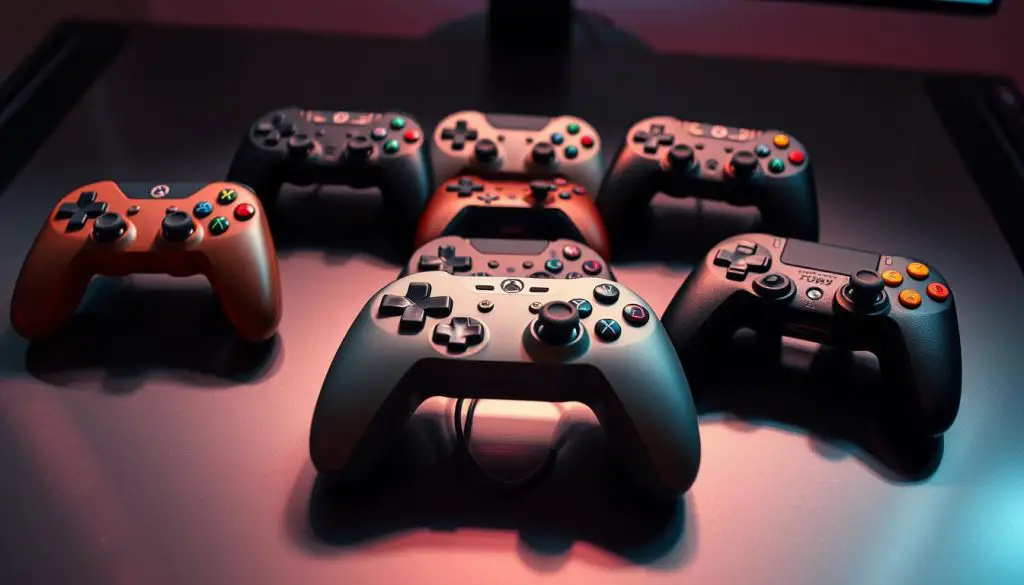
Our approach focuses on granular control over every aspect of your gaming system. This includes detailed controller mapping and optimal emulator selection.
Mapping Controller Settings and Custom Key Bindings
Access advanced configuration by navigating to any game in your list. Press the select button to enter the detailed settings menu.
We support various controller types including 8Bitdo, Xbox, and PlayStation devices. Each button can be assigned specific functions for optimal control.
Create pad-to-keyboard configurations for systems that originally used keyboard inputs. This expands compatibility and provides flexible control options.
Selecting the Best Emulators and Cores
Different emulators offer unique balances of accuracy and performance. Launch any game and press the select button to access core options.
Evaluate which core works best for specific titles based on hardware compatibility. Consider performance requirements and feature support when making your selection.
Visual themes transform your gaming interface with customized images and layouts. Download and apply different themes to personalize your experience.
Conclusion
The path from hardware preparation to gameplay reflects a commitment to accessibility. We have shown how this process turns complex emulation into a straightforward task.
This guide has equipped you with the knowledge to build your own retro gaming center. You learned about hardware, installation, and managing your game library.
The system runs from a USB drive, keeping your main computer untouched. Its unified interface makes exploring classic games simple and enjoyable.
Remember to source your game files legally. This respects copyright and supports the gaming community. For more advanced automation, you can explore using ChatGPT for Ansible.
Your journey into Batocera Linux starts with these steps. The result is a powerful, portable gaming solution that celebrates video game history.
FAQ
What are the minimum system requirements for running this emulation system?
How do I transfer my game files to the USB stick?
Can I use any USB controller with this gaming setup?
Why do some games require BIOS files, and where do I put them?
How do I update to the latest version without losing my settings?
What file formats does the system support for game images?
Can I run this operating system from an internal SSD instead of a USB drive?
How do I configure video settings for optimal display on my TV?
What should I do if a specific game won’t run properly?
Can I use this platform to play games from more modern consoles?
- About the Author
- Latest Posts

Janina is a technical editor at Text-Center.com and loves to write about computer technology and latest trends in information technology. She also works for Biteno.com.