Dual Boot Windows 11 and Linux: Our Expert Instructions

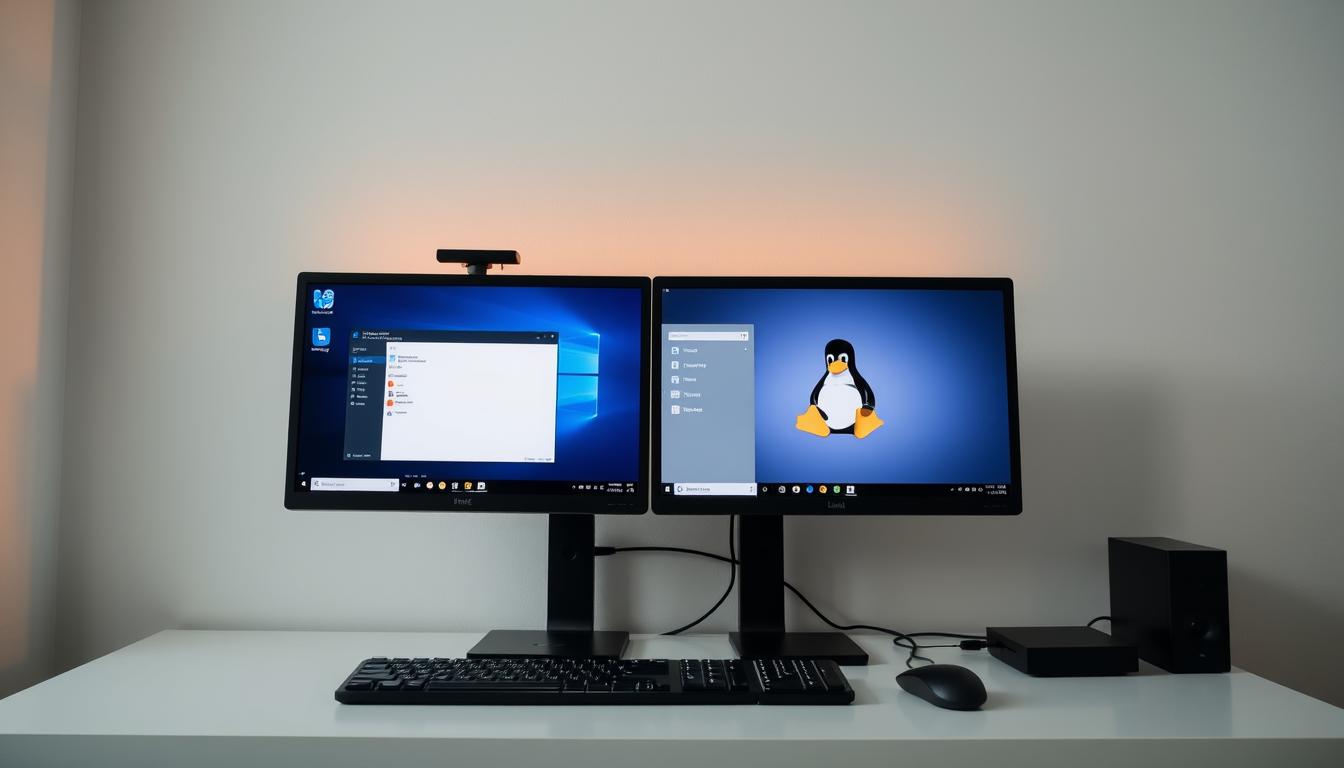
What if you could unlock the full potential of your computer, giving you the power to choose your digital environment at startup? Running two different operating systems on a single machine is not just a possibility—it’s a practical solution for many users.
This guide provides a comprehensive walkthrough for this specific configuration. We explain how both systems can coexist peacefully on your hardware. Our instructions cover the entire process from initial preparation to final optimization.
This setup is ideal for technology enthusiasts, developers, and professionals who need access to the unique strengths of both environments. We emphasize the importance of following each step carefully to ensure a safe installation without data loss.
Our expert guide will walk you through key stages, including system checks, creating installation media, and configuring the boot manager. We set clear expectations for the time and technical skill required to achieve a successful outcome.
Key Takeaways
- This guide enables running two distinct operating systems on one computer.
- The configuration allows you to select your preferred system at startup.
- Proper preparation is crucial to avoid data loss during the installation.
- The process is well-suited for developers, students, and tech professionals.
- We cover all essential steps, from initial setup to post-installation tweaks.
- Following the instructions carefully ensures a smooth and successful setup.
Introduction to Dual Boot Windows 11 and Linux
Exploring alternative operating systems no longer requires specialized hardware or technical expertise. The landscape of software installation has evolved significantly from the complex text-based methods of the 1990s.
Modern graphical interfaces have made the process much more approachable for everyone. Today’s user-friendly installation procedures contrast sharply with earlier intimidating approaches.
We outline two primary pathways for entering the Linux ecosystem. One option involves dedicated hardware like Raspberry Pi. The other approach implements a configuration where both operating systems share the same machine.
This setup maintains each platform in separate partitions on the storage drive. A custom boot menu called GRUB appears during startup. This allows selection between the available systems when powering on the computer.
This configuration remains popular for users needing specific applications from one environment while exploring Linux for development or learning. Both platforms coexist peacefully with dedicated resources and independent functionality.
Our guide uses Ubuntu as the Linux distribution example alongside the Microsoft platform. This represents one of the most accessible combinations for newcomers to this type of setup.
Benefits of a Dual Boot Setup
This configuration delivers tangible performance and workflow improvements for various user scenarios. Users maintain complete access to both computing environments without virtualization overhead.
The flexibility advantage stands out as a primary benefit. Professionals can leverage industry-standard applications on one platform while using the other for development work.
We highlight these key advantages:
- Native performance: Each system runs directly on hardware without virtualization slowdown
- Cost efficiency: No need for separate computers, saving money and space
- Educational value: Safe environment for learning new skills and commands
- Security separation: Different platforms for sensitive tasks versus everyday use
Gaming enthusiasts particularly benefit from this arrangement. They can enjoy optimal performance for games while having a robust alternative platform available.
The setup provides the ideal solution for users needing specific software from both ecosystems. It represents a practical approach to maximizing computing resources effectively.
Understanding the Dual Boot Process
Before diving into the technical steps, it’s crucial to comprehend how the startup sequence functions with multiple platforms. This knowledge prevents errors and ensures a smooth installation experience.
We break down the entire procedure into distinct phases for clarity. These include preparation, partition creation, installation, and boot manager configuration.
The boot process begins when you power on your machine. The BIOS/UEFI firmware loads the GRUB bootloader, which presents the selection menu.
Proper partition structure is essential for success. The storage drive divides into separate sections for each operating environment.
GRUB serves as the intelligent manager that intercepts normal startup. It provides a clean interface for choosing your preferred computing environment.
The automatic timeout feature ensures accessibility. After 10 seconds of inactivity, GRUB loads the default option, typically the Linux distribution.
Understanding this sequence helps with informed decisions about partition sizes and boot options. It’s the foundation for a stable multi-platform configuration.
Each operating environment remains completely isolated during this process. This prevents conflicts while enabling peaceful coexistence on the same hardware.
Preparing Your System for Dual Boot
Adequate system readiness ensures a smooth transition between operating environments. We begin with essential preparations that protect your data and optimize performance.
First and foremost, create a complete backup of your entire drive. Partitioning operations carry inherent risks, and having a recent backup provides essential protection against accidental data loss.
Your computer must meet specific hardware requirements. We recommend at least 8GB of RAM for optimal performance. Adequate storage space is equally important—plan for approximately 50GB allocated to each operating environment.
Verify your system uses UEFI firmware rather than legacy BIOS. Check your current storage allocation and partition structure through system information tools. Disable Fast Startup and encryption features that might interfere with the installation.
Document your current configuration, including activation status and important file locations. Ensure reliable power and adequate cooling throughout the process, as installations can be resource-intensive.
Essential Tools and Software for Dual Booting
Proper tool selection forms the foundation of any technical installation process. We recommend gathering all necessary resources before beginning.
The hardware requirements include a USB flash drive with minimum 8GB capacity. This storage device accommodates the operating system image and installation files.
Rufus serves as our primary software utility for this configuration. This free tool helps create bootable media from ISO files.
Essential tools include the Linux distribution ISO file downloaded from official sources. Windows built-in disk management utilities are also valuable.
Rufus proves particularly important for modern UEFI systems with Secure Boot enabled. It correctly formats the USB drive to work with current firmware requirements.
Partition management applications provide additional flexibility during setup. The Linux installer includes capable built-in partitioning features for most users.
We suggest keeping Windows recovery media accessible as a safety precaution. This allows restoring the original boot configuration if needed.
Optional applications like backup software offer extra protection. Advanced users might prefer dedicated partition management utilities.
Having all necessary tools prepared ensures a smooth workflow. This preparation prevents interruptions during the install process.
Creating a Bootable Linux Install USB
Before we can explore the new platform, we must prepare the installation tool that will guide us through the process. This critical step involves creating bootable media that contains our chosen operating system.
Downloading the Linux ISO
We begin by obtaining the installation file from official sources. The ISO format contains a complete live operating system that we can test before committing to installation.
Always download from legitimate websites to ensure file integrity and security. The live environment allows us to verify compatibility with our hardware.
Using Rufus to Create a Bootable Drive
Rufus serves as our primary utility for this task. This free application properly configures the USB drive for modern UEFI systems.
Insert your USB drive and launch Rufus. Select the correct device from the dropdown menu to avoid accidental data loss.
Click SELECT to choose your downloaded ISO file. The tool automatically applies the correct settings for creating bootable media.
This process prepares the installation tool that will launch our new computing environment.
Writing the Linux ISO with Rufus
The final configuration step in Rufus determines compatibility with modern computer firmware. We now focus on the critical partition scheme selection before creating our installation media.
Selecting the Correct Partition Scheme
Within Rufus, locate the “Partition scheme” dropdown menu. You must select GPT (GUID Partition Table) for systems with UEFI firmware.
This modern standard replaces the older MBR (Master Boot Record) format. GPT is necessary for current hardware and operating systems.
After choosing GPT, click START to begin writing to your USB drive. A prompt will appear asking you to select an image writing mode.
Choose “Write in ISO image mode” and click OK. This option ensures the file is correctly transferred for bootable media creation.
We emphasize carefully reading all prompts before proceeding. The writing process will permanently erase all data on the selected drive.
Double-check that the correct USB device is chosen. There is no recovery option once the overwrite process begins.
The operation typically takes 5-15 minutes depending on your drive speed and file size. Upon completion, click CLOSE and safely remove the media.
Your bootable USB drive is now ready for the next installation phase.
Booting from USB and Navigating the GRUB Menu
Now we reach the exciting moment of launching our prepared system. This phase brings us face-to-face with the installation environment.
Insert the USB drive into your machine. Restart the system. As it powers up, you must instruct the hardware to start from the USB device.
Manufacturers use different methods for this selection. Common approaches include pressing function keys like F12, F10, or F8 during startup. Some systems require accessing the BIOS setup to change the boot order.
Selecting “Try Ubuntu” for a Live Session
Successfully booting from the USB will display the GRUB menu. This is a custom boot loader used on many systems. It presents the “Try or Install Ubuntu” option.
Press Enter to select this choice. You will then see a prompt asking whether to try or install. Choose “Try Ubuntu” to load the operating system into RAM.
This creates a Live Distro environment. It provides a complete, functional system without altering your hard drive. You can test hardware compatibility and explore the interface.
All changes made in this mode are temporary. They disappear after restarting, making it a safe way to experiment. This feature is also valuable for rescuing systems that fail to start normally.
We recommend testing Wi-Fi, audio, and other components. This ensures everything works before committing to a full installation.
Installing Linux Alongside Windows 11
Modern installation interfaces have transformed what was once a complex process into an approachable experience for all users. We’ll use Ubuntu 22.04.1 as our example distribution to demonstrate this evolution. The installer elegantly guides you through each step of the process.
Before proceeding with the installation, we strongly recommend testing your hardware in live mode. Verify that audio, Wi-Fi, Bluetooth, and other essential components function correctly. This ensures compatibility before committing to the full setup.
The installation begins by double-clicking the Install icon on the desktop. This launches a comprehensive setup wizard that walks you through language selection, accessibility options, and keyboard configuration. You’ll choose between Interactive Installation for guided setup or automated options.
One critical decision involves selecting “Install Ubuntu alongside Windows Boot Manager.” This option automatically configures the setup without erasing your existing operating system. It represents the simplest path for newcomers to this configuration.
Allocating Disk Space and Configuring Partitions
Proper space distribution between your operating environments ensures both systems have adequate room to function optimally. This step requires careful attention to detail.
Adjusting the Partition Slider
We guide you through the visual partition allocation interface. Always verify the correct drive selection before making changes. Selecting the wrong storage device could lead to data loss.
The slider mechanism allows precise space allocation. We recommend a minimum of 50GB for the new environment. Consider future needs when determining partition sizes.
Choosing Encryption and User Options
Next, decide on drive encryption. The “No Encryption” option provides standard installation. Alternatively, “Encrypt with a passphrase” offers enhanced security for sensitive data.
Create your user account with a secure password. This becomes your default administrator profile. Choose a relevant hostname for network identification.
Set your location for accurate time zone configuration. Review all choices carefully before proceeding. This final verification ensures your configuration meets requirements.
Troubleshooting Dual Boot Windows 11 and linux Issues
Even with careful preparation, some technical challenges may arise when maintaining two operating environments on a single machine. We’ll guide you through resolving the most common problems that users encounter.
One frequent issue involves the computer starting directly to Microsoft’s platform without displaying the GRUB menu. This typically requires adjusting the boot order in your system’s firmware settings. Access your UEFI/BIOS during startup and ensure the correct boot manager has priority.
System updates can sometimes overwrite the boot loader configuration. If this occurs, use your Linux installation media to restore GRUB. The Boot Repair utility offers an automated solution for this scenario.
Partition recognition problems may prevent one environment from accessing files from the other. This often requires installing additional file system drivers. Time synchronization issues are also common because platforms handle hardware clock settings differently.
Boot errors like “GRUB rescue” or “Operating System Not Found” can appear after disk operations. Hardware conflicts might affect components like Wi-Fi adapters or graphics cards. We recommend checking device compatibility lists for your specific distribution.
If your system becomes unbootable after updates, recovery media provides the safest restoration path. Always test major changes in a controlled manner and maintain recent backups of critical data.
Adjusting BIOS Settings for Optimal Boot Performance
Fine-tuning your startup sequence is essential for accessing both operating environments. The first startup following installation requires careful attention to boot management settings within your system’s firmware.
We begin by accessing your system’s BIOS during the initial power-on sequence. Manufacturers use different methods for this process, typically requiring specific keys like Delete, F2, or F10.
Changing Boot Order and UEFI Options
Once inside the firmware interface, navigate to the Boot menu section. Here you’ll find the boot device priority list that determines startup sequence.
Follow these steps for proper configuration:
- Locate UEFI NVMe Drive BBS Priorities or equivalent option
- Set Boot Option 1 to your Linux installation
- Verify the changes before proceeding
- Save and exit to apply the new configuration
This adjustment ensures the GRUB menu loads during startup. The system will restart automatically after saving your changes.
Upon reboot, you’ll see the GRUB interface displaying available operating systems. The automatic timeout feature will select the default option after 10 seconds of inactivity.
Proper configuration at this stage prevents the system from bypassing the boot manager. This ensures consistent access to both computing environments moving forward.
Post-Installation System Checks and Tweaks
After completing the setup process, thorough verification ensures both computing environments function correctly. We begin by booting into the new platform to confirm successful installation.
Our first verification step involves testing all hardware components. Check Wi-Fi connectivity, audio output, and peripheral devices. External monitors and Bluetooth accessories should work properly.
Running system updates immediately is essential for security and stability. Use the built-in update manager to download the latest patches and improvements.
Next, reboot your machine to test the GRUB menu functionality. Verify that both operating systems appear as selectable options. This confirms the boot loader configuration works correctly.
Boot into the Microsoft platform to ensure it remains fully functional. Check that applications and files are intact. Time zone settings often require adjustment to prevent synchronization conflicts.
We recommend documenting your current configuration for future reference. This includes partition layout and software installations. Customizing GRUB settings like timeout duration can enhance your experience.
Sharing Files between Windows and Linux
Efficient data exchange between different platforms is a crucial aspect of any multi-environment setup. We explain how to share files seamlessly across both systems.
Understanding file system compatibility is essential. Linux can read and write to NTFS partitions natively. Windows requires additional software to access Linux ext4 file systems.
Accessing Windows files from Linux is straightforward. The system automatically mounts Windows partitions during startup. They appear in the file manager for easy access.
We recommend creating a shared data partition formatted as NTFS or exFAT. Both operating systems can read and write to this storage area. This is ideal for documents and media.
For automatic mounting of Windows partitions in Linux, edit the fstab configuration file. This ensures convenient access to shared files at startup.
File permission issues may occur when accessing Windows files from Linux. Configure mount options properly for read and write capabilities.
Accessing Linux files from Windows requires third-party software. These tools enable reading ext4 systems with some limitations.
Best practices include storing personal documents on the shared partition. Keep system files separate for organization.
Cloud storage solutions offer an alternative method for file sharing. They synchronize data across platforms without partition mounting.
Tips for a Seamless Dual Boot Experience
The long-term success of your multi-OS setup depends on consistent system management habits. We recommend establishing a maintenance routine that keeps both environments running smoothly.
Regular Backups and System Updates
We strongly emphasize maintaining regular backups of both platforms. Use system imaging tools to protect against data loss or boot configuration failures.
Keep both environments updated with the latest security patches. However, be cautious with major updates that might affect your boot settings. Test updates on one system before applying them to the other.
For optimal performance, consider these distribution choices:
- Linux Mint Cinnamon: Excellent for beginners with straightforward setup
- Arch Linux: Snappier performance for advanced users
- Manjaro: Balanced approach with good hardware support
Optimize boot times by adjusting GRUB timeout settings and disabling unnecessary startup services. Keep installation media accessible for quick repairs. Document your configuration including partition sizes and custom drivers.
Manage power settings carefully in both platforms to prevent conflicts. Familiarize yourself with essential keyboard shortcuts and apps to maximize productivity when switching environments.
Conclusion
We have walked through the complete setup process, from initial preparation to final tweaks. This guide provides a powerful way to run two distinct operating systems on one machine. The result is a flexible computing environment.
Modern installers make this process much easier than in the past. While it requires careful attention, the payoff is significant. You gain access to the strengths of both platforms without compromise.
Your machine is now ready for gaming, development, or learning. We encourage you to explore the vast world of open-source apps. Regular maintenance and backups will keep your setup running smoothly.
You now have the confidence to manage this configuration. Troubleshoot issues and optimize each system for your needs. Enjoy the power and flexibility of your new computing environment.
FAQ
What are the minimum system requirements for a dual boot configuration?
Can I access my Windows files from the Linux installation?
Is it safe to install a second operating system on my laptop?
What should I do if my computer doesn’t boot from the USB drive?
How do I choose which OS to start when I turn on my computer?
Can I use the same software applications on both systems?
What is the purpose of the “Try Ubuntu” (or similar) option during installation?
- About the Author
- Latest Posts

Mark is a senior content editor at Text-Center.com and has more than 20 years of experience with linux and windows operating systems. He also writes for Biteno.com