We Show You How to Disable Lock Screen Windows 10

Is your personal computer’s security setup actually creating a vulnerability? Many users assume the lock screen is an essential safeguard. However, real-world experiences reveal a different story. We’ve encountered numerous reports where this feature caused significant access problems. In one notable case, a user’s password suddenly failed after years of reliable use. This threatened access to gigabytes of personal data and installed applications. The situation was so severe that a complete system reset was considered.
Fortunately, the user avoided disaster by recalling old security questions. This frightening experience highlights a critical point: the lock screen can sometimes hinder more than it helps. For machines in secure environments, this extra step may offer minimal benefit while creating potential complications. This guide provides a clear path to reclaiming control. We will explain methods to bypass this feature, allowing your computer to boot directly to your desktop. This process can save you valuable time during every startup. One effective approach, as detailed in a Microsoft support thread, involves switching from a Microsoft account to a local account.
We’ll walk you through using both the Registry editor and the Group Policy Editor for Professional editions. Our step-by-step instructions ensure you can customize your Windows experience safely and effectively.
Key Takeaways
- The Windows 10 lock screen can become a barrier rather than a helpful security feature.
- Password failures on the lock screen have led to serious data access threats for some users.
- Bypassing the lock screen can streamline your computer’s startup process significantly.
- Switching to a local account is one method to remove password and PIN requirements.
- Registry Editor and Group Policy Editor provide technical solutions for this customization.
- Always consider your personal security environment before disabling this feature.
- Proper guidance can help you safely customize your login experience.
Understanding the Windows 10 Lock Screen
Many users encounter an unexpected barrier before reaching their desktop each time they power on their machine. This initial visual interface, known as the lock screen, displays the time, date, and notifications. It acts as a gateway that must be dismissed to access the login area where you enter your credentials.
What is the Lock Screen and Why It Matters
Microsoft designed this feature as a security layer. It provides a brief pause, potentially preventing unauthorized access on shared or public devices. For a single user in a secure location, however, this step can feel redundant. The actual security happens at the password prompt.
This distinction is crucial. The decorative screen shows background images. The subsequent login screen is where authentication occurs. Understanding this separation helps you evaluate its necessity for your setup.
Common Issues and User Experiences
Real-world experiences reveal significant problems. We have analyzed cases where a functioning password suddenly failed at the lock screen. One user with an older PC faced a rejected password after years of correct use.
This failure threatened permanent data loss. The only solution offered was a costly system reset, erasing everything. The user narrowly avoided disaster by recalling old security questions. This highlights a severe flaw in the system’s reliability.
Some found a workaround by switching their account type. Changing from a Microsoft to a local account via the Settings menu removed the password requirement after a restart. This simplified the login process but affected cloud services. Such experiences underscore the importance of managing system processes carefully to maintain control.
How to Disable Lock Screen Windows 10: Step-by-Step Guide
We now demonstrate the practical steps for system customization. Two primary techniques exist for this adjustment. The first utilizes the Registry Editor, a powerful tool for all editions. The second employs the Group Policy Editor, available on Professional, Enterprise, and Education versions.
Using Registry Editor to Remove the Lock Screen
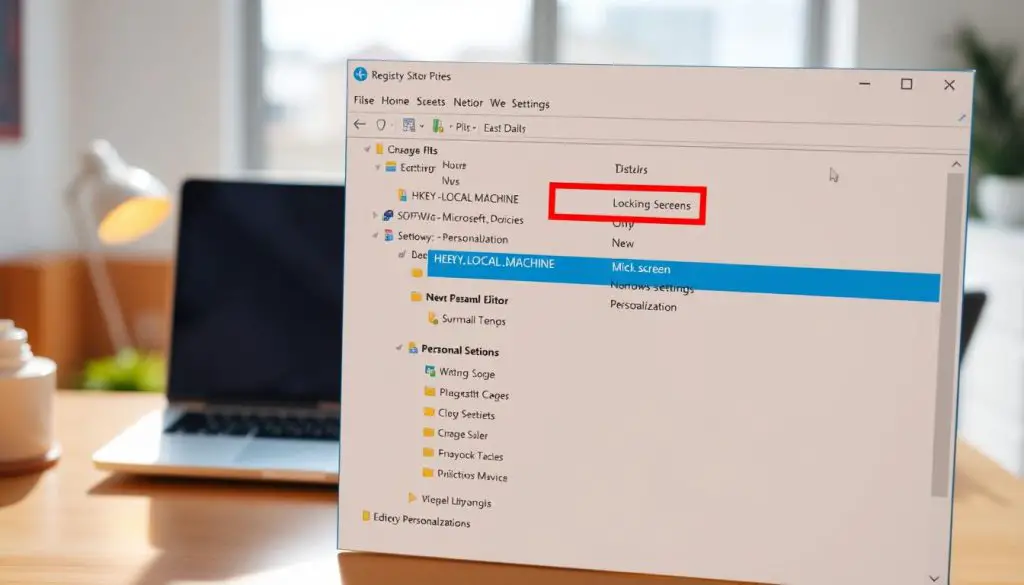
This method involves modifying the system registry. Press Windows Key + R, type regedit, and press Enter. Navigate carefully to this path: HKEY_LOCAL_MACHINE\SOFTWARE\Policies\Microsoft\Windows.
Right-click the Windows folder. Select New > Key. Name this new key Personalization exactly. Inside it, create a new DWORD (32-bit) Value named NoLockScreen.
Double-click the NoLockScreen value. Change its data from 0 to 1. This instructs the system to skip the initial display. Test immediately by pressing Win+L; you should see the login prompt directly.
Group Policy Editor Method for Windows 10 Professional
For supported editions, this offers a safer interface. Open the Run dialog (Win + R) and type gpedit.msc. Navigate to Computer Configuration > Administrative Templates > Control Panel > Personalization.
Find the policy named “Do Not Display the Lock Screen.” Double-click it and select Enabled. This achieves the same result as the registry edit but through a guided interface. It’s ideal for customizing your system’s interface without direct file edits.
Both changes are reversible. Simply delete the registry value or set the policy back to Not Configured.
Precautions and Backup Tips Before Disabling the Lock Screen
Implementing changes to your computer‘s security features requires careful planning. We recommend taking protective measures to ensure system stability.
Backing Up Your Registry and System Settings
The Registry Editor is a powerful tool that demands respect. Accidental modifications can cause system instability. Always create a backup before editing.
Open Registry Editor and select File > Export. Choose “All” for export range. Save the file to a memorable location with a descriptive name.
This .reg file lets you restore previous settings if problems occur. We also suggest creating a system restore point. This provides additional protection against unexpected issues.
Potential Security Considerations
Removing the initial barrier affects your device’s security posture. The feature provides an extra layer against physical access.
Evaluate your environment carefully. Machines in secure locations with strong authentication may benefit from the convenience. Public or shared computers should maintain this protection.
Consider your password management habits. If credentials are poorly secured, the lock screen offers limited additional value. For sensitive data, maintaining multiple security layers is wise.
Always review your overall security setup before making changes. This includes encryption settings and automatic locking features. Proper preparation prevents the need for emergency measures like a reset computer without password procedure.
Conclusion
The ability to streamline your computer’s boot sequence offers tangible benefits for productivity-focused users. We’ve provided comprehensive methods to customize this setting, giving you control over your system’s behavior.
Both the Registry Editor and Group Policy approaches effectively bypass the initial barrier. This saves valuable time during each startup session. The changes are completely reversible if your security needs evolve.
Remember to consider your environment before removing this layer. For detailed guidance on advanced system customization, explore our Windows optimization resources. Proper preparation prevents potential complications.
Whether managing network connections or system interfaces, understanding these tools empowers your computing experience. Our network management guides complement this knowledge for comprehensive control.
You now possess the expertise to balance security with convenience according to your specific requirements. This knowledge transforms how you interact with your device daily.