How to Install Linux on Windows 10 with Dual Boot – Our Tutorial

What if you could unlock a completely different computing experience without giving up your familiar Windows environment? Many users assume running two operating systems requires advanced technical skills, but I’m here to show you a more accessible path. This comprehensive tutorial walks you through the entire process of creating a dual boot configuration. You’ll maintain your current Windows 10 installation while adding a Linux distribution as a second option. I’ve compiled insights from multiple successful installations to create this reliable step-by-step guide.
The setup offers significant advantages. You keep access to Windows-specific applications while exploring Linux’s flexibility and security features. Both systems coexist independently on the same machine. While the process demands careful attention, it’s achievable for users with basic computer knowledge. I’ve structured this walkthrough to guide you from preparation through completion. The instructions specifically apply to machines with Windows 10 already installed.
We’ll focus on beginner-friendly distributions like Ubuntu and Linux Mint. These options provide smooth entry points for newcomers to the Linux ecosystem.
Key Takeaways
- Dual booting lets you run two operating systems on one computer
- Your existing Windows 10 installation remains completely intact
- This approach gives you access to both Windows and Linux benefits
- The process requires careful attention but basic technical skill
- This guide covers the entire procedure from start to finish
- Beginner-friendly Linux distributions work best for newcomers
- Following each step precisely ensures a successful installation
Introduction to Dual Booting Linux on Windows 10
Your computer can become a versatile workstation with the addition of a second operating system. This approach, known as dual booting, lets you keep your current setup while exploring new possibilities.
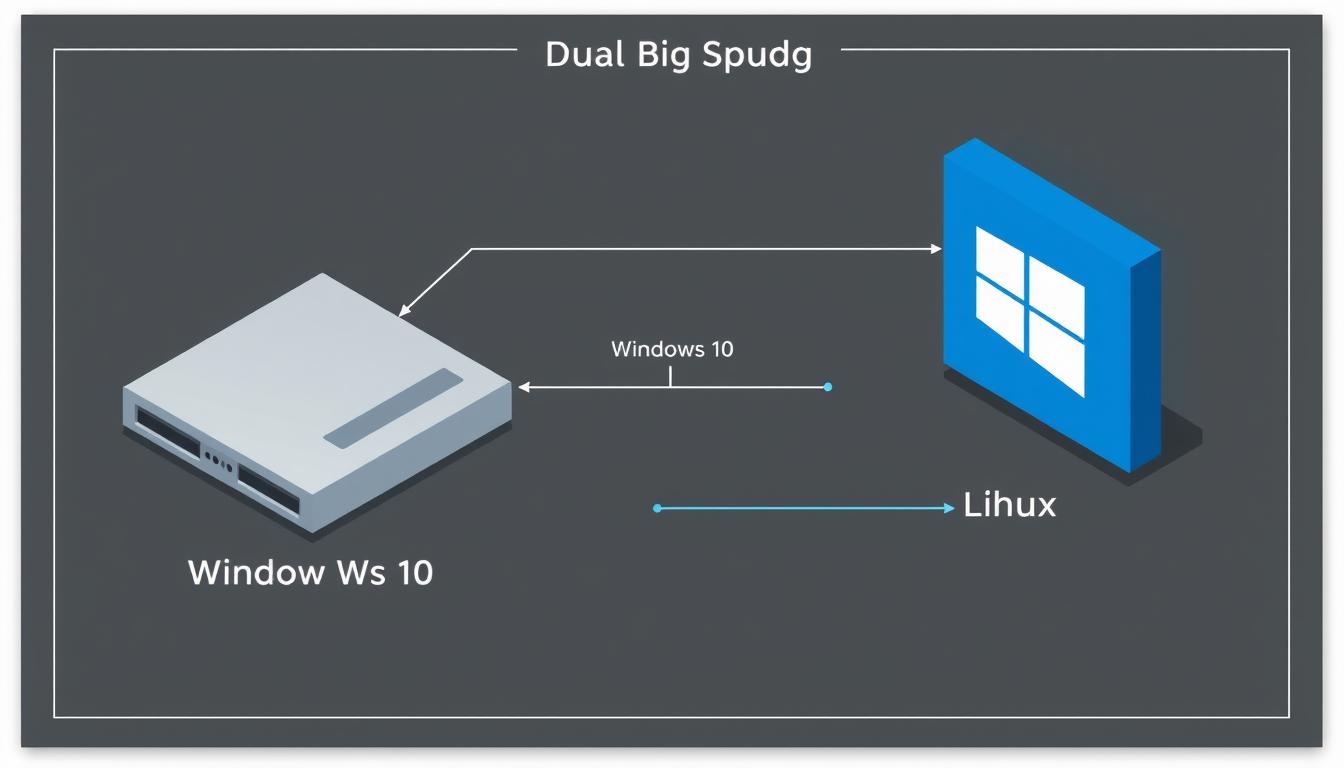
In practical terms, dual booting means having two separate operating systems on one machine. Every time you start your computer, a special menu appears. This menu allows you to select which environment to launch.
Why Dual Booting is a Smart Choice
A common worry is that running two systems will slow down a computer. I can assure you, this is not the case. The only delay is a brief, 10-second boot menu. Once you select an operating system, it runs at full speed, just as if it were the only one installed.
The advantages are significant. You maintain access to all your Windows-specific applications. Simultaneously, you gain entry to Linux’s powerful development tools and enhanced privacy features. This setup provides a safe space for experimentation, as issues in one operating system will not affect the other.
Overview of the Procedure
This method is ideal for users wishing to explore open-source software without fully committing. The process involves several key stages. You will need to back up your data, create free space on your disk, and prepare a bootable USB drive.
Then, you will adjust some system settings in the BIOS and execute the Linux installation. Following each step carefully leads to a successful dual boot configuration. This guide will walk you through every part of the process.
Understanding System Requirements and Backing Up Your Data
Taking a moment to prepare your system correctly can mean the difference between a smooth experience and potential data loss. This preparation phase is essential for anyone considering a dual operating system configuration.
The Importance of Backing Up Your Computer
I cannot stress enough the critical need to back up your files before proceeding. Working with disk partitions always carries some inherent risk. Even with careful execution, there’s always a small chance something could go wrong.
Your backup should include all important documents, photos, music, and other irreplaceable data. Use an external drive or cloud storage for this purpose. This simple step provides complete protection for your valuable information.
Essential Hardware and Software Requirements
Your computer must meet specific requirements for this process. You’ll need a device with Windows 10 already installed. Ensure you have at least 20-30GB of free disk space available.
The BIOS must be in UEFI mode for the two operating systems to recognize each other. To check this, search for “system information” in Windows and verify the BIOS mode field shows UEFI.
For software, you’ll need an internet connection to download the necessary files. An empty USB drive with 4GB capacity (8GB recommended) is required for creating bootable media. Having a Windows recovery disk available provides extra safety.
how to install linux on windows 10 with dual boot
Think of this section as your roadmap for the entire installation journey. I’ll break down what might seem like a complex procedure into clear, manageable phases.
Setting up two operating systems involves several distinct stages. Each phase builds upon the previous one, creating a logical progression. I’ll cover every part in detail throughout this guide.
While the process demands careful attention, thousands of users successfully complete this setup daily. Following methodical instructions makes it achievable for anyone with basic computer skills.
The logical flow begins with preparing your current system. Next comes creating installation media, then configuring essential settings. The final phase involves the actual software setup.
This overview serves as your high-level guide to understanding how everything connects. I’ve organized the content to follow the exact sequence you’ll need.
Reading through completely before starting helps you grasp the big picture. The specific steps may vary slightly depending on your chosen distribution.
However, the fundamental process remains consistent for popular options like Ubuntu and Linux Mint. You’ll have a functioning dual system by following the sequential steps.
Creating a Partition and Freeing Up Disk Space
Before we proceed, we need to prepare a dedicated area on your hard drive for the new operating system. This involves carving out a section of your existing storage.
Your computer’s hard drive is currently occupied entirely by Windows. We will resize this allocation to create unallocated space, which acts as a blank canvas.
Using Windows Disk Management
Access the built-in tool by right-clicking the Start menu. Select the “Disk Management” option from the menu that appears. This utility provides a visual map of your drive.
Locate your primary drive, typically labeled (C:). Right-click on this volume and choose “Shrink Volume.” The system will then query the drive to determine available space.
Allocating Adequate Free Space for Linux
When prompted, enter the amount of space to shrink. Remember, the value is in megabytes. For a 30 gigabyte partition, type 30000.
I recommend allocating at least 20GB, though 30-50GB offers more room for growth. This process simply reduces the Windows partition size without deleting your files.
Click “Shrink.” A new section labeled “Unallocated” will appear. This free space is now ready for the next step. If insufficient space is available, you may need to clean up your drive first.
Building a Live USB for Linux Installation
Creating the installation media is your next crucial step. This process involves writing a Linux distribution’s disk image onto a USB drive. This special bootable USB drive will allow your computer to start up using the Linux environment.
Selecting the Best USB Creation Tool
For this task, you need reliable software. I recommend using Rufus or the Universal USB Installer. Both are excellent, free tools. Rufus is particularly user-friendly and efficient.
Ensure you have a USB drive with at least 8GB of storage. This provides ample space for the ISO file.
Step-by-Step Guide to Creating a Bootable USB
First, download your chosen Linux distribution, like Ubuntu, from its official website. Make sure to select the 64-bit version for modern computers.
Insert your USB drive. Run the Rufus software. Under the “Device” dropdown, select your USB drive. Click “Select” and choose the downloaded ISO file.
Leave all other settings at their default values. These are optimized for most scenarios. Click the “START” button to begin.
The software will write the image file to the drive. This may take several minutes. A green “READY” status indicates success.
Your bootable USB drive is now complete. Do not remove it yet. You will need it for the upcoming installation process.
Modifying BIOS Settings and Disabling Secure Boot
Configuring your computer’s startup environment is a critical step. This process involves accessing the BIOS or UEFI firmware settings. These settings control low-level system operations.
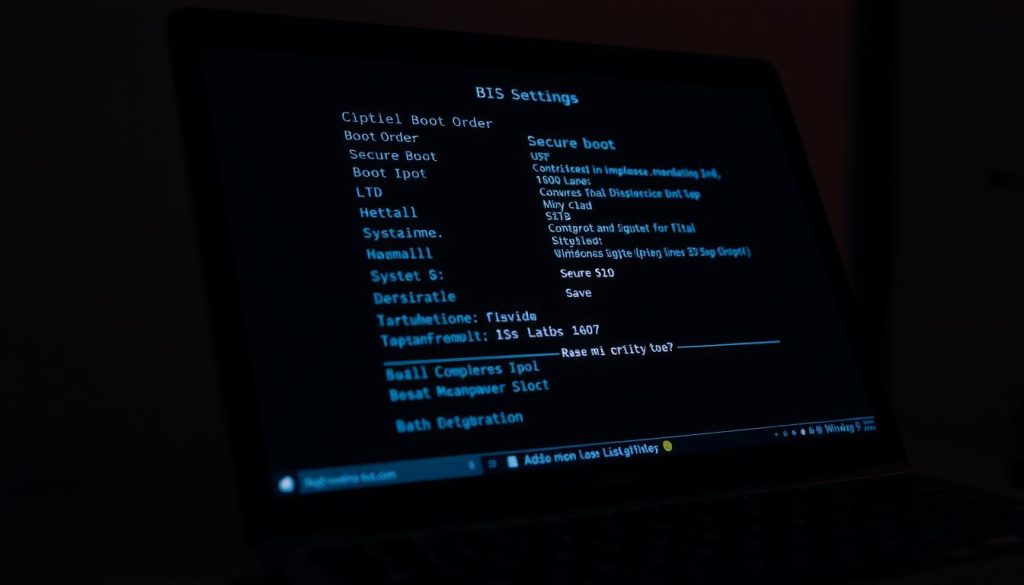
To enter the BIOS, restart your machine. Watch the initial screen closely for a message like “Press [Key] for Setup.” Common keys are F2, F10, F12, or Delete. The specific key varies by manufacturer.
You will navigate using only the keyboard. The mouse will not function in this environment. Look for a “Boot” or “Security” tab.
Accessing the BIOS Setup
Press the required key repeatedly as the computer starts. This action must be timed correctly, just after the power-on self-test. If you miss the window, simply restart and try again.
Once inside, you will see a menu with various options. Use the arrow keys to explore different sections. Be careful not to change unfamiliar settings.
Adjusting Secure Boot Settings
Secure Boot is a security feature that can prevent booting from unauthorized media. For some systems, especially older ones, it may block the Linux USB drive.
Locate the Secure Boot option within the menus. Change its setting from “Enabled” to “Disabled.” This step is often unnecessary for modern distributions like Ubuntu.
After making any changes, select the “Save and Exit” option. This action ensures your modifications are applied. The system will restart automatically.
If you ever face access issues, such as a forgotten Kali Linux password, recovery processes are available. Your computer will now recognize the bootable USB drive.
Executing the Linux Installation and Partition Setup
The moment has arrived to bring your new operating system to life through careful partition setup. This phase transforms your prepared space into functional areas.
Power down your machine completely. Insert the bootable USB drive and restart. Access the boot menu by pressing F10, F12, or your manufacturer’s specific key.
Select the USB drive from the menu. The Ubuntu welcome screen appears with installation options. Choose “Install Ubuntu” to proceed.
Creating the Root Partition for Ubuntu/Linux
At the installation type screen, select “Something Else” for manual control. This option gives you complete authority over partition creation.
Identify the unallocated space you prepared earlier. Click the “+” button to create your first partition. Allocate 10-20GB for the root area.
Set the file system to EXT4 journaling. Designate the mount point as “/” for the root directory. This becomes your system’s foundation.
Setting Up Swap and Home Partitions
Create the swap partition next. The size depends on your RAM: 8GB for average systems, adjust according to your memory. This area handles temporary data overflow.
For the home partition, allocate all remaining space. Use EXT4 file system and set the mount point to “/home”. This stores your personal files and settings.
After creating all three partitions, click “Install Now.” Complete the remaining screens for language, keyboard, and user credentials.
Post-Installation Configuration and Troubleshooting
Your successful installation now leads to the final configuration phase. After restarting your computer, you should see the GRUB bootloader screen.
This menu presents your operating system choices. Use arrow keys to navigate and Enter to select your preferred option.
Troubleshooting Boot Menu Issues
Sometimes the menu doesn’t appear correctly. For Windows 8 systems, open Command Prompt as administrator.
Enter this command: bcdedit /set “{bootmgr}” path \EFI\ubuntu\grubx64.efi. This directs the system to the correct boot file.
Windows 7 users might need to restart the installation process if the menu fails to show. If Windows disappears from the boot options, you’ll need to run Boot Repair from your Ubuntu environment.
Configuring Your New Dual Boot Environment
Test both systems to ensure proper functionality. Boot into Windows first to verify everything works normally.
Then restart and select Ubuntu from the boot menu. You can set a default operating system and adjust the menu timeout in GRUB settings.
Complete basic post-setup tasks like updating both systems. Familiarize yourself with switching between environments. For advanced boot management, consider learning about changing the boot drive priority in your system settings.
Conclusion
Your computer now hosts two powerful operating systems, giving you the best of both worlds. You’ve successfully completed each step in this comprehensive guide.
The process involved careful preparation, partition creation, and proper configuration. Now you can boot Windows for specific applications while enjoying Linux’s security features.
Take time to explore your new environment. Familiarize yourself with the desktop and install essential software. The command line offers powerful tools worth learning gradually.
Remember to keep both systems updated. Always shut down properly rather than switching directly between them. Maintain regular backups of important files from both partitions.
This versatile setup becomes more comfortable with use. Refer back to these steps if needed for other computers. Your dedication has created a truly flexible computing experience.
FAQ
Can I remove the Linux operating system later if I change my mind?
Will dual booting slow down my computer?
Is it possible to access my Windows files from the Linux system?
What should I do if my computer boots directly into Windows and skips the boot menu?
How much free space should I allocate for the Linux partition?
Can I use the same software on Linux that I use on Windows?
- About the Author
- Latest Posts

Mark is a senior content editor at Text-Center.com and has more than 20 years of experience with linux and windows operating systems. He also writes for Biteno.com