Step-by-Step: How to Install Linux on Windows 10 with Dual Boot

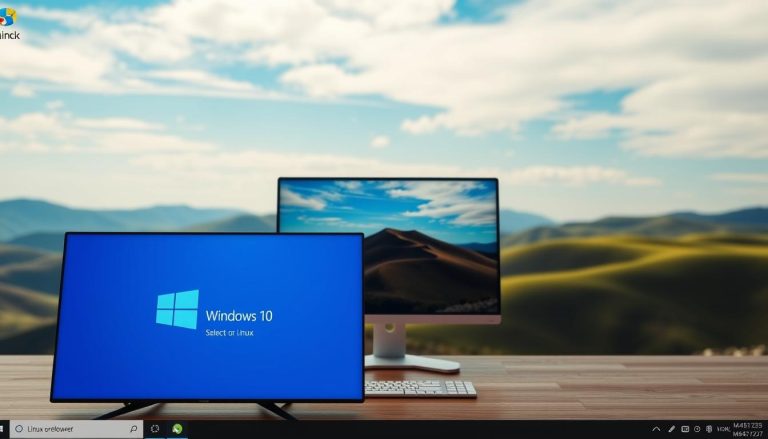
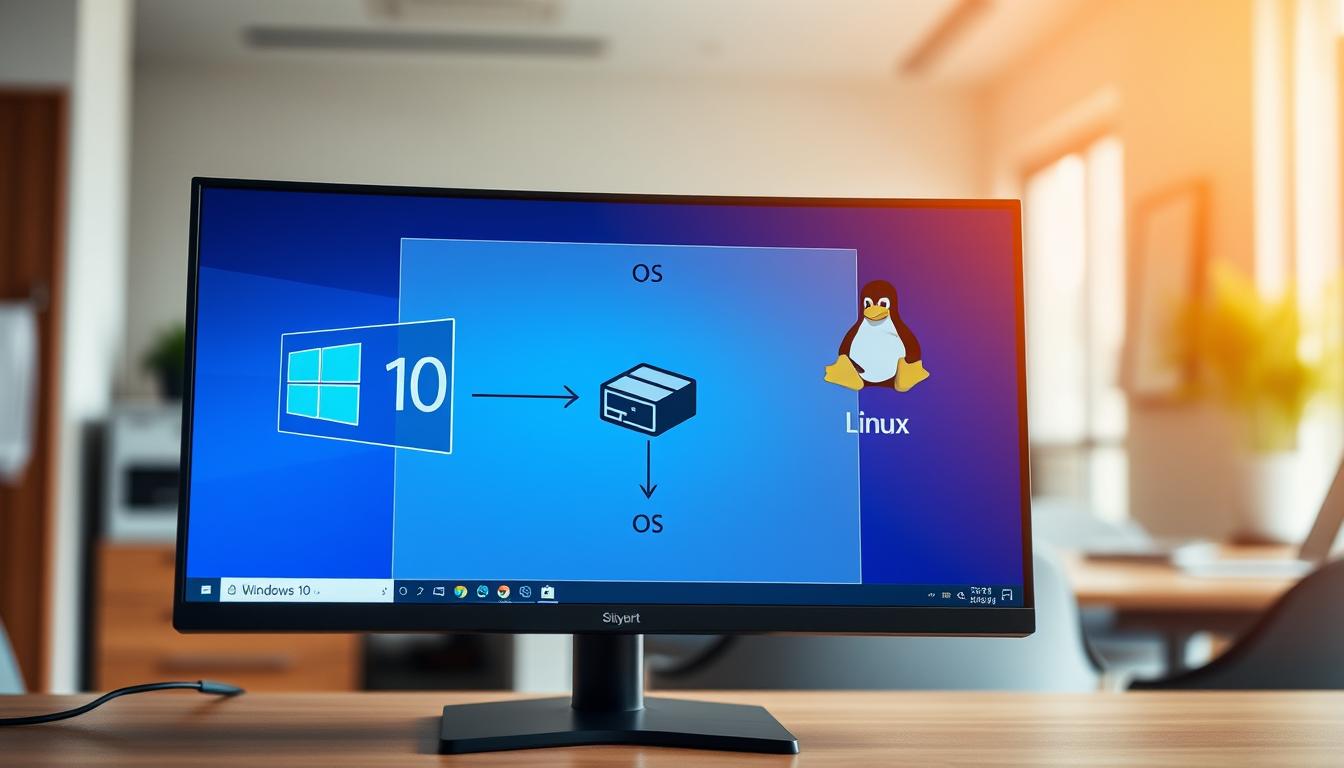
What if you could harness the power of two distinct operating systems on a single machine, without sacrificing the performance of either? This is the core promise of a dual boot configuration. It allows you to maintain your familiar Windows environment while unlocking the vast potential of the Linux ecosystem. Many users hesitate, fearing a complex process or a slowdown in their computer’s speed. We are here to demystify this. A properly configured setup introduces only a brief moment of choice at startup—a simple menu where you select which OS to run. Once booted, each system operates with its full resources, completely independent of the other.
Our comprehensive guide is designed for users of all technical backgrounds. We break down the entire procedure into clear, manageable step-by-step instructions. You will learn essential tasks like working with disk partitions and configuring your system’s boot order. We explain the “why” behind each action, empowering you with knowledge. By the end of this tutorial, you will confidently run two powerful systems on one computer. This flexibility is ideal for different workflows, from software development to everyday computing.
Key Takeaways
- A dual boot setup lets you choose between Windows and Linux each time you start your computer.
- This configuration does not reduce the performance of either operating system.
- The installation process is broken down into simple, logical steps for clarity.
- Understanding key concepts like disk partitioning is crucial for a successful setup.
- This guide provides the knowledge to troubleshoot common issues confidently.
- You can enjoy the unique advantages of both Windows and Linux on a single machine.
Backup Your Computer: Safety First
The foundation of any successful operating system integration begins with safeguarding your existing digital assets. We emphasize this preparatory phase because it protects your valuable information during the upcoming configuration changes.
Importance of Backing Up Files
Working with disk partitions introduces inherent risks to your stored data. Accidental selection of incorrect partitions or unexpected system errors could compromise your files. The backup process serves as your primary defense against potential data loss.
Power interruptions during critical operations represent another concern. A complete backup ensures your computer’s contents remain secure regardless of installation outcomes. This precaution provides peace of mind throughout the procedure.
Recommended Backup Methods
External hard drives offer excellent solutions for comprehensive data protection. They provide substantial storage capacity without internet dependency. Their transfer speeds efficiently handle large collections of files.
Cloud storage services present convenient alternatives for important documents. Platforms like Google Drive and OneDrive allow accessibility from multiple devices. They’re particularly suitable for smaller, critical files.
Make sure to verify your backup’s completeness before proceeding. Test file retrieval to confirm successful transfer. Additionally, create Windows recovery media as an extra safety measure.
Documenting your current disk configuration through screenshots provides valuable reference material. This documentation aids troubleshooting should partition issues arise later.
Creating and Managing Partitions for Dual Boot
Partition management forms the structural backbone of any successful multi-OS configuration. We need to create dedicated free space on your drive where the alternative operating system will reside. This process carefully divides your storage without affecting existing data.
Using Windows Disk Management
Windows includes a powerful built-in tool called Disk Management that handles partition creation. Access it by right-clicking the Start button or searching for “partition” in your computer‘s search bar. Select “Create and format hard disk partitions” to launch the utility.
The interface displays your current disk layout. Right-click your main C: volume and choose “Shrink Volume.” The system will analyze available space before allowing you to specify the allocation size.
Allocating Sufficient Free Space
We recommend reserving at least 30 GB for basic functionality, though 40-60 GB provides better flexibility. Enter the amount in megabytes—30,000 for 30 GB. The shrinking process may take several minutes as Windows consolidates data.
If the tool reports insufficient shrink space despite available storage, you might need to optimize your drive first. After successful shrinking, black “Unallocated” space appears—this becomes your new partition for the second OS.
Creating a Live USB for Linux Installation
With your partitions ready, we now focus on creating the bootable media that serves as the gateway to your new operating system. This USB drive becomes your installation toolkit, allowing your computer to boot into the Linux environment.
Selecting the Right USB Drive
Choosing the appropriate USB device is crucial for a smooth installation process. We recommend an 8 GB drive as it provides ample space for most distributions. While 4 GB may work for some lighter versions, the larger capacity ensures compatibility.
Ensure the USB stick is empty before proceeding. The creation process will erase all existing data on the selected device. Verify your drive’s capacity matches your expectations to avoid formatting errors.
Using Tools Like Rufus or Universal USB Installer
Rufus stands as our preferred tool for creating a bootable USB stick on. This reliable application efficiently transfers the ISO image to your USB drive. The portable version requires no installation, making it convenient for one-time use.
Universal USB Installer offers similar functionality with guided steps. Both tools ensure proper boot sector creation. The process typically completes within 5-15 minutes, depending on your drive’s speed and the image size.
After successful creation, your USB device becomes ready for the next installation phase. The green “READY” indicator confirms your bootable media is properly prepared.
Configuring BIOS and Disabling Secure Boot
Proper BIOS configuration is essential for successful dual boot setup. We need to ensure your computer’s firmware settings allow both operating systems to coexist peacefully.
First, verify your system uses UEFI mode. Search for “system information” in Windows and press ENTER. Check that “BIOS Mode” displays “UEFI” rather than “Legacy.”
Accessing BIOS Settings
Accessing your computer’s BIOS requires pressing a specific key during startup. Common keys include F2, F10, F12, or Delete. The correct key usually appears briefly on your screen.
Navigate through BIOS menus using keyboard arrow keys. The mouse typically doesn’t function in this environment. Move to the Boot or Security section.
Locate the Secure Boot option and change it from Enabled to Disabled. This security feature can prevent alternative operating systems from loading.
After making changes, save your configuration before exiting. Press F10 or select “Save Changes and Exit.” Unsaved changes will revert when you restart.
This preparation ensures your system recognizes both environments during the boot process. The menu will then offer a choice between your installed operating systems.
Booting from the Live USB to Launch Ubuntu
The moment has arrived to initiate the boot process from your prepared USB drive. This critical step transitions your system from Windows to the Ubuntu environment. We guide you through accessing the temporary operating system that enables permanent installation.
Navigating the Boot Menu
With your bootable USB device inserted, restart your computer. Watch carefully for the brief startup screen displaying boot options. You must press the correct key quickly before Windows begins loading.
The specific key varies by manufacturer. Dell and HP systems typically use F12, while Lenovo often requires F12 or F10. ASUS computers may use Escape or F8, and Acer commonly uses F12. If uncertain, try F12 first as it’s the most common option.
In the boot menu, locate your USB device. It may appear as the brand name (like “SanDisk”), as “USB-HDD,” as “Removable Device,” or sometimes as “Ubuntu” if recognized. Select this option and press ENTER.
You’ll then see the Ubuntu boot screen with choices to “Try Ubuntu without installing” or “Install Ubuntu.” Use arrow keys to select “Install Ubuntu” and press ENTER. The live environment loads within 30 seconds to several minutes depending on your USB drive speed.
If your device doesn’t appear in the boot menu, revisit the Secure Boot settings discussed earlier. Also verify your USB was created correctly and inserted properly. Once loaded, the Ubuntu desktop appears with installation options readily accessible.
Step-by-Step: How to Install Linux on Windows 10 with Dual Boot
Navigating the installation wizard represents the final preparation stage before system deployment. We guide you through each screen with clear explanations of their purpose.
The process begins with language selection and keyboard layout configuration. System checks verify adequate disk space and optional internet connectivity.

Selecting the “Something Else” Option
When you reach the Installation Type screen, Ubuntu may display an automated choice. The “Install Ubuntu alongside Windows Boot Manager” option handles partitioning automatically.
We recommend selecting “Something Else” for manual control. This approach allows precise allocation of disk space between system partitions.
Choosing the Right Installation Mode
The automated option works for basic setups but offers limited customization. Manual partitioning through “Something Else” provides better organization.
This method requires more steps but results in a cleaner system architecture. You can specify exact partition sizes based on your usage patterns.
Our guide continues with detailed partitioning instructions in the next section. We explain root, swap, and home partitions for your Ubuntu installation.
Partitioning During Ubuntu Installation
We now reach the crucial stage of defining your Linux system’s storage architecture through partition creation. This process organizes your disk space into logical sections that serve distinct purposes within the operating environment.
Creating Root, Swap, and Home Partitions
Linux requires three essential partitions for optimal functionality. The root partition (/) serves as the system’s foundation, housing the operating system and applications. We recommend allocating 20-30 GB using the Ext4 journaling file system.
The swap partition extends your system’s memory capacity when RAM becomes full. Its size depends on your computer’s memory configuration. For systems with 8 GB RAM or less, match your RAM size for this partition.
Your home partition (/home) stores personal files and user settings. Allocate the remaining disk space to this partition since it will accumulate your data over time. This separation protects your files during system updates.
Allocating Disk Space Wisely
Begin by selecting the unallocated space in the partition manager. Click the “+” button to create each partition sequentially. Enter sizes in megabytes, with 30,000 representing 30 GB for the root partition.
The swap area requires specific calculation based on your system’s memory. Newer versions can utilize swap files, but a dedicated partition remains the default approach for most installations.
Double-check that you’re modifying the correct free space before proceeding. Your Windows partition should remain completely untouched throughout this process. Verify all mount points match their intended purposes.
Troubleshooting and Post-Installation Tips
Post-installation troubleshooting ensures both operating environments remain accessible and functional. We address common challenges that may arise after completing your multi-OS configuration.
Resolving Boot and Partition Issues
After restarting your computer, the GRUB boot manager should display a selection menu. This interface allows you to choose between Ubuntu and Windows Boot Manager.
If Ubuntu doesn’t appear and your system boots directly into Windows, use Command Prompt as Administrator. Enter the command: bcdedit /set “{bootmgr}” path \EFI\ubuntu\grubx64.efi. This manually points the boot manager to the correct location.
In some cases, Windows may boot normally without showing any selection option. This typically indicates an improperly configured bootloader. Reinstalling Ubuntu from the live USB often resolves this issue.
Utilizing Boot Repair Options
If your Windows option disappears from the boot menu, don’t panic. This common issue has a straightforward solution using specialized repair tools.
Boot into Ubuntu and install the Boot Repair utility through Terminal. This automated tool scans and fixes bootloader configuration problems. It’s particularly useful for complex dual booting scenarios.
Familiarize yourself with basic keyboard navigation in the boot interface. Use arrow keys to select options and ENTER to confirm. Understanding this interface helps troubleshoot future issues confidently, similar to resolving password recovery scenarios.
The GRUB menu typically defaults to Ubuntu with a 10-second countdown. You can modify this default setting and timeout duration later in Ubuntu’s system preferences.
Conclusion
You have now unlocked the capability to seamlessly switch between two distinct computing platforms with your new dual boot configuration. This comprehensive guide has walked you through each essential step, from initial preparation to final troubleshooting.
The skills you’ve acquired extend beyond this specific setup. You now understand disk partitioning, BIOS configuration, and bootloader management. These concepts apply to many computer maintenance tasks. Your ability to run Linux alongside Windows provides incredible flexibility for different workflows.
Remember that each operating system functions independently with full resources. This setup doesn’t impact performance. As you explore your new environment, you can always move between systems based on your needs.
Continue learning and experimenting with your expanded computing capabilities. The knowledge gained from this process empowers you to tackle more advanced technical challenges confidently.
FAQ
Is it safe to set up a dual boot configuration on my computer?
How much free space should I allocate for the Linux installation?
What should I do if my computer doesn’t boot from the USB drive?
Which installation option should I choose during the Ubuntu setup?
What happens if I can’t boot into Windows after installing Linux?
Can I remove the Linux operating system later if I change my mind?
- About the Author
- Latest Posts

Claudia Rothenhorst ist Medien- und Reise-Redakteurin bei der Web-Redaktion. In ihrer Freizeit reist sie gerne und schreibt darüber unter anderem auf Reisemagazin.biz.
Weitere Artikel von Ihr erscheinen u.a. im Blog der Webagentur Awantego.