How to Install MX Linux: Our Expert Tutorial

What if you could run a modern, powerful operating system that breathes new life into older computers? This question drives many to explore the world of Linux desktop environments. Among the many choices, one distribution consistently stands out for its unique approach. We introduce MX Linux, a Debian-based operating system that targets both modern and older hardware. It is currently ranked first on Distrowatch, a testament to its popularity. This performance-oriented system is the result of a collaborative effort between the AntiX and former MEPIS community.
This comprehensive tutorial is designed to guide users through the complete setup process. We will cover everything from obtaining the correct file to final configuration. Our goal is to make the experience smooth for people of all technical levels. MX Linux 21 “Wildflower” is based on Debian 11 and features the Xfce desktop by default. It is known for its rock-solid stability and efficient resource usage. This guide will help you unlock its full potential on your machine.
Key Takeaways
- MX Linux is a highly-ranked, Debian-based distribution known for stability and performance.
- It is designed to run efficiently on both modern and older hardware configurations.
- The project is a collaboration between the AntiX and MEPIS communities.
- This tutorial provides a complete, step-by-step guide for a successful installation.
- The default desktop environment is Xfce, with KDE Plasma and Fluxbox also available.
- The distribution is systemd-free, appealing to users seeking a lightweight alternative.
Introduction to MX Linux and Its Advantages
MX Linux represents a significant achievement in the world of desktop operating systems, combining robust performance with exceptional accessibility. This collaborative project brings together expertise from the AntiX and former MEPIS communities, creating a superior desktop distribution.
The distribution has earned the top position on Distrowatch, reflecting its widespread adoption. This ranking demonstrates strong community support that drives continuous development and refinement.
As a middleweight distribution, it strikes an optimal balance between resource efficiency and feature richness. This makes the system suitable for various hardware configurations, from older machines to modern workstations.
Built upon Debian stable, users benefit from legendary stability and reliability. The foundation ensures regular updates and security patches while maintaining system integrity.
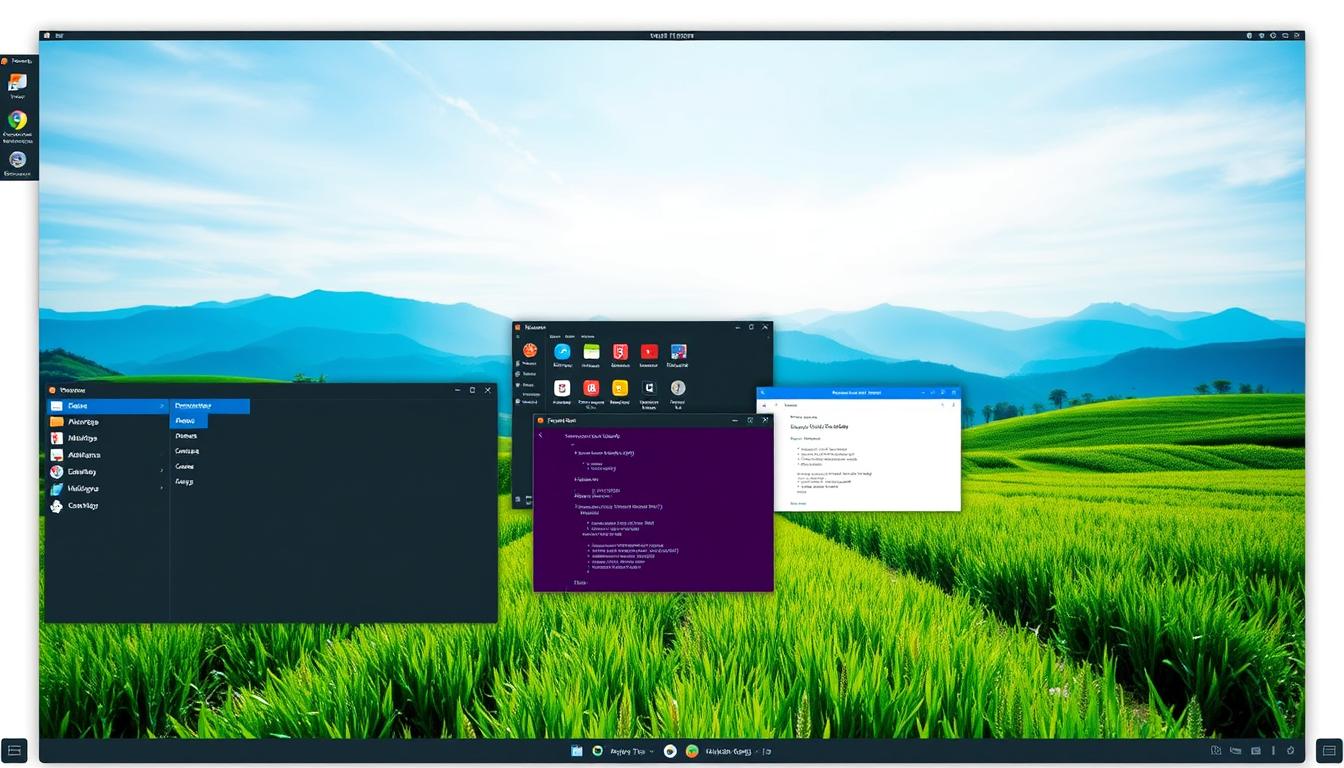
Three desktop environment options cater to different preferences. Xfce serves as the lightweight, customizable default. KDE Plasma offers a modern, feature-rich interface, while Fluxbox appeals to minimalist enthusiasts prioritizing speed.
Unique native application tools simplify system administration tasks. These utilities enhance the overall user experience through intuitive interfaces for common operations.
The active development community ensures continuous improvement. Regular updates incorporate user feedback and maintain compatibility with evolving standards. For those exploring Linux distributions, this ecosystem provides excellent support.
MX Linux delivers a powerful combination of stability, performance, and user-friendly tools. It serves as an excellent choice for both newcomers and experienced enthusiasts seeking a reliable daily-driver desktop distribution.
Preparing Your System for Installation
The initial preparation phase lays the foundation for a successful system implementation. We guide users through essential steps before launching the setup process.
Downloading the MX Linux ISO and Selecting Your Flavour
Begin by visiting the official download page to acquire the necessary files. Choose from Xfce, KDE Plasma, or Fluxbox desktop environments based on your preferences. Select the appropriate 64-bit or 32-bit architecture for your hardware.
This download process ensures compatibility with various system configurations. Always verify the integrity of downloaded files using checksums.
Creating a Bootable USB Drive
Next, create bootable media using reliable tools like Etcher or Rufus. These utilities simplify the process of transferring the ISO to a USB drive. Ensure your USB device has sufficient capacity, typically 4GB or larger.
The create bootable usb procedure will erase existing data on the drive. Always back up important files before proceeding with this step.
Configuring BIOS Settings and Boot Order
Access your system’s BIOS during startup by pressing the appropriate function key. Common keys include F2 for Dell systems, F10 for HP devices, or DEL for many desktop motherboards.
Within BIOS settings, disable Secure Boot for dual-boot configurations. Enable USB boot capability and prioritize the USB device in the boot order. Save changes before exiting to initiate the boot process from your prepared media.
How to Install MX Linux: Step-by-Step Guide
Transitioning from preparation to execution, the boot process initiates the hands-on phase of system deployment. We guide users through each critical interaction with the setup environment.
Booting from the USB and Selecting the Installer Option
When your computer starts from the USB media, the MX boot screen appears immediately. Select the first option labeled with the current version and architecture, such as ‘MX-21 x64’. Press Enter to proceed.
This action loads the live desktop environment. Users can test hardware compatibility and explore the system before committing to permanent installation. The live session demonstrates the distribution’s capabilities.
Locate the installation icon on the desktop to launch the setup wizard. A dialogue window presents multiple choices. Select the ‘Install MX Linux’ option to begin the formal process.
Following On-Screen Prompts and Customizing Installation Settings
The initial configuration screen allows keyboard layout verification. This critical first step ensures proper input functionality throughout the setup. MX Linux employs a custom installer that differs from standard Debian tools.
Watch for the ‘Paused for required operator input’ indicator on the progress bar. This signal indicates when the installer needs additional information. Click ‘Next’ to continue after providing required inputs.
The installer provides clear guidance at each decision point. Following prompts carefully ensures smooth progression through all stages. This approach resembles the straightforward process found in our Ubuntu setup guide, though with MX-specific customization options.
Customizing Disk Partition and Installation Options
Storage configuration stands as one of the most important decisions during system deployment. This stage determines how your disk space gets allocated for optimal performance.
We guide users through this critical phase with clear explanations of available choices. The process involves careful consideration of your specific needs and hardware setup.
Choosing Between Standard and Custom Installation
The standard installation option provides automatic partitioning for simplicity. This choice handles the entire disk layout automatically, making it ideal for beginners.
For advanced control, the custom option enables manual partition creation and configuration. This approach offers flexibility for specific storage requirements.
Setting Up Dual-Boot or Standalone Systems
Dual-boot configurations require careful partition selection. Users must identify the correct target partition during the setup process.
The partition selection screen displays available storage devices. Each disk and partition shows relevant details for informed decision-making.
Always verify your choices before proceeding. The target partition will undergo formatting, permanently erasing existing data.
After selecting your preferred installation method, a confirmation screen appears. This final checkpoint ensures your disk layout matches your intentions before any changes occur.
Post-Installation Setup and Configuration
As the file transfer proceeds, the setup wizard presents essential configuration screens. This efficient approach saves time by allowing you to provide necessary information while files copy to your storage device.
Creating User and Root Accounts
The account creation step requires establishing two separate identities. First, create a regular user account with your preferred username and a secure password. This account handles daily computing tasks.
Next, establish the root administrative account with a distinct, robust password. This root account provides complete system control and requires careful protection.
Finalizing System Locale, Time, and Network Settings
The configuration screen prompts for regional settings. Select your location, time zone, and preferred clock format. This ensures proper time display and regional formatting.
Set your computer name and optionally configure domain settings. Most home users can skip advanced network options unless specific sharing requirements exist.
The GRUB bootloader installation step configures your system’s startup process. After completion, click ‘Finish’ and remove installation media. The system will boot into the login screen where you access your new desktop. Should any boot issues arise, our boot repair guide provides helpful troubleshooting steps.
Conclusion
Your journey into a stable computing environment reaches its successful conclusion. We congratulate you on completing this comprehensive tutorial that guided you through every step from media creation to final configuration.
You have accomplished significant milestones: preparing bootable usb media, configuring BIOS settings, navigating the system installer, and establishing user accounts. This process demonstrates that modern operating systems can breathe new life into various hardware configurations.
After your first login, immediately refresh your system using sudo apt update -y && sudo apt upgrade -y. Verify your setup with the neofetch command, which confirms desktop environment details and hardware detection.
Remember that you now join an active community of users. The official forums provide excellent support resources for troubleshooting. Explore the unique native tools that simplify system management tasks.
This tutorial has provided foundational knowledge applicable beyond this specific distribution. The skills you’ve developed in partitioning, boot management, and system configuration transfer to other Linux environments.
FAQ
What are the primary advantages of using MX Linux over other distributions?
How do I create a bootable USB drive for the installation?
What BIOS settings do I need to change before installation?
What is the first option I should select when the boot menu appears?
Can I set up MX Linux alongside Windows in a dual-boot configuration?
How do I create my user account and root password during setup?
- About the Author
- Latest Posts

Claudia Rothenhorst ist Medien- und Reise-Redakteurin bei der Web-Redaktion. In ihrer Freizeit reist sie gerne und schreibt darüber unter anderem auf Reisemagazin.biz.
Weitere Artikel von Ihr erscheinen u.a. im Blog der Webagentur Awantego.