Learn how to install Parrot Linux: A Beginner’s Guide

What if your computer could become a powerful command center for digital security? Imagine a platform built specifically for protecting data and uncovering vulnerabilities. This is the reality offered by a specialized Linux distribution designed for the modern digital world. We are exploring Parrot OS, a free, Debian-based operating system. It is engineered for developers, IT security experts, and privacy-focused users. This system stands out as a lightweight yet robust alternative in the cybersecurity landscape.
Our guide provides a clear path forward. We will demystify the entire setup process for this powerful platform. You will learn about its unique features and the vast array of pre-installed tools. This includes everything for penetration testing and digital forensics.
Whether you are new to Linux or have some experience, this tutorial is for you. We follow community best practices to ensure a smooth and successful installation. By the end, you will have a fully functional environment ready for real-world security tasks.
Key Takeaways
- Parrot OS is a free, Debian-based operating system built for security professionals and privacy-conscious users.
- It comes pre-loaded with a wide range of tools for penetration testing, forensics, and development.
- The distribution is known for being lightweight and offering a robust alternative to other security-focused systems.
- This guide provides a beginner-friendly, step-by-step approach to setting up the environment.
- Following these instructions helps avoid common pitfalls during the setup process.
- You will gain a functional system ready for cybersecurity learning and professional work.
Introduction to Parrot Linux and Its Benefits
Parrot OS distinguishes itself as a comprehensive toolkit for modern cybersecurity challenges. We will explore the core features that make this distribution a preferred choice for professionals and enthusiasts alike.
Overview of Parrot Linux Features
This platform arrives ready for action. It includes a massive collection of pre-installed tools for penetration testing, digital forensics, and cryptography. You can start assessing vulnerabilities immediately.
The system prioritizes user privacy with integrated tools like Tor and Anonsurf. These applications help maintain anonymity during security research. The MATE desktop environment offers a clean, customizable interface that is easy to navigate.
A significant advantage is its lightweight design. This Debian-based distribution runs efficiently on older hardware. It consumes fewer resources than many alternatives.
Why Choose Parrot for Cybersecurity?
Professionals select this system for its robust and secure environment. Sandboxed applications provide a safe space for running risky tools or analyzing malware. This adds a critical layer of protection during testing.
Its open-source nature ensures complete transparency. Experts can audit the code, fostering trust within the cybersecurity community. The platform supports a wide range of activities beyond penetration testing.
- Digital Forensics: Analyze digital evidence with specialized utilities.
- Secure Development: Code in environments for Python, C, and Java.
- Cryptography: Manage secure communications and file encryption.
This combination of power, efficiency, and security makes it an exceptional platform for serious work.
System Requirements and Prerequisites
A successful deployment of any operating system begins with verifying that your hardware is up to the task. We will outline the essential specifications your machine needs. This ensures a smooth setup and optimal performance.
Hardware and Memory Considerations
The base requirements are modest. Your system needs a minimum of 2 GB of RAM. We strongly recommend 4 GB or more for comfortable use.
This extra memory allows you to run multiple security tools at once. For the processor, a dual-core CPU is the minimum. A quad-core chip provides significantly better performance.
Storage is another key factor. Plan for at least 20 GB of free space. Allocating 40-50 GB is better for storing tools and data.
Network and Software Prerequisites
A stable network connection is vital. You will need it to download the system image and future updates.
If using a virtual machine, check your hardware supports virtualization technology. This feature, called Intel VT-x or AMD-V, must be enabled in your BIOS. It is crucial for the virtual environment’s performance.
Meeting these specifications prevents issues during the setup process. It creates a solid foundation for your work.
Downloading and Verifying the Parrot ISO
The foundation of a secure system begins with acquiring an authentic distribution file from official sources. We guide you through obtaining the correct parrot iso and confirming its integrity.
Where to download the latest Parrot ISO
Visit the official Parrot Security website to access the download page. You will find several editions available. Choose between the Security edition with full tools or the Home version for privacy-focused use.
The file size typically ranges from 3-5 GB. Ensure you have sufficient storage space before starting the download. Select your preferred method from direct downloads or torrent options.
Steps to verify the integrity of the download
Verification confirms your parrot iso file remains untampered. This critical step prevents security risks from corrupted downloads. The process uses checksums provided on the official website.
Download the corresponding SHA256 checksum file. Use command-line tools to generate a hash of your ISO. Compare this value against the official checksum to ensure they match exactly.
This verification process is similar to what you’d encounter when you download other security-focused distributions. Proper validation guarantees a secure starting point for your environment.
Creating a Virtual Environment for Installation
Virtualization technology provides a safe space for exploring operating systems without affecting your main computer. This approach lets you test configurations freely.
Setting up a new virtual machine
We begin by obtaining VMware Workstation from the official website. The software comes in two main versions. VMware Workstation Player offers basic features at no cost. VMware Workstation Pro includes advanced capabilities for professional use.
The setup process is straightforward. After launching the application, select File > New Virtual Machine. You will see two configuration options. The Typical option applies recommended settings. The Custom wizard provides granular control over hardware specifications.
For security testing work, we recommend the Custom configuration. This allows precise resource allocation for optimal performance.
Choosing between VMware Workstation and other virtualization tools
Several platforms support virtualization. Each offers distinct advantages:
- VMware Workstation: Robust feature set with excellent performance
- VirtualBox: Free, open-source alternative
- Hyper-V: Built into Windows Pro systems
- KVM: Native solution for Linux hosts
Running the system in a virtual machine provides significant benefits. You can take snapshots before changes. Testing occurs in an isolated environment. Multiple operating systems run simultaneously for comparison.
how to install parrot linux on a Virtual Machine
The core setup process for our virtual environment involves several critical configuration choices. We guide you through each step to ensure a successful parrot installation.
Step-by-Step Installation Walkthrough
Begin by configuring your virtual machine in VMware Workstation. Select Linux as the operating system type and choose Debian 10.x or later. Assign a descriptive name like “Parrot OS Lab” and specify a storage location.
Allocate at least 20 GB of disk space. We recommend storing the virtual disk as a single file for better performance. Customize the hardware by assigning a minimum of 2 GB of RAM and two processor cores.
Power on the machine. You will boot into a live environment. Double-click the ‘Install Parrot’ icon to start the wizard. The initial screens prompt for language, region, and keyboard layout. Click Next after each selection.
The partitioning step is crucial. For beginners, select “Erase Disk” for automatic setup. Then, create your user account by providing your full name, a login, and a strong password. Finally, click Install Now to begin the file-copying process.
Key Commands and Prompts to Watch For
During the installation, you may encounter prompts for services like sslh and Wireshark. For most users, pressing Enter to accept the default options is the safest choice. This approach is similar to setting up a Linux environment like Uwuntu.
The entire process typically takes 20-30 minutes. The system will reboot automatically. Log in with the credentials you created. You will then see the MATE desktop, confirming your installing parrot effort was successful.
Configuring Security and System Settings
Proper system configuration begins immediately after the initial setup completes. We guide you through essential adjustments that harden your environment for security work. These steps create a foundation for safe operations.
Adjusting Firewall and Network Configurations
Firewall management is your first line of defense. The Uncomplicated Firewall (UFW) provides straightforward control over network traffic. We recommend enabling it and creating specific rules.
For remote access tools like NoMachine, allow the necessary port. Use the command sudo ufw allow 4000/tcp. Always reload the firewall with sudo ufw reload to apply changes.
Network adapter settings depend on your testing needs. NAT mode provides internet access through your host. Bridged mode offers direct network connectivity. Choose the configuration that matches your security requirements.
Setting Up User Accounts and Passwords
User management follows the principle of least privilege. Create standard accounts for daily tasks. Reserve administrative access for specific needs only.
Password security requires strong, unique credentials. Consider using a password manager for complex passwords. This practice minimizes risks from credential-based attacks.
These initial configuration steps ensure your system operates securely. They prepare the environment for the specialized work ahead.
Customizing the Desktop Environment and Tools
Personalizing your workspace transforms a standard setup into an efficient security operations center. We explore the MATE desktop environment’s powerful customization features. These adjustments optimize your workflow for security tasks.
Exploring the MATE Desktop Settings
The MATE interface offers extensive personalization options. Access system settings through the main menu to modify panel layouts and themes. You can create custom keyboard shortcuts for frequent tools.
Multiple workspaces help organize different projects simultaneously. The file manager supports quick access to critical directories. These adjustments create a tailored working environment.
Installing Additional Security and Forensic Tools
While hundreds of applications come pre-installed, you might need specialized tools. The APT package manager provides access to official repositories. Use terminal commands to add new security software.
For virtual machine users, install open-vm-tools for better integration. This improves display resolution and clipboard sharing. Your desktop becomes more responsive during testing work.
Proper customization ensures all essential tools remain easily accessible. This streamlined approach maximizes productivity during security assessments.
Troubleshooting Common Installation Issues
Even with careful preparation, technical issues can sometimes interrupt the setup process. We address the most frequent challenges users encounter and provide clear resolution steps.
Resolving Boot and Performance Problems
Boot failures often occur when virtualization technology remains disabled. Access your system’s BIOS settings to enable Intel VT-x or AMD-V. This configuration is essential for proper virtual machine operation.
Performance issues like system freezing indicate insufficient resource allocation. Power off your virtual machine and increase RAM or processor cores. Restart the system to apply these changes.
Addressing Installation and Configuration Errors
Network connectivity problems prevent package downloads during the installation process. Verify your virtual machine’s adapter settings. Ensure NAT or bridged mode is selected correctly for your environment.
Common prompts for MAC addresses or services like sslh appear during setup. Pressing Enter typically accepts the default options safely. This approach minimizes configuration errors.
- Display resolution: Install open-vm-tools for better graphics integration
- Disk space errors: Allocate at least 20 GB during virtual machine creation
- Package conflicts: Rerun the installation script if interruptions occur
These troubleshooting techniques help overcome typical obstacles. They ensure your system becomes fully operational for security work.
Upgrading and Maintaining Your Parrot Linux System
System maintenance ensures your security tools remain effective against evolving threats. Regular updates provide the latest patches and improvements for your environment.
Commands for System Updates and Upgrades
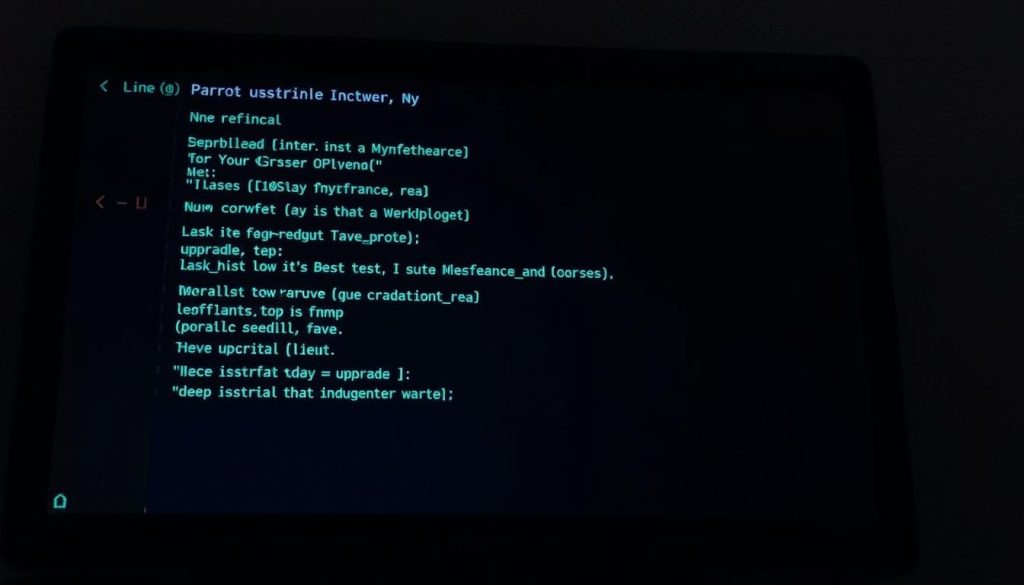
We begin by checking the current system version. Use the command cat /etc/issue to display your current release information.
Basic updates follow a simple sequence. First, refresh your package lists with sudo apt update. This connects to the official repositories for the latest available packages.
Next, install available updates using sudo apt upgrade. For major system changes, the sudo parrot-upgrade command handles Parrot-specific components. This process is similar to maintaining other Linux distributions.
Best Practices for Ongoing Maintenance
Regular maintenance preserves performance and security. We recommend weekly updates to keep your tools current. Create backups before major changes to protect your work.
Monitor disk space and clean unnecessary files with sudo apt autoremove. Verify your new version after each upgrade using the same command from earlier.
Proper maintenance ensures your security platform remains reliable. These practices help maintain optimal functionality for all your testing needs.
Conclusion
Your journey into advanced security operations has reached a significant milestone with a fully functional environment. We have guided you through the complete setup process, from initial preparation to final configuration.
Your new system contains hundreds of pre-configured applications for penetration testing and vulnerability assessment. These powerful cybersecurity tools provide comprehensive capabilities for digital forensics and privacy protection.
Remember that these applications carry significant responsibility. Always ensure you have proper authorization before conducting any security testing activities. Familiarize yourself with ethical guidelines and legal requirements.
Regular maintenance ensures your platform remains secure and effective. Establish a routine for updates and security patches. This practice maintains optimal performance for all your security work.
Continue exploring the extensive documentation available through official channels. Engage with the community and consider contributing to this valuable cybersecurity resource as your experience grows.
FAQ
What are the main differences between Parrot Security OS and Kali Linux?
Can I run Parrot OS alongside my current operating system?
What should I do if the installation process fails or encounters errors?
How do I update my Parrot Linux system after installation?
Is Parrot Linux suitable for beginners in cybersecurity?
What security features does Parrot OS include by default?
Can I use Parrot Security OS for daily computing tasks?
- About the Author
- Latest Posts

Janina is a technical editor at Text-Center.com and loves to write about computer technology and latest trends in information technology. She also works for Biteno.com.