My Step-by-Step Guide on How to Use Rufus to Install Windows 11

What if you could give your trusted old computer a new lease on life with the latest operating system, even when official rules say it’s not possible? Microsoft’s strict requirements for Windows 11 leave many capable machines behind. With support for Windows 10 ending , this creates a real problem for users who want to stay secure without buying new hardware.
This is where a powerful, free utility comes into play. I have found a reliable method to bypass these limitations. It allows you to take control of the upgrade process on your own terms. My guide provides a clear path forward. I will show you a straightforward way to create a bootable USB drive. This process sidesteps hardware checks and optional account requirements. You can achieve a clean installation and keep your system receiving vital updates. This approach empowers you to make the most of your existing PC.
Key Takeaways
- Rufus is a free utility that creates bootable USB drives for operating system installation.
- It provides a method to install Windows 11 on computers that do not meet Microsoft’s official hardware requirements.
- The tool can bypass the mandatory Microsoft account setup, allowing for a local account.
- This process is crucial for continuing to receive security updates after Windows 10 support ends.
- Following a structured guide ensures a successful installation even with limited technical experience.
- The goal is to empower users to upgrade their systems without being forced to purchase new hardware.
Overview of Installing Windows 11 with Rufus
Before diving into the technical steps, understanding the two primary installation approaches available through Rufus is essential. This software provides flexibility whether you’re upgrading an existing machine or starting with a clean slate. The installation method works for both scenarios. You can upgrade from Windows 10 or perform a completely fresh installation. Each path offers distinct advantages based on your current system configuration.When upgrading, Rufus preserves your existing account setup from Windows 10. This maintains continuity whether you had a local or Microsoft account. The transition feels seamless.
For fresh installations, the tool allows selecting a local account from the beginning. This bypasses Microsoft’s attempts to force users into creating online accounts. It’s a significant advantage for privacy-conscious users. Understanding these differences helps determine the best approach for your situation. The process of installing Windows 11 without a TPM becomes clearer when you grasp the complete journey. Realistic expectations about installation time and potential challenges ensure a smoother experience. Your system undergoes a significant transformation during this operating system upgrade.
Why Rufus is Essential for My Windows 11 Installation
Personal computing freedom means having control over what software runs on your machine. This utility provides that essential control when working with modern operating systems.
Circumventing Microsoft’s Hardware and Security Requirements
Microsoft’s strict hardware requirements create unnecessary barriers for many capable machines. The TPM 2.0 requirement and other security measures exclude older systems that function perfectly well. This tool eliminates these artificial limitations.
I appreciate how this approach bypasses hardware constraints effectively. It allows my older computer to run the latest operating system smoothly. The security requirements become manageable rather than restrictive.
This method prevents forced hardware upgrades for systems that already meet performance needs. The financial savings from avoiding new computer purchases are significant. My existing hardware continues to serve me well.
Choosing a Local Account Over a Microsoft Account
Privacy concerns make local account options important for many users. Microsoft’s push toward mandatory online accounts reduces personal control over data. This utility restores the choice that should always exist.
I value maintaining control over my personal information and system settings. The ability to select a local account during setup is crucial for my privacy preferences. This tool ensures that option remains available.
The streamlined process for account setup saves time and reduces frustration. Pre-defining account details makes the installation smoother and more personalized. This level of customization demonstrates respect for user preferences.
Preparing My System for a Smooth Installation
A successful installation begins long before you launch any software. I focus on two critical areas: gathering the correct components and verifying my machine’s readiness. This upfront work prevents most common issues.
Gathering Required Files and Tools
My first step is collecting the essential items. I need a blank USB drive with at least 8GB of space. I prefer a 16GB or larger device for better performance.
Next, I download the official Windows 11 ISO file from Microsoft. This ensures I have a legitimate, up-to-date source. I always back up any data on the USB drive because the process will erase it completely.
Ensuring System Compatibility Before Installation
Before moving forward, I check my system specifications. I look at the processor, RAM, and storage space. This helps me anticipate any compatibility challenges.
I also confirm my target drive has at least 64GB of free space. This simple check avoids installation failures midway. Finally, I ensure I can access my computer’s BIOS/UEFI settings to boot from the USB.
This preparation makes the entire process reliable and straightforward. Having the right files and a compatible system is the true key to success.
Downloading and Verifying the Windows 11 ISO File
My next critical step involves securing the official installation media. I obtain the genuine Windows ISO file directly from Microsoft’s website. This ensures I have the latest version with all current security updates.
Obtaining the Latest Windows ISO From Microsoft
I navigate to the official Microsoft download page for the operating system. I select the correct edition, language, and 64-bit architecture for my needs. The file is a complete disk image of the installation media.
This Windows ISO contains everything required for a clean install. The download is typically 4-6GB. Getting this file right is essential for a smooth process.
Techniques for ISO File Verification
After the download finishes, I always verify the ISO file integrity. A corrupted file can cause major installation failures. I compare SHA-256 hash values against Microsoft’s official checksums.
I use built-in tools like certutil for this verification. Confirming the Windows ISO authenticity prevents problems later. This careful check saves me from potential data loss and system instability.
Detailed Process: how to use rufus to install windows 11
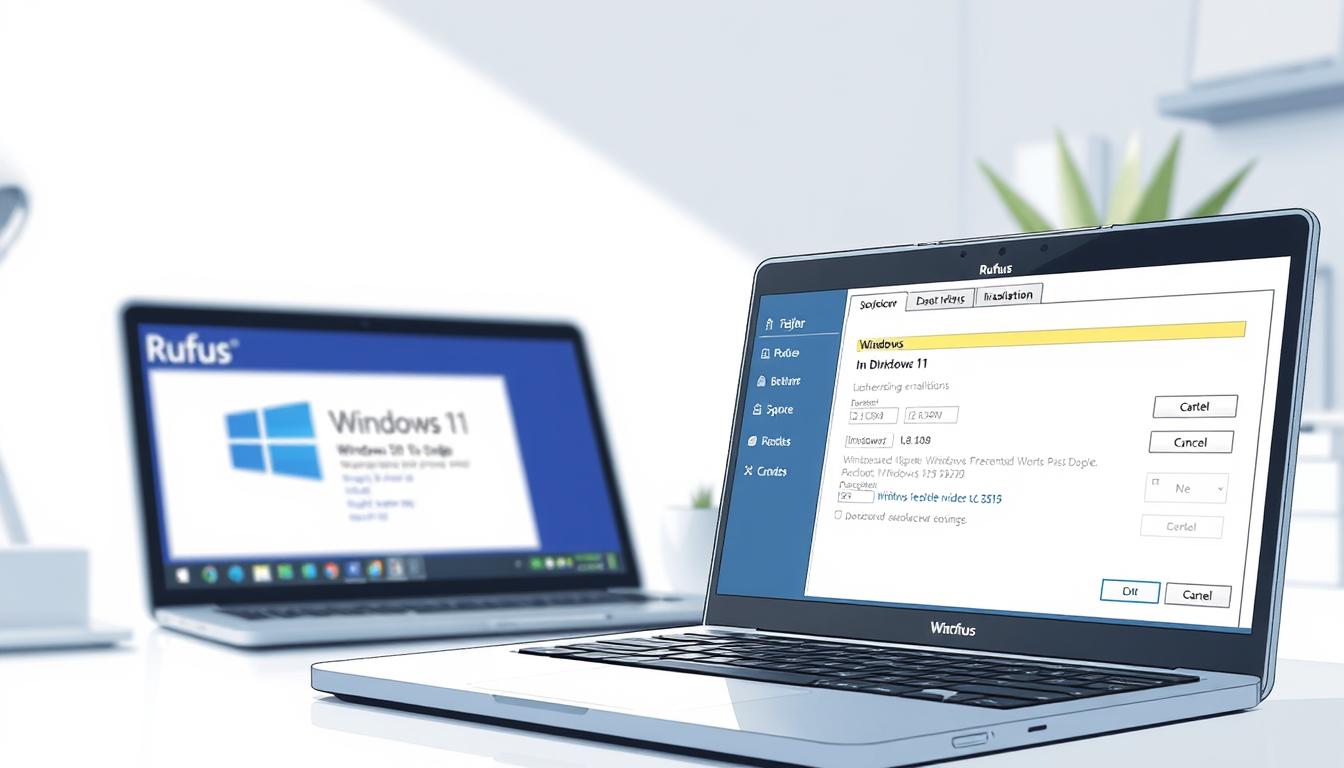
The actual creation of bootable media involves careful configuration of several important settings. I begin by obtaining the latest version of the utility from its official website. The portable edition works well for my needs.
Configuring Rufus Settings for a Custom Install
After inserting my USB drive, the application detects it automatically. I navigate to the Boot selection area and click SELECT. This allows me to choose the Windows ISO file downloaded earlier.
The Image option setting requires attention. I select “Standard Windows Installation” for most scenarios. This ensures compatibility with my system requirements.
Partition scheme selection depends on my computer’s firmware. Modern systems typically use GPT, while older hardware may need MBR. Matching this correctly is essential for proper boot functionality.
Initiating the Rufus Installation Process
Before starting the creation process, I set the Target system option appropriately. For GPT partitions, UEFI (non CSM) works best. MBR partitions may need BIOS or UEFI settings.
I assign a descriptive Volume label like “Windows11_Media” for easy identification. This helps during the boot sequence when multiple drives are connected.
The final step involves reviewing all settings on the configuration screen. Once satisfied, I click START to begin the media creation. This process erases all data on the USB drive.
During file writing, I ensure the drive remains connected. Interruptions can corrupt the installation media. The complete setup prepares the drive for the next installation phase.
Overcoming Windows 11 Hardware and Security Restrictions
Microsoft’s strict hardware policies often leave capable systems behind, but there are ways to overcome these artificial restrictions. My experience shows that many older computers can handle the latest operating system perfectly well.
Bypassing TPM 2.0 and Other Hardware Constraints
I specifically use this tool to bypass Microsoft’s arbitrary hardware restrictions. The TPM 2.0 requirement excludes countless functional computers from official compatibility. This security chip requirement creates unnecessary barriers.
Through customization options, I create installation media that skips the TPM 2.0 check entirely. The process also bypasses other hardware requirements like specific CPU generations and RAM minimums. This approach makes the operating system accessible to more users.
Managing Unsupported Hardware Considerations
I’m honest about potential pitfalls with unsupported hardware. Driver conflicts or compatibility issues may occur. The operating system might not run as efficiently compared to modern devices.
Microsoft states they won’t support installations on unsupported hardware. Critical bug fixes and security patches might not arrive. Despite these warnings, I find the approach useful for extending hardware lifespan.
For many users, the risk is worth accepting to avoid expensive new purchases. Core functionality remains intact for daily computing tasks. I manage expectations realistically about feature performance.
Configuring Advanced Rufus Options for My Installation
Fine-tuning the advanced settings ensures my installation media is perfectly tailored to my hardware. These options provide the control needed for a successful boot.
I click the small arrow to reveal additional customization settings. This exposes the critical Image option dropdown. For most scenarios, I select “Standard Windows Installation“.
This option prepares the USB drive to function like official media. It is the ideal choice for a typical operating system deployment.
Selecting the Right Image Option and Partition Scheme
The Partition scheme is another vital option. I choose GPT for modern UEFI systems or MBR for older BIOS hardware. Matching this correctly is essential.
For GPT, I set the Target system to “UEFI (non CSM)”. For MBR, “BIOS or UEFI” is my selection. This ensures the drive is recognized during startup.
File system and cluster size options usually work well on their defaults. I only adjust them for specific technical needs. These advanced settings give me granular control to create Windows installation media that works flawlessly with my setup process without an internet connection.
Troubleshooting Common Installation Challenges
Even the most carefully planned installation can encounter unexpected obstacles. I find this especially true when working with hardware that Microsoft does not officially support. Recognizing potential issues early saves considerable time and frustration.
Identifying and Resolving Driver Conflicts
Driver conflicts are a frequent hurdle. Older components like network adapters or graphics cards may lack native support in the new windows environment. My first step is always to pre-download necessary drivers from the manufacturer’s website.
I store these essential files on a separate USB drive. This ensures I can access them immediately after the main system setup completes. This proactive approach prevents connectivity issues that could halt the entire process.
Managing Unexpected Installation Errors
When an error occurs, I make sure to note the exact message or code. This information is crucial for targeted research. Common problems include the installation failing to recognize the primary hard drive.
I always check the BIOS/UEFI settings for the storage controller mode. Connections must be secure. If the device won’t boot from the USB, I verify the boot order sequence.
Backing up all important data is non-negotiable before any troubleshooting. For persistent file system errors on the USB, I completely reformat the drive and recreate the media. Consulting logs helps me pinpoint the exact failure point for a successful install.
Post-Installation Setup and Windows 11 Updates
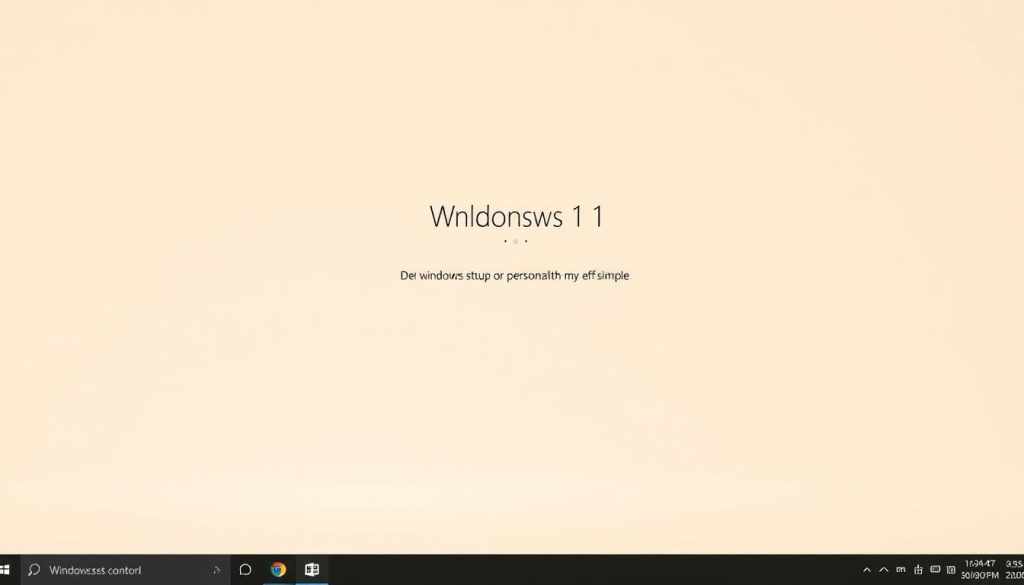
With the system files now in place, the next phase involves configuring Windows 11 to match your preferences. The initial setup screen appears after the first reboot into the new operating environment.
Setting Up a Local Account and Personalizing Settings
I proceed through the setup process, selecting my preferred region and keyboard layout. The utility’s pre-configuration allows creating a local account with the name I specified earlier. This bypasses Microsoft’s usual account requirements.
Personalizing privacy options and other configuration choices tailors the system to my specific workflow. A local account keeps my data and settings on the device rather than cloud services. This approach maintains greater control over personal information.
I customize desktop appearance, taskbar configuration, and default applications. File Explorer options receive attention for optimal workflow efficiency. These adjustments make the operating environment feel familiar and responsive.
Ensuring the System Receives Security Patches and Updates
After reaching the desktop, I immediately navigate to Settings > Windows Update. Checking for available updates is crucial for system security and stability. Microsoft may warn about limitations on unsupported hardware, but critical patches usually still arrive.
The update process often requires multiple download and restart cycles. I configure automatic update settings to balance security with my work schedule. Driver verification for audio, graphics, and other media software follows the initial update installation.
Product activation may be necessary depending on license type. I enter my product key if available. Creating a system restore point after completing all updates provides a recovery option for future issues. This comprehensive approach to upgrading an incompatible PC ensures ongoing protection, though some users might need to know how to hard reset if complications arise.
Conclusion
Mastering these techniques empowers users to make decisions about their own hardware lifespan. This section concludes our exploration of overcoming artificial limitations.
The tool we’ve discussed provides a clear path for extending computer usefulness. Creating installation media that respects user preferences is a significant advantage.
Remember to back up important files and data before beginning any system changes. The same utility works excellently for other operating systems, such as when you need to install Kali Linux from USB.
This way of approaching technology ensures your windows experience remains under your control. The final product delivers both freedom and functionality.
FAQ
Can I install Windows 11 on a computer that doesn’t meet the official system requirements?
What are the main advantages of using Rufus over the Microsoft Media Creation Tool?
How do I obtain a legitimate Windows 11 ISO file for the installation?
Will my data be erased from the USB drive I use with Rufus?
What should I do if my computer doesn’t boot from the Rufus-created USB drive?
After installation, will I still receive Windows updates and security patches?
Can I use Rufus to set up a local account instead of a Microsoft account during Windows 11 setup?
- About the Author
- Latest Posts

Mark is a senior content editor at Text-Center.com and has more than 20 years of experience with linux and windows operating systems. He also writes for Biteno.com