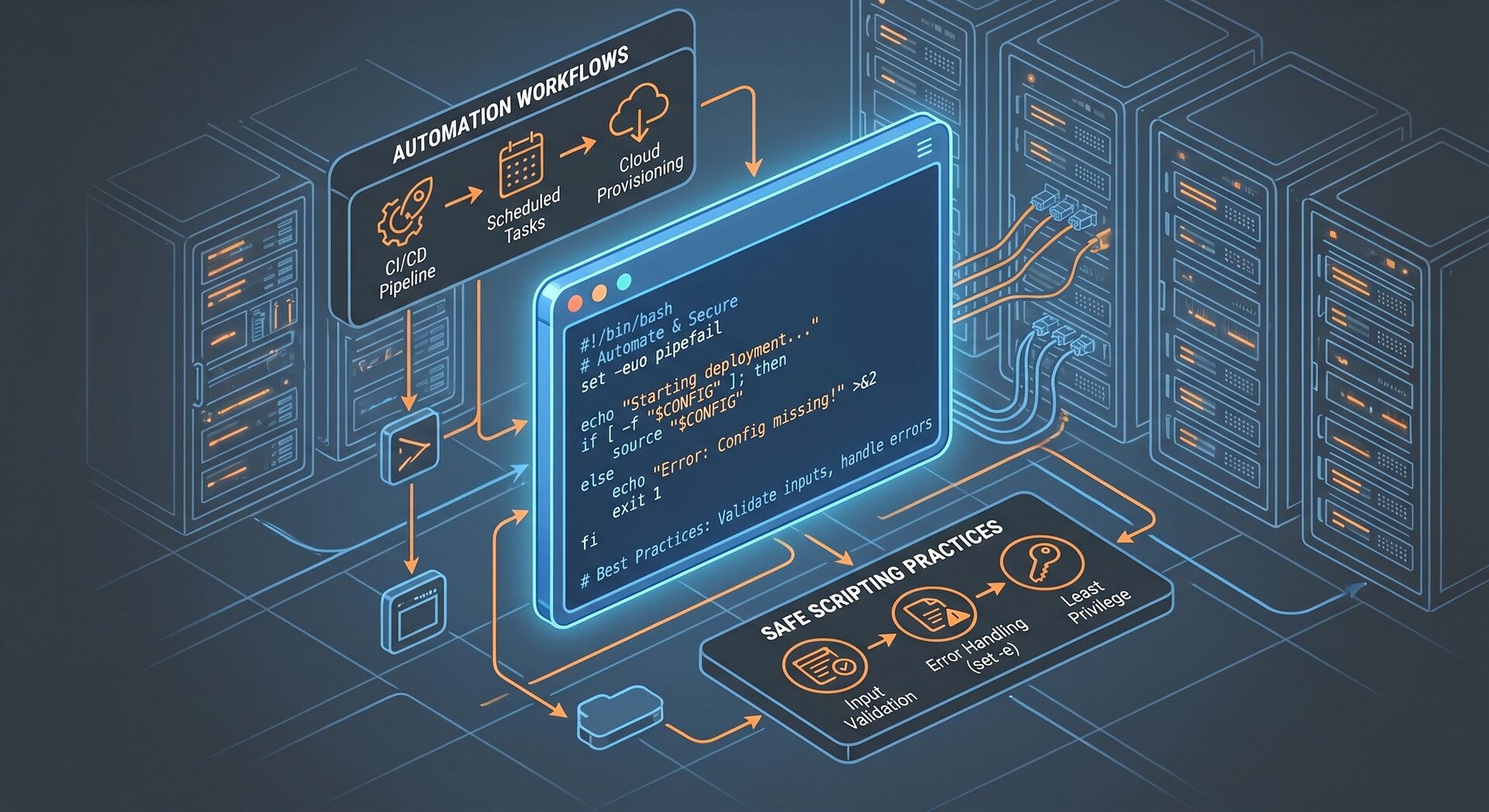
Linux Shell Automation Best Practices 2026: Safe Scripting for Production Environments

Linux shell automation has become the backbone of modern DevOps and system administration workflows. In 2026, as infrastructure complexity grows and security demands intensify, mastering linux shell automation 2026 best practices is no longer optional—it’s mission-critical for production environments.
This comprehensive guide will walk you through the essential techniques, safety measures, and modern patterns that separate fragile scripts from robust automation. Whether you’re managing servers, orchestrating CI/CD pipelines, or building self-healing infrastructure, these linux shell automation 2026 principles will help you write scripts that are reliable, maintainable, and production-ready.
Why Shell Automation Still Matters in 2026
Despite the rise of configuration management tools and Infrastructure-as-Code platforms, Bash shell scripting remains the universal glue that connects systems, tools, and workflows. Modern linux shell automation 2026 focuses on:
- Orchestration layer: Shell scripts coordinate between Python tools, Docker containers, Kubernetes resources, and cloud APIs
- System administration: Automated backups, log rotation, security patches, and health checks
- CI/CD integration: Pre-commit hooks, build scripts, deployment automation, and environment setup
- Emergency response: Quick fixes and diagnostic tools that work without dependencies
The key insight for linux shell automation 2026: use shell for what it does best—process orchestration and system-level glue code—and delegate complex logic to higher-level languages.
Choose the Right Shell and Declare It Explicitly
The foundation of reliable linux shell automation 2026 starts with choosing the correct interpreter. For automation scripts, Bash is the standard choice unless you have strict POSIX portability requirements.
Always start your scripts with an explicit shebang:
This ensures your script runs with the expected interpreter and avoids the classic “works on my machine” failures. Never rely on the default
1 | /bin/sh |
if your script uses Bash-specific features like arrays,
1 | [[ ]] |
conditionals, or brace expansion.
Common mistake: Running a Bash script with
1 | sh script.sh |
when it contains Bash-only syntax. Always use
1 | bash script.sh |
or make the script executable and run it directly:
1 | ./script.sh |
Enable Safety Flags and Strict Modes
For production linux shell automation 2026, enabling strict error handling is non-negotiable. Add these flags at the top of every non-trivial script:
2
3
4
5
6
set -Eeuo pipefail
# -E: inherit ERR traps in functions/subshells
# -e: exit on error
# -u: treat unset variables as errors
# -o pipefail: fail a pipeline if any element fails
This combination transforms Bash from a permissive shell into a stricter scripting environment. Here’s what each flag prevents:
-
1set -e
: Stops execution immediately when a command fails (non-zero exit code)
-
1set -u
: Catches typos in variable names by treating undefined variables as errors
-
1set -o pipefail
: Makes pipelines fail if any command in the chain fails, not just the last one
-
1set -E
: Ensures error traps propagate to functions and subshells
If a specific command is expected to fail occasionally, opt-out locally:
2
grep "pattern" file.txt || echo "Pattern not found, continuing..."
These safety flags are a hallmark of mature linux shell automation 2026 practices and dramatically reduce production incidents.
Quote Variables and Handle Spaces Safely
One of the most common sources of bugs in shell automation is improper variable quoting. In linux shell automation 2026, the rule is simple: always quote variables unless you explicitly want word splitting or globbing.
Examples of correct quoting:
2
3
printf '%s\n' "$var" # not: echo $var
command "$arg1" "$arg2" # not: command $arg1 $arg2
When forwarding script arguments, always use
1 | "$@" |
(quoted) instead of
1 | $* |
:
2
3
4
# Correct: preserves arguments with spaces
some_command "$@"
}
The
1 | "$@" |
form expands to individually-quoted arguments, preserving spaces and special characters exactly as passed to the script.
Use Functions and Structure Your Scripts
Modern linux shell automation 2026 emphasizes readability and maintainability through proper structure. Break logic into small, focused functions with descriptive names:
2
3
4
5
6
7
8
9
10
11
12
13
14
15
16
17
18
19
20
21
22
23
24
25
26
27
28
29
set -Eeuo pipefail
# Function declarations
validate_environment() {
[[ -n "${API_KEY:-}" ]] || { echo "ERROR: API_KEY not set" >&2; exit 1; }
command -v jq >/dev/null || { echo "ERROR: jq not installed" >&2; exit 1; }
}
perform_backup() {
local backup_dir="$1"
local timestamp=$(date +%Y%m%d_%H%M%S)
tar -czf "${backup_dir}/backup_${timestamp}.tar.gz" /var/www/
}
rotate_old_backups() {
local backup_dir="$1"
find "$backup_dir" -name "backup_*.tar.gz" -mtime +30 -delete
}
main() {
validate_environment
perform_backup "/opt/backups"
rotate_old_backups "/opt/backups"
echo "Backup completed successfully"
}
# Entry point
main "$@"
This pattern—defining a
1 | main() |
function and calling it at the end—makes scripts easier to test, debug, and reason about. It’s a cornerstone of professional linux shell automation 2026.
Robust Error Handling with Traps
Traps are Bash’s mechanism for cleanup and error handling. In linux shell automation 2026, using traps prevents leaving systems in inconsistent states:
2
3
4
5
6
7
8
9
10
11
12
13
14
15
16
17
18
19
20
21
set -Eeuo pipefail
TEMP_DIR=""
cleanup() {
local exit_code=$?
if [[ -n "$TEMP_DIR" && -d "$TEMP_DIR" ]]; then
rm -rf "$TEMP_DIR"
fi
[[ $exit_code -ne 0 ]] && echo "Script failed with exit code $exit_code" >&2
}
trap cleanup EXIT
trap 'echo "Interrupted by user"; exit 130' INT TERM
TEMP_DIR=$(mktemp -d)
echo "Working in $TEMP_DIR"
# Your automation logic here
# Even if it fails or is interrupted, cleanup() will run
Key benefits of traps in linux shell automation 2026:
- Guaranteed cleanup: Temporary files, lock files, and partial state are removed even on errors
- Graceful interruption: Handle Ctrl+C and SIGTERM signals properly
- Audit trail: Log what went wrong before exiting
Automation vs. Interactive Scripts
A critical distinction in linux shell automation 2026: scripts run by cron, systemd timers, or CI/CD pipelines have no attached terminal. This means:
-
1read
commands immediately get EOF and variables become empty
- Interactive prompts cause scripts to hang or fail silently
- Terminal-dependent features (colors, cursor movement) don’t work
Best practices for automation contexts:
2
3
4
5
6
7
8
9
read -p "Enter database name: " dbname
mysqldump "$dbname" > backup.sql # $dbname is empty!
# Good: use arguments or config files
DBNAME="${1:-production}"
CONFIG_FILE="${CONFIG_FILE:-/etc/backup/config}"
[[ -f "$CONFIG_FILE" ]] && source "$CONFIG_FILE"
mysqldump "$DBNAME" > backup.sql
If your script must support both interactive and automated usage, add a flag to toggle behavior:
2
3
4
5
6
7
8
[[ -t 0 ]] && INTERACTIVE=true # stdin is a terminal
if [[ "$INTERACTIVE" == "true" ]]; then
read -p "Confirm deletion? [y/N]: " confirm
else
confirm="${AUTO_CONFIRM:-n}"
fi
Logging and Observability
Production linux shell automation 2026 requires proper logging. Separate normal output (stdout) from errors (stderr):
2
3
4
5
6
7
8
9
10
11
12
13
14
15
16
17
18
19
20
LOG_FILE="/var/log/myapp/automation.log"
log() {
printf '%s [INFO] %s\n' "$(date -Iseconds)" "$*" | tee -a "$LOG_FILE" >&2
}
error() {
printf '%s [ERROR] %s\n' "$(date -Iseconds)" "$*" | tee -a "$LOG_FILE" >&2
}
die() {
error "$*"
exit 1
}
log "Starting daily backup process"
perform_backup || die "Backup failed"
log "Backup completed successfully"
For scheduled automation, treat logs as an operational audit trail. Include timestamps, exit codes, and decision points. This makes debugging production issues dramatically easier.
Security Best Practices
Security is paramount in linux shell automation 2026. Follow these rules:
- Never echo secrets: Use
1read -s
for password input
- Strict file permissions: Config files with credentials should be
10600
(owner-only)
- Environment variables for secrets: Don’t hardcode API keys in scripts
- Use
1--
to end option parsing:
Prevents filenames starting with1-from being interpreted as options
2
3
4
5
rm $file
# Safe: -- ends option parsing
rm -- "$file"
When to Stop Using Shell
A key insight from linux shell automation 2026 best practices: know when shell is the wrong tool. Switch to Python, Go, or another language when:
- You need complex data structures (nested JSON, maps, objects)
- The script grows beyond 300-400 lines
- You need robust error handling with retries, backoff, and circuit breakers
- Testing becomes difficult or you need mocking/unit tests
- You’re calling cloud APIs or working with complex protocols
Modern wisdom: use shell as the orchestration layer that calls specialized tools, not as the implementation language for complex logic.
Testing and Quality Assurance
Professional linux shell automation 2026 includes testing:
- ShellCheck: Static analysis tool that catches quoting bugs, deprecated syntax, and common errors
- BATS (Bash Automated Testing System): Unit testing framework for Bash scripts
- Integration tests: Run scripts in Docker containers or VMs to test in clean environments
Add ShellCheck to your CI pipeline:
2
3
4
5
6
7
8
9
10
name: ShellCheck
on: [push, pull_request]
jobs:
shellcheck:
runs-on: ubuntu-latest
steps:
- uses: actions/checkout@v3
- name: Run ShellCheck
uses: ludeeus/action-shellcheck@master
Systemd Timers vs. Cron
In linux shell automation 2026, systemd timers are increasingly preferred over cron for scheduled automation:
| Feature | Systemd Timer | Cron | ||
|---|---|---|---|---|
| Logging | Built-in via journald | Manual setup required | ||
| Dependencies | Can wait for network, mounts, etc. | No dependency management | ||
| Error handling | Restart policies, failure alerts | Manual scripting needed | ||
| Monitoring |
shows last run |
Check logs manually |
Example systemd timer for daily backups:
2
3
4
5
6
7
8
9
10
11
[Unit]
Description=Daily backup timer
[Timer]
OnCalendar=daily
OnCalendar=02:00
Persistent=true
[Install]
WantedBy=timers.target
Practical Example: Production-Ready Backup Script
Here’s a complete example demonstrating all linux shell automation 2026 best practices:
2
3
4
5
6
7
8
9
10
11
12
13
14
15
16
17
18
19
20
21
22
23
24
25
26
27
28
29
30
31
32
33
34
35
36
37
38
39
40
41
42
43
44
45
46
47
48
49
50
51
52
53
54
55
56
57
58
59
60
61
62
63
64
65
66
67
68
69
70
71
72
73
74
75
76
77
78
79
80
81
82
83
84
85
86
87
88
89
90
91
92
#
# Production backup automation script
# Usage: ./backup.sh [--target DIR] [--retention DAYS]
#
set -Eeuo pipefail
# Configuration
DEFAULT_TARGET="/opt/backups"
DEFAULT_RETENTION=30
LOG_FILE="/var/log/backup/backup.log"
# Ensure log directory exists
mkdir -p "$(dirname "$LOG_FILE")"
# Logging functions
log() { printf '%s [INFO] %s\n' "$(date -Iseconds)" "$*" | tee -a "$LOG_FILE"; }
error() { printf '%s [ERROR] %s\n' "$(date -Iseconds)" "$*" | tee -a "$LOG_FILE" >&2; }
die() { error "$*"; exit 1; }
# Cleanup trap
TEMP_DIR=""
cleanup() {
local exit_code=$?
if [[ -n "$TEMP_DIR" && -d "$TEMP_DIR" ]]; then
rm -rf "$TEMP_DIR"
log "Cleaned up temporary directory"
fi
[[ $exit_code -ne 0 ]] && error "Script failed with exit code $exit_code"
}
trap cleanup EXIT
# Parse arguments
TARGET_DIR="$DEFAULT_TARGET"
RETENTION_DAYS="$DEFAULT_RETENTION"
while [[ $# -gt 0 ]]; do
case "$1" in
--target)
TARGET_DIR="$2"
shift 2
;;
--retention)
RETENTION_DAYS="$2"
shift 2
;;
*)
die "Unknown option: $1"
;;
esac
done
# Validate environment
command -v tar >/dev/null || die "tar not found"
command -v gzip >/dev/null || die "gzip not found"
[[ -d "$TARGET_DIR" ]] || mkdir -p "$TARGET_DIR" || die "Cannot create target directory: $TARGET_DIR"
# Main backup logic
main() {
log "Starting backup to $TARGET_DIR"
TEMP_DIR=$(mktemp -d)
local timestamp=$(date +%Y%m%d_%H%M%S)
local backup_name="backup_${timestamp}.tar.gz"
local temp_backup="${TEMP_DIR}/${backup_name}"
local final_backup="${TARGET_DIR}/${backup_name}"
# Perform backup
log "Creating backup archive"
tar -czf "$temp_backup" \
--exclude='*.log' \
--exclude='*/tmp/*' \
/var/www/ \
/etc/nginx/ \
|| die "Backup creation failed"
# Atomic move to final location
mv "$temp_backup" "$final_backup" || die "Failed to move backup to final location"
log "Backup saved: $final_backup"
# Rotate old backups
log "Rotating backups older than $RETENTION_DAYS days"
find "$TARGET_DIR" -name "backup_*.tar.gz" -mtime "+${RETENTION_DAYS}" -delete
# Report backup size
local size=$(du -h "$final_backup" | cut -f1)
log "Backup completed successfully. Size: $size"
}
main
Conclusion
Mastering linux shell automation 2026 best practices transforms fragile scripts into reliable production infrastructure. The key principles are:
- Safety first: Use strict modes, proper quoting, and error handling
- Structure and clarity: Functions, clear naming, and maintainable code
- Automation-friendly: No interactive prompts in scheduled contexts
- Observability: Logging, monitoring, and audit trails
- Know your limits: Switch to higher-level languages when shell becomes unwieldy
By following these linux shell automation 2026 guidelines, you’ll write scripts that are safer, more maintainable, and production-ready. Start applying these patterns today, and your future self (and your on-call teammates) will thank you.
For more Linux administration guides, check out our articles on Linux Server Security Hardening and Systemd Service Management.
- About the Author
- Latest Posts

Mark is a senior content editor at Text-Center.com and has more than 20 years of experience with linux and windows operating systems. He also writes for Biteno.com