Linux systemd Service Management Tutorial 2026: Complete Guide

Managing services efficiently is crucial for linux systemd service management in modern server environments. Whether you’re running Ubuntu, Debian, RHEL, or any modern Linux distribution, systemd has become the standard init system and service manager. This comprehensive linux systemd service management tutorial will teach you everything from basic systemctl commands to creating custom services and troubleshooting with journalctl.
Understanding Linux systemd Service Management
Systemd is more than just a service manager—it’s a complete system and service manager for Linux operating systems. Understanding linux systemd service management basics is essential for:
- Starting, stopping, and restarting services reliably
- Configuring services to start automatically at boot
- Monitoring service health and troubleshooting issues
- Creating custom service definitions for your applications
- Managing dependencies between services
The primary tool for linux systemd service management is
1 | systemctl |
, which provides a unified interface for controlling the systemd system and service manager. Unlike older init systems, systemd offers parallel service startup, on-demand activation, and comprehensive logging through journald.
Essential systemctl Commands for Service Management
Mastering these core commands is fundamental to linux systemd service management:
Starting and Stopping Services
To start a service immediately:
To stop a running service:
To restart a service (stop then start):
To reload service configuration without interrupting active connections:
Or use reload-or-restart to attempt reload and fall back to restart if reload isn’t supported:
Boot Behavior and Auto-Start Configuration
One critical aspect of linux systemd service management is controlling which services start automatically at boot:
2
3
sudo systemctl disable SERVICE_NAME # Disable auto-start
sudo systemctl enable --now SERVICE_NAME # Enable and start immediately
The
1 | --now |
flag is particularly useful for linux systemd service management as it combines enable and start operations in a single command.
Checking Service Status
To view detailed status information:
For quick status checks:
2
3
systemctl is-enabled SERVICE_NAME # Will it start at boot?
systemctl is-failed SERVICE_NAME # In failed state?
To list all services:
2
3
systemctl list-units --type=service --state=running # Only running services
systemctl list-units --type=service --state=failed # Only failed services
Creating Custom systemd Service Units
A powerful feature of linux systemd service management is the ability to create custom service definitions for your applications. Service unit files are stored in
1 | /etc/systemd/system/ |
and follow a simple INI-style format.
Basic Service Unit Structure
Here’s a complete example for a Node.js application:
2
3
4
5
6
7
8
9
10
11
12
13
14
15
16
17
18
19
20
21
Description=My Node.js Web Application
Documentation=https://howto-do.it/linux-systemd-service-management-tutorial-2026
After=network.target
Wants=network-online.target
[Service]
Type=simple
User=nodeapp
Group=nodeapp
WorkingDirectory=/opt/myapp
Environment="NODE_ENV=production"
Environment="PORT=3000"
ExecStart=/usr/bin/node /opt/myapp/server.js
Restart=on-failure
RestartSec=10s
StandardOutput=journal
StandardError=journal
[Install]
WantedBy=multi-user.target
Understanding Service Unit Sections
[Unit] section defines metadata and dependencies:
-
1Description
: Human-readable service description
-
1After
: Ensures service starts after specified targets/services
-
1Wants
: Specifies weak dependencies (service will start even if these fail)
-
1Requires
: Strong dependencies (service won’t start if these fail)
[Service] section controls execution behavior:
-
1Type
: Service type (simple, forking, oneshot, notify, dbus, idle)
-
1User/Group
: Which user/group runs the service
-
1WorkingDirectory
: Working directory for the process
-
1Environment
: Environment variables
-
1ExecStart
: Command to start the service
-
1Restart
: When to restart (no, always, on-success, on-failure, on-abnormal, on-abort, on-watchdog)
-
1RestartSec
: Delay before restarting
[Install] section defines installation behavior:
-
1WantedBy
: Which target should pull in this service when enabled
Applying Custom Service Definitions
After creating or editing a service unit file, follow these linux systemd service management steps:
2
3
4
5
6
7
8
9
10
11
sudo systemctl daemon-reload
# 2. Start the service
sudo systemctl start myapp
# 3. Enable auto-start at boot
sudo systemctl enable myapp
# 4. Verify status
systemctl status myapp
Troubleshooting with journalctl
Effective linux systemd service management requires strong troubleshooting skills. The
1 | journalctl |
command provides access to systemd’s logging system (journald).
Viewing Service Logs
2
3
4
5
6
7
8
9
10
11
12
13
14
15
16
17
18
19
20
journalctl -u SERVICE_NAME
# Follow logs in real-time (like tail -f)
journalctl -u SERVICE_NAME -f
# Show logs since last boot
journalctl -u SERVICE_NAME -b
# Show logs from the last hour
journalctl -u SERVICE_NAME --since "1 hour ago"
# Show only errors and higher priority
journalctl -u SERVICE_NAME -p err
# Show the last 50 log entries
journalctl -u SERVICE_NAME -n 50
# Reverse chronological order (newest first)
journalctl -u SERVICE_NAME -r
System-Wide Journal Operations
2
3
4
5
6
7
8
journalctl --disk-usage
# Clean up old logs (keep last 500MB)
sudo journalctl --vacuum-size=500M
# Clean up logs older than 2 weeks
sudo journalctl --vacuum-time=2weeks
Advanced Troubleshooting
When a service fails, use these linux systemd service management techniques:
2
3
4
5
6
7
8
9
10
11
systemd-analyze verify /etc/systemd/system/myapp.service
# View service dependencies
systemctl list-dependencies myapp
# Reset failed state to retry
sudo systemctl reset-failed myapp
# View detailed service properties
systemctl show myapp
Advanced systemd Service Features
Service Templates
Systemd supports templated service units for managing multiple instances of the same service. Template unit files use the
1 | @ |
symbol in their filename (e.g.,
):
2
3
4
5
6
7
8
9
10
11
12
Description=Worker Instance %i
After=network.target
[Service]
Type=simple
User=worker
ExecStart=/usr/local/bin/worker --instance=%i
Restart=on-failure
[Install]
WantedBy=multi-user.target
Start multiple instances:
2
3
sudo systemctl start worker@2
sudo systemctl start worker@3
Resource Limits and Security
Enhance linux systemd service management with resource controls and security settings:
2
3
4
5
6
7
8
9
10
11
12
13
# Resource limits
MemoryLimit=512M
CPUQuota=50%
TasksMax=20
# Security hardening
NoNewPrivileges=true
PrivateTmp=true
ProtectSystem=strict
ProtectHome=true
ReadOnlyDirectories=/
ReadWriteDirectories=/var/lib/myapp
Service Monitoring and Health Checks
Implement health checks in your linux systemd service management strategy:
2
3
4
5
6
7
ExecStart=/usr/bin/myapp
ExecReload=/bin/kill -HUP $MAINPID
ExecStop=/bin/kill -TERM $MAINPID
TimeoutStartSec=30s
TimeoutStopSec=30s
WatchdogSec=60s
Best Practices for Linux systemd Service Management
- Use descriptive service names: Choose clear, meaningful names for custom services
- Document your services: Add
1Documentation=
URLs in unit files
- Set appropriate restart policies: Use
1Restart=on-failure
for critical services
- Run services as dedicated users: Never run services as root unless absolutely necessary
- Implement proper logging: Use
1StandardOutput=journal
and
1StandardError=journal - Test before enabling: Verify service functionality before enabling auto-start
- Use dependencies correctly: Define
1After=
,
1Wants=, and
1Requires=appropriately
- Monitor service health: Regularly check service status and logs
- Keep services minimal: Each service should do one thing well
- Version control service files: Store unit files in version control systems
Common Linux systemd Service Management Scenarios
Web Server Management
2
3
4
5
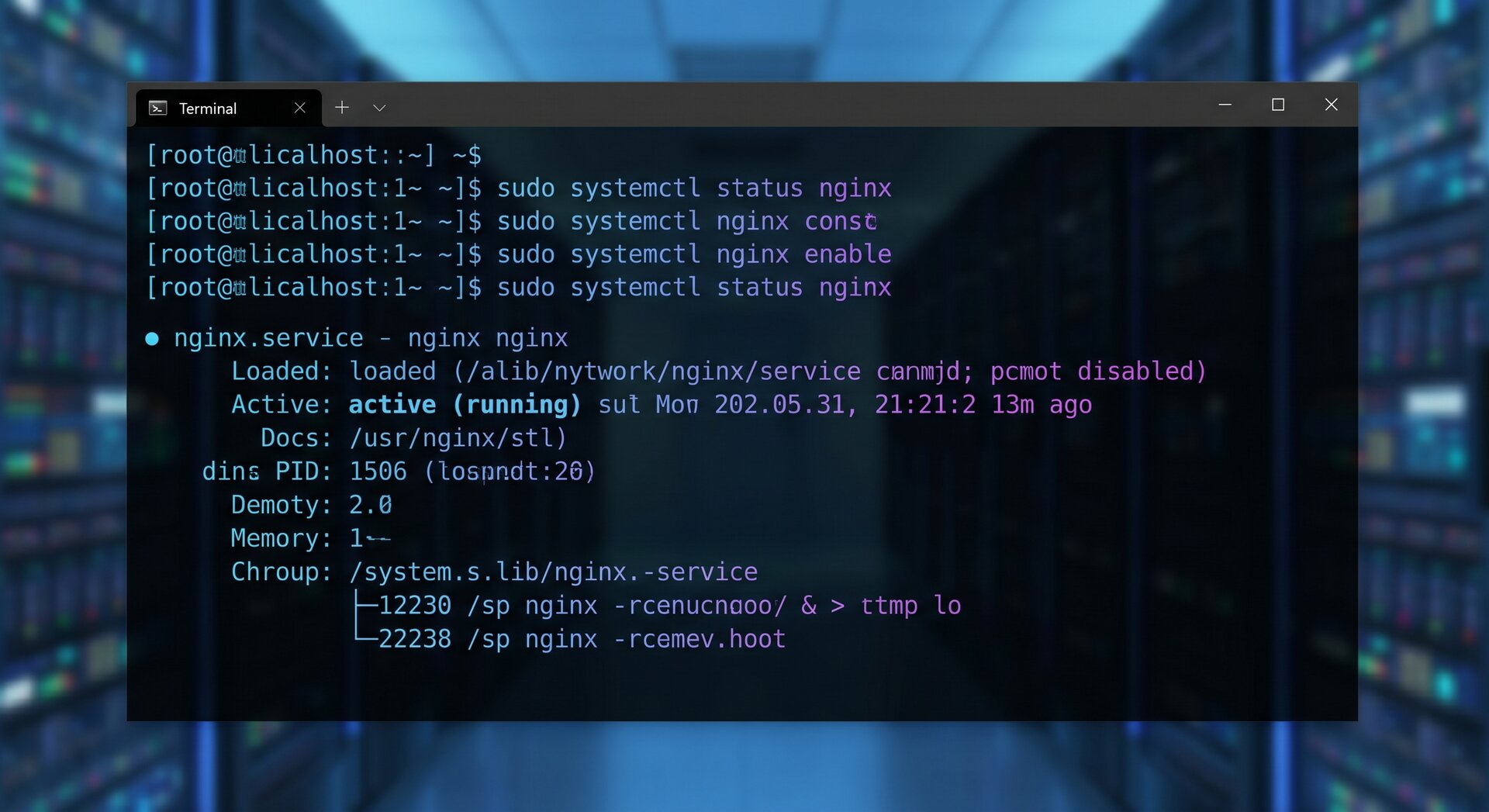
sudo systemctl restart nginx
sudo systemctl reload nginx # Reload config without dropping connections
systemctl status nginx
journalctl -u nginx -f
Database Service Management
2
3
4
sudo systemctl enable --now postgresql
systemctl status postgresql
journalctl -u postgresql -n 100
Custom Application Deployment
2
3
4
5
6
sudo systemctl stop myapp
# Deploy new code
sudo systemctl start myapp
journalctl -u myapp -f # Watch for startup issues
systemctl status myapp # Verify running state
Systemd Targets and Runlevels
Understanding systemd targets is important for comprehensive linux systemd service management:
2
3
4
5
6
7
8
9
10
11
systemctl get-default
# Set default target
sudo systemctl set-default multi-user.target
# Switch to different target
sudo systemctl isolate rescue.target
# Common targets
systemctl list-units --type=target
Common systemd targets:
-
1poweroff.target
: System shutdown
-
1rescue.target
: Single-user mode
-
1multi-user.target
: Multi-user text mode (like runlevel 3)
-
1graphical.target
: Multi-user with GUI (like runlevel 5)
-
1reboot.target
: System reboot
Migration from Init Scripts to systemd
If you’re migrating from older init systems, here’s how init commands map to linux systemd service management:
| Old Command | systemd Equivalent | ||||||
|---|---|---|---|---|---|---|---|
|
|
||||||
|
|
||||||
|
|
||||||
|
|
||||||
|
|
||||||
|
|
||||||
|
|
Performance and Optimization
Analyzing Boot Performance
Systemd includes powerful tools for analyzing system startup performance:
2
3
4
5
6
7
8
9
10
11
systemd-analyze
# Per-service startup times
systemd-analyze blame
# Critical path analysis
systemd-analyze critical-chain
# Generate SVG timeline
systemd-analyze plot > boot-analysis.svg
Optimizing Service Startup
Improve boot times with these linux systemd service management techniques:
- Use
1Type=idle
for services that can wait until other services complete
- Set appropriate
1After=
dependencies to enable parallel startup
- Use socket activation for on-demand service startup
- Disable unnecessary services with
1<code>1systemctl disable SERVICE
- Use
1sudo systemctl mask SERVICE
to completely prevent service activation
Security Considerations
Implement these security best practices in your linux systemd service management:
- Principle of least privilege: Run services with minimal permissions
- Use dedicated service accounts: Create separate users for each service
- Implement resource limits: Prevent resource exhaustion attacks
- Enable security features: Use
1NoNewPrivileges
,
1PrivateTmp,
1ProtectSystem - Audit service files: Regularly review custom service definitions
- Monitor service logs: Watch for suspicious activity
- Keep systemd updated: Install security updates promptly
Conclusion
Mastering linux systemd service management is essential for modern Linux system administration. From basic systemctl commands to creating custom service units and troubleshooting with journalctl, systemd provides a powerful and flexible framework for managing services across all major Linux distributions.
Key takeaways for linux systemd service management:
- Use
1systemctl
for all service control operations
- Create well-structured service unit files with proper dependencies
- Leverage
1journalctl
for comprehensive troubleshooting
- Implement security best practices and resource limits
- Monitor service health and performance regularly
- Document your service configurations thoroughly
Whether you’re managing a single server or a large infrastructure, proficient linux systemd service management skills will improve reliability, security, and maintainability of your Linux systems in 2026 and beyond.
For more Linux administration tutorials, check out our guides on Ubuntu server administration, Linux security hardening, and Bash scripting for automation.
- About the Author
- Latest Posts

Mark is a senior content editor at Text-Center.com and has more than 20 years of experience with linux and windows operating systems. He also writes for Biteno.com