OpenClaw AI Agent Setup: Self-Hosted Automation Guide (2026)

Setting up an OpenClaw AI agent on your own server gives you complete control over your automation workflows while keeping your data private. This comprehensive OpenClaw AI agent setup guide walks you through installing, configuring, and running self-hosted AI automation on your infrastructure. Whether you’re a developer looking to automate tasks or a business wanting to deploy AI agents internally, this tutorial covers everything you need to get started in 2026.
What Is OpenClaw?
OpenClaw is an open-source AI agent platform that enables you to run autonomous AI agents on your own infrastructure. Unlike cloud-based solutions that require sending your data to third-party servers, OpenClaw keeps everything under your control. The platform supports multiple AI models, integrates with various tools and APIs, and provides a flexible framework for building custom automation workflows.
Key features of OpenClaw include:
- Self-hosted deployment – Run everything on your own servers
- Multi-model support – Works with OpenAI, Anthropic, Google Gemini, and local models
- Extensible architecture – Plugin system for custom integrations
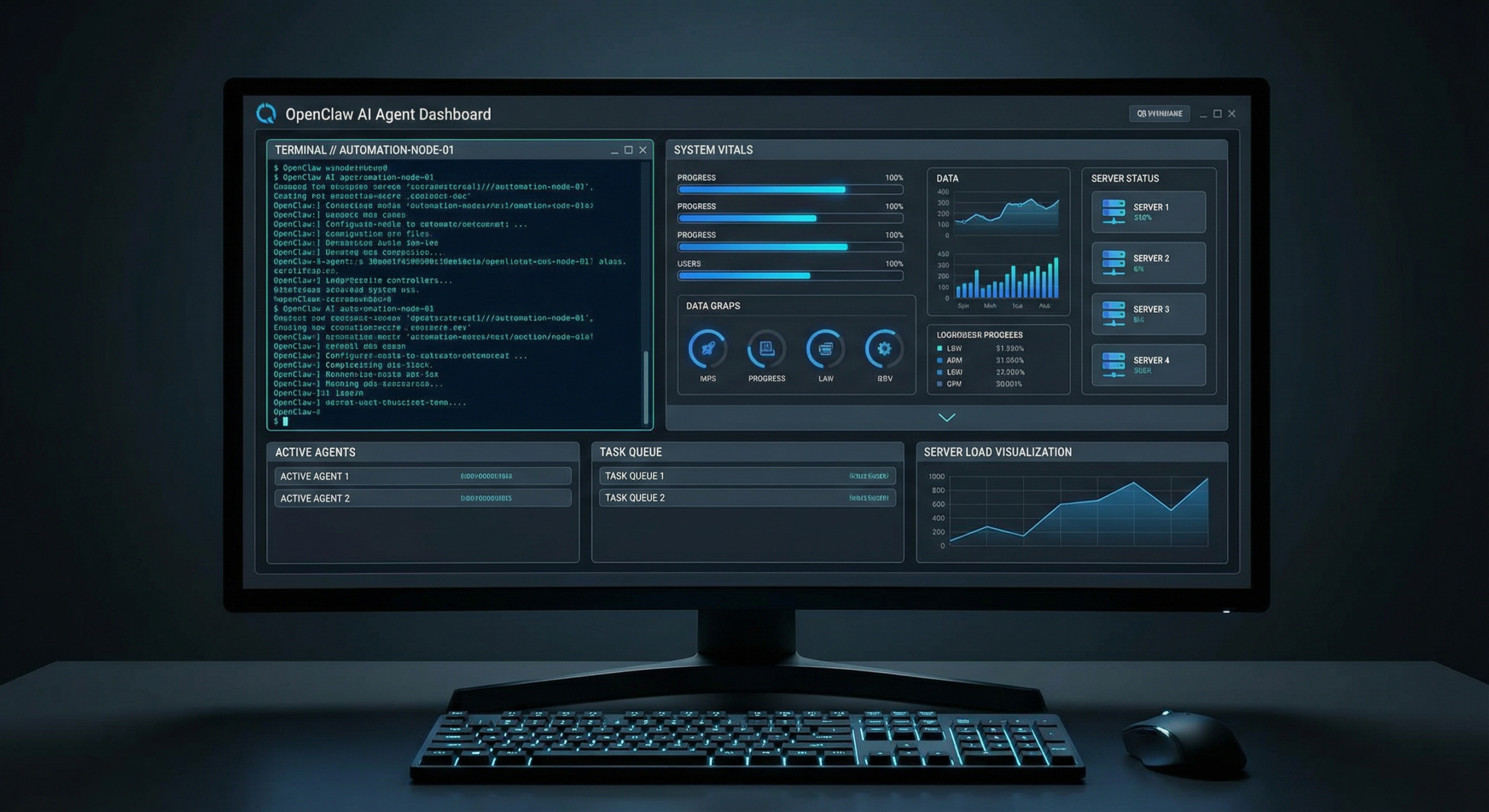
- Web-based dashboard – Manage agents through an intuitive interface
- API access – Programmatic control for advanced use cases
Prerequisites for OpenClaw AI Agent Setup
Before beginning your OpenClaw AI agent setup, ensure you have the following requirements in place:
Hardware Requirements
For a basic OpenClaw installation, you need:
- CPU: 2+ cores (4+ recommended for production)
- RAM: 4GB minimum (8GB+ recommended)
- Storage: 20GB free disk space
- Network: Stable internet connection for model API access
If you plan to run local AI models, requirements increase significantly:
- GPU: NVIDIA GPU with 8GB+ VRAM (for local LLMs)
- RAM: 16GB+ recommended for local model inference
- Storage: 50GB+ for model files
Software Requirements
- Operating System: Ubuntu 22.04 LTS or 24.04 LTS (recommended)
- Docker: Version 24.0 or higher
- Docker Compose: Version 2.20 or higher
- Node.js: Version 18 LTS or higher
- Git: For cloning repositories
If you need help setting up your server, check out our Ubuntu 24.04 LTS Server Setup Guide for detailed instructions on preparing your environment.
Step 1: Prepare Your Server
Start by updating your system packages and installing essential tools:
2
sudo apt install -y curl wget git nano ufw
Install Docker and Docker Compose
OpenClaw runs containerized services, making Docker essential:
2
3
4
5
6
7
8
9
10
11
12
13
14
15
16
sudo apt remove docker docker-engine docker.io containerd runc
# Install Docker
sudo apt install -y ca-certificates gnupg lsb-release
sudo mkdir -p /etc/apt/keyrings
curl -fsSL https://download.docker.com/linux/ubuntu/gpg | sudo gpg --dearmor -o /etc/apt/keyrings/docker.gpg
echo "deb [arch=$(dpkg --print-architecture) signed-by=/etc/apt/keyrings/docker.gpg] https://download.docker.com/linux/ubuntu $(lsb_release -cs) stable" | sudo tee /etc/apt/sources.list.d/docker.list > /dev/null
sudo apt update
sudo apt install -y docker-ce docker-ce-cli containerd.io docker-compose-plugin
# Verify installation
sudo docker --version
sudo docker compose version
Configure Firewall
Secure your server by configuring the firewall:
2
3
4
5
6
sudo ufw default allow outgoing
sudo ufw allow ssh
sudo ufw allow 80/tcp
sudo ufw allow 443/tcp
sudo ufw enable
Step 2: Install OpenClaw
With your server prepared, it’s time to install OpenClaw. The installation process involves cloning the repository, configuring environment variables, and starting the services.
Clone the OpenClaw Repository
2
3
4
5
6
7
8
9
sudo mkdir -p /opt/openclaw
cd /opt/openclaw
# Clone the repository
sudo git clone https://github.com/openclaw/openclaw.git .
# Set proper permissions
sudo chown -R $USER:$USER /opt/openclaw
Configure Environment Variables
Create and edit the environment configuration file:
2
nano .env
Configure the following essential variables:
2
3
4
5
6
7
8
9
10
11
12
13
14
15
16
17
DATABASE_URL=postgresql://openclaw:your_secure_password@localhost:5432/openclaw
# Redis
REDIS_URL=redis://localhost:6379
# API Keys (add your preferred AI providers)
OPENAI_API_KEY=sk-your_openai_key
ANTHROPIC_API_KEY=sk-ant-your_anthropic_key
GOOGLE_API_KEY=your_google_gemini_key
# Security
JWT_SECRET=your_random_jwt_secret_min_32_chars
ENCRYPTION_KEY=your_random_encryption_key
# Domain (for production)
APP_URL=https://openclaw.yourdomain.com
Generate secure random keys:
2
openssl rand -base64 32 # For ENCRYPTION_KEY
Start OpenClaw Services
Launch the OpenClaw stack using Docker Compose:
2
sudo docker compose up -d
This command downloads necessary images and starts all services in detached mode. The initial startup may take 5-10 minutes depending on your server’s internet connection.
Verify Installation
Check that all containers are running:
You should see containers for the API, web interface, database, and Redis. All should show status “running” or “healthy”.
View logs to ensure everything started correctly:
Press Ctrl+C to exit the log view.
Step 3: Initial Configuration
After installation, complete the initial setup through the web interface.
Access the Web Dashboard
Open your browser and navigate to:
For local testing, use:
Create Admin Account
On first access, you’ll be prompted to create an administrator account:
- Enter a valid email address
- Create a strong password (minimum 12 characters)
- Confirm your password
- Click “Create Account”
Configure AI Providers
Navigate to Settings → AI Providers to configure your preferred AI models:
- OpenAI: Enter your API key and select available models (GPT-4, GPT-4o, GPT-3.5-turbo)
- Anthropic: Add your Claude API key for Claude 3 models
- Google: Configure Gemini API access
- Local Models: If running Ollama or similar, configure the endpoint URL
Test each provider by clicking the “Test Connection” button before saving.
Step 4: Create Your First AI Agent
Now that OpenClaw is configured, let’s create your first agent.
Define Agent Purpose
Before creating an agent, clearly define:
- Task scope: What specific tasks should the agent handle?
- Tools needed: Which integrations are required?
- Model preference: Which AI model best fits your use case?
- Permissions: What access should the agent have?
Create Agent Through Dashboard
- Click “New Agent” in the dashboard
- Enter a descriptive name (e.g., “Code Review Assistant”)
- Select the AI model from your configured providers
- Write a system prompt defining the agent’s role and behavior
- Enable required tool integrations
- Set rate limits and usage quotas
- Click “Create Agent”
Example System Prompt
2
3
4
5
6
7
- Reviewing code for bugs and best practices
- Suggesting performance improvements
- Explaining complex code sections
- Writing unit tests
Always provide clear, concise explanations and include code examples when relevant.
Step 5: Configure Tools and Integrations
OpenClaw’s power comes from its extensive tool integrations. Enable the tools your agents need.
Available Tool Categories
- Development: GitHub, GitLab, Jira, VS Code
- Communication: Slack, Discord, Microsoft Teams, Email
- Storage: AWS S3, Google Drive, Dropbox
- Databases: PostgreSQL, MySQL, MongoDB, Redis
- Monitoring: Prometheus, Grafana, DataDog
- Custom: Webhooks, HTTP requests, custom scripts
Enable Slack Integration
As an example, here’s how to enable Slack:
- Go to Settings → Integrations → Slack
- Click “Add to Slack”
- Authorize the OpenClaw app in your workspace
- Select the channels the agent can access
- Copy the webhook URL and paste it into OpenClaw
- Test the connection
Your agent can now send messages, read channel history, and respond to mentions in Slack.
Step 6: Secure Your OpenClaw Installation
Security is critical when running AI agents with access to your systems.
Enable HTTPS
For production deployments, always use HTTPS:
2
3
4
5
6
7
8
9
sudo apt install -y certbot
# Obtain certificate
sudo certbot certonly --standalone -d openclaw.yourdomain.com
# Configure OpenClaw to use certificates
# Edit docker-compose.yml to mount certificates
# Update APP_URL to use https://
Set Up Reverse Proxy
Use Nginx as a reverse proxy for better security and performance:
2
3
4
# Create Nginx configuration
sudo nano /etc/nginx/sites-available/openclaw
Add this configuration:
2
3
4
5
6
7
8
9
10
11
12
13
14
15
16
17
18
19
20
21
22
23
24
25
listen 80;
server_name openclaw.yourdomain.com;
return 301 https://$server_name$request_uri;
}
server {
listen 443 ssl http2;
server_name openclaw.yourdomain.com;
ssl_certificate /etc/letsencrypt/live/openclaw.yourdomain.com/fullchain.pem;
ssl_certificate_key /etc/letsencrypt/live/openclaw.yourdomain.com/privkey.pem;
location / {
proxy_pass http://localhost:3000;
proxy_http_version 1.1;
proxy_set_header Upgrade $http_upgrade;
proxy_set_header Connection 'upgrade';
proxy_set_header Host $host;
proxy_set_header X-Real-IP $remote_addr;
proxy_set_header X-Forwarded-For $proxy_add_x_forwarded_for;
proxy_set_header X-Forwarded-Proto $scheme;
proxy_cache_bypass $http_upgrade;
}
}
Enable the site:
2
3
sudo nginx -t
sudo systemctl restart nginx
Configure Authentication
Enable additional security features:
- Two-factor authentication: Require 2FA for admin accounts
- SSO integration: Connect to your existing identity provider
- API key rotation: Set expiration dates for API keys
- Audit logging: Enable comprehensive activity logging
Step 7: Monitor and Maintain
Ongoing maintenance ensures your OpenClaw installation runs smoothly.
Monitor Resource Usage
Set up monitoring for your OpenClaw server:
2
3
4
5
6
7
8
sudo docker stats
# Check disk space
sudo df -h
# Monitor memory usage
sudo free -h
Consider setting up Prometheus and Grafana for long-term metrics collection and alerting.
Update OpenClaw
Regularly update to the latest version:
2
3
4
5
git pull origin main
sudo docker compose down
sudo docker compose pull
sudo docker compose up -d
Always review release notes before updating production instances.
Backup Strategy
Implement automated backups for your OpenClaw data:
2
3
4
5
6
7
8
9
10
11
12
13
14
15
16
17
#!/bin/bash
BACKUP_DIR="/backups/openclaw"
DATE=$(date +%Y%m%d_%H%M%S)
# Backup database
sudo docker exec openclaw-db pg_dump -U openclaw openclaw > $BACKUP_DIR/db_$DATE.sql
# Backup environment file
cp /opt/openclaw/.env $BACKUP_DIR/env_$DATE
# Backup agent configurations
sudo tar -czf $BACKUP_DIR/agents_$DATE.tar.gz /opt/openclaw/agents
# Keep only last 7 days of backups
find $BACKUP_DIR -name "*.sql" -mtime +7 -delete
find $BACKUP_DIR -name "*.tar.gz" -mtime +7 -delete
Troubleshooting Common Issues
Even with careful setup, you may encounter issues. Here are solutions to common problems:
Container Won’t Start
If containers fail to start:
- Check logs:
1sudo docker compose logs service-name
- Verify environment variables are correct
- Ensure ports aren’t already in use:
1sudo netstat -tlnp
- Check disk space:
1sudo df -h
AI Provider Connection Failed
If AI providers show connection errors:
- Verify API keys are correct and active
- Check network connectivity from the container
- Ensure rate limits haven’t been exceeded
- Review provider status page for outages
Agent Not Responding
If agents become unresponsive:
- Check agent logs in the dashboard
- Verify the agent has necessary permissions
- Restart the agent from the dashboard
- Check if the assigned model is available
Advanced Configuration Options
For power users, OpenClaw offers several advanced features:
Run Local AI Models
Deploy local models with Ollama for complete privacy:
2
3
4
5
6
7
8
curl -fsSL https://ollama.com/install.sh | sh
# Pull a model
ollama pull llama3.2
# Configure in OpenClaw
# Set OLLAMA_HOST=http://localhost:11434 in .env
Scale Horizontally
For high-demand deployments, run multiple OpenClaw instances:
- Use a load balancer to distribute requests
- Configure shared Redis for session management
- Set up PostgreSQL replication for database scaling
- Deploy agents across multiple worker nodes
Custom Plugin Development
Extend OpenClaw with custom plugins:
- Fork the plugin template repository
- Implement your tool’s API interface
- Package and install the plugin
- Configure through the dashboard
Best Practices for Production
Follow these recommendations for production OpenClaw AI agent setup:
- Use dedicated infrastructure – Don’t share OpenClaw with other applications
- Implement network segmentation – Isolate AI agents in a separate VLAN
- Regular security audits – Review agent permissions and access logs monthly
- Test in staging first – Validate changes before production deployment
- Document agent configurations – Maintain records of system prompts and tools
- Set up alerts – Monitor for unusual activity or resource spikes
- Train your team – Ensure users understand capabilities and limitations
Conclusion
Setting up OpenClaw AI agent infrastructure on your own server provides unparalleled control, privacy, and customization for your AI automation needs. This guide covered the complete OpenClaw AI agent setup process from server preparation through advanced configuration.
By following these steps, you’ve deployed a robust, self-hosted AI agent platform capable of automating complex workflows while keeping your data secure. As you become more familiar with OpenClaw, explore the plugin ecosystem and API to build increasingly sophisticated automation solutions tailored to your specific requirements.
Remember to keep your installation updated, maintain regular backups, and continuously refine your agent configurations for optimal performance. The investment in self-hosted AI infrastructure pays dividends in control, cost savings, and capability as your automation needs grow.

Frequently Asked Questions
Can I run OpenClaw without Docker?
While Docker is the recommended deployment method, you can run OpenClaw components directly. However, this requires manual configuration of all dependencies and is only recommended for advanced users.
How much does OpenClaw cost?
OpenClaw is open-source and free to use. Your costs are limited to infrastructure (server, storage) and any AI model API usage fees.
Can I migrate from cloud AI services to OpenClaw?
Yes, OpenClaw supports importing configurations from several cloud platforms. Check the documentation for specific migration guides.
What programming languages can OpenClaw agents use?
Agents can execute code in Python, JavaScript, Bash, and PowerShell through the built-in code execution tools. Additional languages can be supported through custom plugins.
Is my data safe with OpenClaw?
Since OpenClaw is self-hosted, your data never leaves your infrastructure unless you explicitly configure external integrations. This makes it significantly more private than cloud-based alternatives.
- About the Author
- Latest Posts

Mark is a senior content editor at Text-Center.com and has more than 20 years of experience with linux and windows operating systems. He also writes for Biteno.com