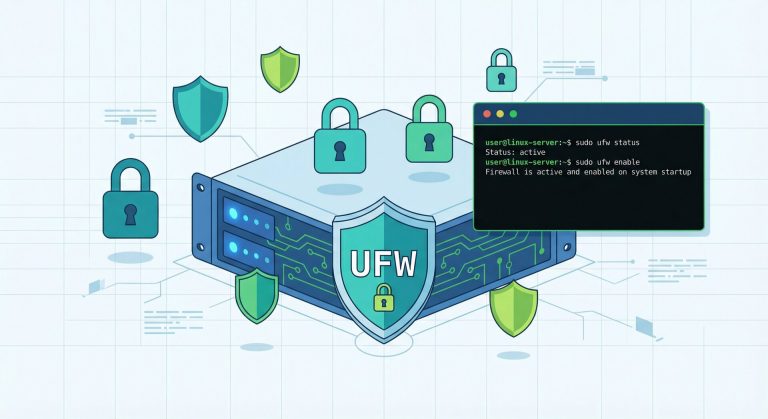
How to Secure Ubuntu Server with UFW Firewall and Fail2Ban in 2026

If you want to secure ubuntu server ufw fail2ban properly, this comprehensive guide will show you exactly how to protect your Linux infrastructure from unauthorized access and brute-force attacks. Server security is more critical than ever in 2026, with cyber threats evolving daily. Ubuntu Server remains one of the most popular Linux distributions for hosting applications, websites, and services, making it a prime target for attackers. Learning how to secure ubuntu server ufw fail2ban is essential for any system administrator or DevOps professional.
In this tutorial, we’ll walk through the complete process of hardening your Ubuntu Server using two powerful security tools: UFW (Uncomplicated Firewall) and Fail2Ban. By the end of this guide, you’ll have a robust defense system that blocks malicious traffic and automatically bans repeat offenders. Whether you’re running Ubuntu 22.04 LTS, 24.04 LTS, or the latest version, these techniques will help you secure ubuntu server ufw fail2ban effectively.
Why You Need to Secure Ubuntu Server with UFW and Fail2Ban
Before diving into the technical steps, let’s understand why these tools are crucial for server security. Ubuntu Server, by default, has many ports and services exposed to the network. Without proper firewall configuration, attackers can probe your server for vulnerabilities, attempt SSH brute-force attacks, or exploit open services.
UFW (Uncomplicated Firewall) provides a user-friendly interface for managing iptables firewall rules. It allows you to define which ports and services are accessible from the network, implementing a default-deny policy that blocks all unnecessary traffic.
Fail2Ban is an intrusion prevention framework that monitors log files for suspicious activity and automatically bans IP addresses that show malicious behavior. It’s particularly effective against brute-force attacks on SSH, web servers, and other services.
Together, these tools create a layered security approach that significantly reduces your attack surface. When you secure ubuntu server ufw fail2ban combination, you’re implementing industry best practices recommended by security experts and organizations like NIST and CIS.
Prerequisites for This Tutorial
Before we begin to secure ubuntu server ufw fail2ban, ensure you have:
- Ubuntu Server 22.04 LTS, 24.04 LTS, or newer installed
- Root or sudo access to your server
- SSH access to your server (via password or key authentication)
- Basic knowledge of Linux command line
- A stable internet connection
Important Warning: When configuring firewall rules, always ensure you have an alternative way to access your server (like a console through your hosting provider’s control panel) in case you accidentally lock yourself out.
Step 1: Update Your Ubuntu Server System
The first step to secure ubuntu server ufw fail2ban is ensuring your system has the latest security patches. Run these commands:
2
3
sudo apt upgrade -y
sudo apt autoremove -y
This updates your package lists, installs available updates, and removes unnecessary packages. Keeping your system updated is fundamental to security, as many vulnerabilities are patched through regular updates.
Step 2: Install and Configure UFW Firewall
UFW is typically pre-installed on Ubuntu Server, but if it’s missing, install it with:
Now let’s configure UFW to secure ubuntu server ufw fail2ban setup:
Set Default Policies
First, establish a default-deny policy that blocks all incoming connections unless explicitly allowed:
2
sudo ufw default allow outgoing
This configuration blocks all incoming traffic by default while allowing outgoing connections, which is the recommended security posture.
Allow Essential Services
Before enabling UFW, allow SSH to prevent locking yourself out:
Or if you use a custom SSH port (recommended), specify it:
Add other services you need, such as HTTP and HTTPS for web servers:
2
3
4
5
6
# Or for Apache:
sudo ufw allow 'Apache Full'
# Or manually:
sudo ufw allow 80/tcp
sudo ufw allow 443/tcp
Enable UFW
Once you’ve allowed necessary services, enable the firewall:
Verify the status:
You should see your rules listed with default deny policies active. This completes the UFW portion of how to secure ubuntu server ufw fail2ban.
Step 3: Install and Configure Fail2Ban
Now we’ll add intrusion prevention to secure ubuntu server ufw fail2ban completely. Install Fail2Ban:
Fail2Ban uses “jails” to monitor different services. The main configuration file is
1 | /etc/fail2ban/jail.conf |
, but you should never edit it directly. Instead, create a local configuration file:
2
sudo nano /etc/fail2ban/jail.local
Configure SSH Jail
Find the
1 | [sshd] |
section and configure it to secure ubuntu server ufw fail2ban against SSH brute-force attacks:
2
3
4
5
6
7
8
enabled = true
port = ssh
filter = sshd
logpath = /var/log/auth.log
maxretry = 3
bantime = 3600
findtime = 600
This configuration:
- enabled = true: Activates the SSH jail
- maxretry = 3: Bans after 3 failed login attempts
- bantime = 3600: Bans for 1 hour (3600 seconds)
- findtime = 600: Within a 10-minute window
Configure Additional Jails
To further secure ubuntu server ufw fail2ban, enable jails for web servers if you’re running Nginx or Apache:
2
3
4
5
6
7
8
9
10
11
enabled = true
[nginx-noscript]
enabled = true
[nginx-badbots]
enabled = true
[nginx-noproxy]
enabled = true
For Apache users:
2
3
4
5
6
7
8
9
10
11
enabled = true
[apache-badbots]
enabled = true
[apache-noscript]
enabled = true
[apache-overflows]
enabled = true
Start and Enable Fail2Ban
2
sudo systemctl start fail2ban
Check the status:
To see details of the SSH jail:
Step 4: Advanced UFW Rules for Enhanced Security
To truly secure ubuntu server ufw fail2ban setup, consider these advanced UFW rules:
Rate Limiting for SSH
Limit connection attempts to SSH:
This denies connections from an IP address that has attempted to initiate 6 or more connections in the last 30 seconds.
Allow from Specific IP Addresses
If you connect from a static IP, restrict SSH access:
2
sudo ufw allow from YOUR_IP_ADDRESS to any port 22
Block Ping Requests (Optional)
Edit UFW’s configuration to disable ping responses:
Find the line:
Change
1 | ACCEPT |
to
1 | DROP |
:
Reload UFW:
Step 5: Monitor and Maintain Your Security Setup
After you secure ubuntu server ufw fail2ban, ongoing monitoring is essential:
Check Fail2Ban Logs
This shows real-time bans and unbans.
View Banned IPs
Manually Ban/Unban IPs
2
3
4
5
sudo fail2ban-client set sshd banip 192.168.1.100
# Unban an IP
sudo fail2ban-client set sshd unbanip 192.168.1.100
Check UFW Status Regularly
Review your rules periodically and remove any that are no longer needed.
Step 6: Additional Security Hardening Tips
To maximize the benefits when you secure ubuntu server ufw fail2ban, implement these additional measures:
Disable Password Authentication for SSH
Use SSH keys instead of passwords. Edit SSH configuration:
Set these options:
2
3
PubkeyAuthentication yes
PermitRootLogin no
Restart SSH:
Learn more about SSH key authentication in our related tutorials.
Enable Automatic Security Updates
2
sudo dpkg-reconfigure --priority=low unattended-upgrades
Install and Configure AppArmor
AppArmor is typically enabled by default on Ubuntu:
Ensure profiles are in enforce mode for critical services.
Use Auditd for System Auditing
2
3
sudo systemctl enable auditd
sudo systemctl start auditd
Common Issues and Troubleshooting
Locked Out of SSH
If you accidentally block yourself when trying to secure ubuntu server ufw fail2ban:
- Access your server through your provider’s console
- Disable UFW temporarily:
1sudo ufw disable
- Fix your rules
- Re-enable:
1sudo ufw enable
Fail2Ban Not Banning
Check log paths are correct:
Verify the log file exists and is being written to:
UFW Rules Not Taking Effect
Reload UFW after making changes:
Check the order of rules – UFW processes rules from top to bottom:
Best Practices to Secure Ubuntu Server with UFW and Fail2Ban
- Principle of Least Privilege: Only open ports that are absolutely necessary
- Regular Updates: Keep UFW, Fail2Ban, and your system updated
- Monitor Logs: Review Fail2Ban logs weekly to identify attack patterns
- Backup Configurations: Save copies of your UFW and Fail2Ban configs
- Test Changes: Always test firewall changes in a non-production environment first
- Document Rules: Keep notes on why each firewall rule exists
- Use Strong Ban Times: For persistent attackers, increase ban times to 24+ hours
- Whitelist Trusted IPs: Add your office or home IP to Fail2Ban’s whitelist
- Combine with Other Tools: Use alongside tools like Ubuntu Security Guide
Performance Considerations
When you secure ubuntu server ufw fail2ban, there’s minimal performance impact. UFW adds negligible overhead since it’s built on netfilter/iptables. Fail2Ban uses very little CPU and memory, typically under 50MB RAM.
However, on high-traffic servers:
- Optimize Fail2Ban regex patterns for faster log parsing
- Increase
1findtime
and
1bantimeto reduce database operations
- Use UFW’s
1ufw-before-rules
for frequently-accessed services
- Consider using
1ipset
for large ban lists
Conclusion
Learning how to secure ubuntu server ufw fail2ban is a critical skill for anyone managing Linux infrastructure in 2026. By implementing UFW for firewall protection and Fail2Ban for intrusion prevention, you’ve created a robust defense system that blocks unauthorized access and automatically responds to threats.
Remember that security is an ongoing process, not a one-time setup. Regularly review your configurations, monitor logs, and stay informed about new vulnerabilities. The combination of UFW and Fail2Ban provides excellent protection, but should be part of a broader security strategy that includes regular updates, strong authentication, monitoring, and incident response planning.
If you want to further enhance your server security, explore our tutorials on SSH hardening, SSL/TLS configuration, and implementing intrusion detection systems. Start implementing these practices today to secure ubuntu server ufw fail2ban and protect your infrastructure from evolving cyber threats.
For more advanced server hardening techniques, check out the official Ubuntu Security documentation and stay updated with the latest security advisories.
- About the Author
- Latest Posts

Mark is a senior content editor at Text-Center.com and has more than 20 years of experience with linux and windows operating systems. He also writes for Biteno.com