How to Set Up TPM-Backed Full-Disk Encryption on Ubuntu 26.04 (2026 Guide)

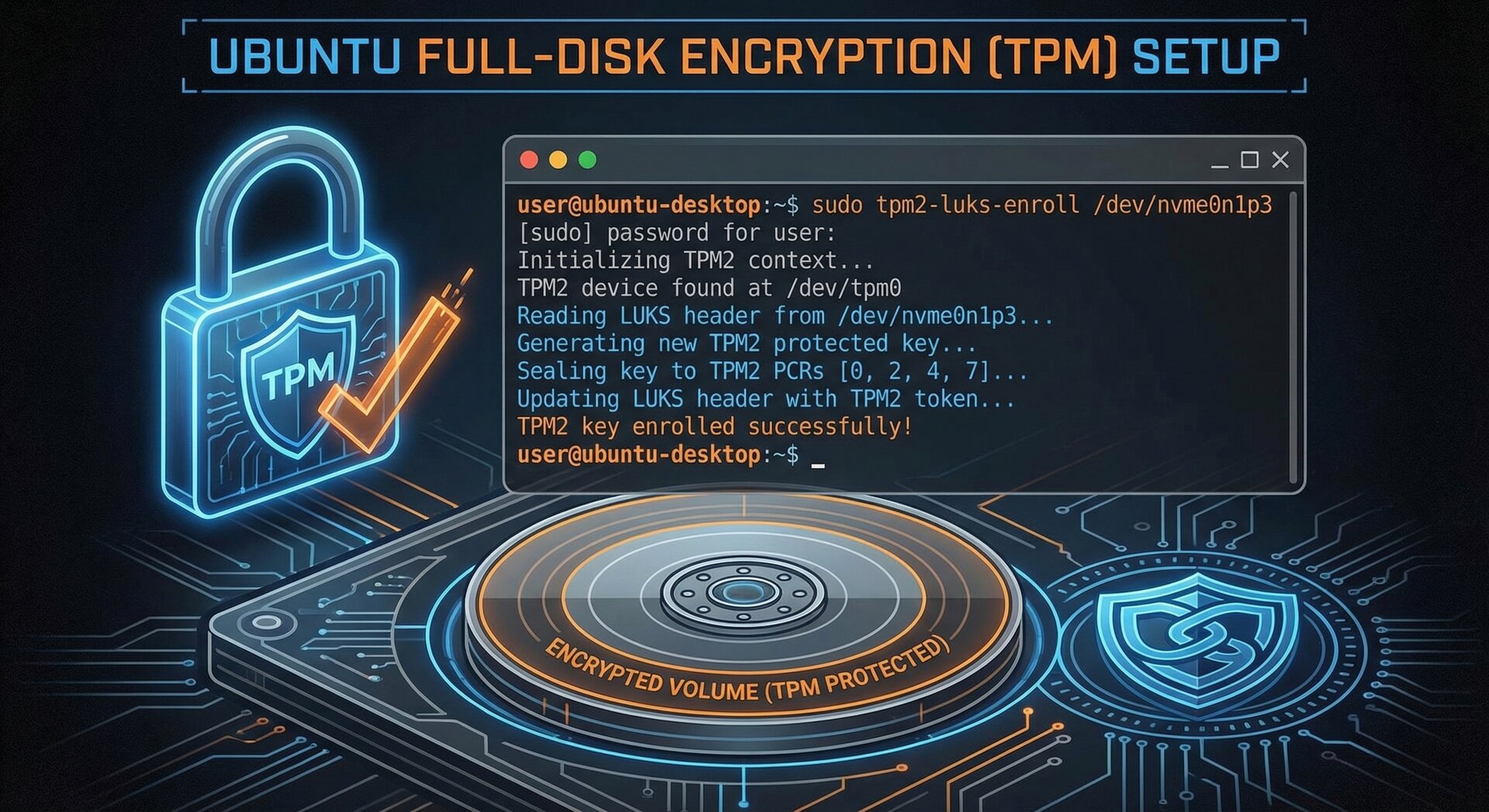
Ubuntu 26.04 LTS introduces a groundbreaking security feature: ubuntu 26.04 tpm encryption, leveraging Trusted Platform Module (TPM) hardware to protect your data with full-disk encryption. This comprehensive 2026 guide walks you through setting up TPM-backed encryption, managing encryption keys, and securing your Ubuntu system against unauthorized access.
What Is TPM-Backed Full-Disk Encryption?
TPM (Trusted Platform Module) is a dedicated hardware chip on modern motherboards that stores cryptographic keys securely. When combined with full-disk encryption (FDE), ubuntu 26.04 tpm encryption ensures that your disk encryption keys are protected by the TPM, making unauthorized decryption virtually impossible without the correct boot configuration and credentials.
Unlike traditional password-only encryption, TPM encryption binds keys to your specific hardware and boot state. If someone removes your hard drive and attempts to decrypt it on another machine, the TPM will refuse to release the keys. This protection is now generally available in Ubuntu 26.04 LTS, released in April 2026, with enhanced usability features like post-install PIN management and Security Center integration.
Prerequisites for Ubuntu 26.04 TPM Encryption
Before enabling ubuntu 26.04 tpm encryption, verify your system meets these requirements:
- Hardware: TPM 2.0 chip (check BIOS/UEFI settings for “TPM Device” or “Security Device”)
- Boot Mode: UEFI (not Legacy BIOS)
- Secure Boot: Enabled in firmware settings
- Fresh Installation: TPM encryption is easiest during Ubuntu 26.04 installation; existing systems require re-encryption
- Backup: Always back up critical data before modifying disk encryption
To check if your system has TPM 2.0, run this command in a live session or existing Linux system:
2
ls /sys/class/tpm/
If you see
1 | tpm0 |
listed, your TPM is detected and ready for use.
Step-by-Step: Enabling TPM Encryption During Ubuntu 26.04 Installation
1. Download and Boot Ubuntu 26.04 LTS
Download the Ubuntu 26.04 “Resolute Raccoon” ISO from the official Ubuntu website and create a bootable USB drive using tools like Balena Etcher or Rufus. Boot from the USB drive with UEFI mode enabled.
2. Start the Installation Process
Select “Install Ubuntu” and proceed through language, keyboard, and network setup. When you reach the “Installation type” screen, choose “Advanced features” to access encryption options.
3. Select TPM-Backed Encryption
In the advanced installation screen, you’ll see three encryption options:
- No encryption: Standard unencrypted installation
- LUKS encryption with passphrase: Traditional password-based encryption
- TPM 2.0 encryption (Recommended): Hardware-backed ubuntu 26.04 tpm encryption
Select “TPM 2.0 encryption” and proceed. The installer will automatically:
- Partition your disk with an encrypted LUKS volume
- Bind encryption keys to your TPM chip
- Configure Secure Boot measurements
- Set up recovery mechanisms
4. Set Up Recovery Credentials
Unlike password-only encryption, ubuntu 26.04 tpm encryption requires a recovery key for emergency access. During installation, Ubuntu generates a 48-character recovery key. Write this down and store it securely offline — you’ll need it if TPM hardware fails or you change boot firmware settings.
You can optionally set a PIN for additional authentication at boot. This creates a two-factor protection: TPM hardware validation plus your PIN.
5. Complete Installation
Finish the installation by creating your user account and configuring time zone settings. After rebooting, Ubuntu will automatically unlock your encrypted disk using the TPM — no password prompt unless you configured a PIN.
Managing TPM Encryption Post-Installation
One major improvement in Ubuntu 26.04 is the ability to manage ubuntu 26.04 tpm encryption settings after installation through the new Security Center application.
Adding or Changing Your PIN
To add a boot PIN to existing TPM encryption:
- Open Security Center from the app menu
- Navigate to “Disk Encryption”
- Click “Add PIN”
- Enter your user password to authorize changes
- Set a 6-12 digit PIN
The PIN will be required at every boot in addition to TPM validation. This protects against “evil maid” attacks where an attacker gains physical access to your powered-off device.
Re-Encrypting an Existing Installation
If you installed Ubuntu 26.04 without encryption and want to enable ubuntu 26.04 tpm encryption later, use the Security Center re-encryption feature:
Warning: Re-encryption takes several hours depending on disk size and cannot be interrupted. Ensure your laptop is plugged in and backed up before proceeding.
Viewing Recovery Keys
To retrieve your recovery key after installation (requires sudo):
Store this key in a password manager or secure physical location — it’s your only fallback if TPM access is lost.
Troubleshooting Ubuntu 26.04 TPM Encryption Issues
Boot Fails with “TPM Unsealing Error”
If your system refuses to boot and displays a TPM error, the most common causes are:
- BIOS/UEFI changes: Disabling Secure Boot or updating firmware invalidates TPM measurements
- Kernel updates: Major kernel changes may require re-sealing keys
- Hardware changes: Replacing the motherboard or TPM chip breaks encryption binding
Solution: Boot into recovery mode using your 48-character recovery key. Ubuntu will prompt you to re-seal encryption keys to the new system state.
Performance Impact of TPM Encryption
TPM encryption adds minimal overhead compared to software-only LUKS encryption because key operations are offloaded to dedicated hardware. Benchmarks show less than 3% performance difference in real-world usage.
Compatibility with Dual-Boot Systems
ubuntu 26.04 tpm encryption works with dual-boot configurations, but requires careful setup. Each operating system must be installed in separate encrypted partitions, and you’ll need to manage TPM keys for each boot entry. For simplicity, consider using separate physical drives for Windows and Ubuntu if TPM encryption is critical.
Security Best Practices for TPM Encryption
To maximize protection with ubuntu 26.04 tpm encryption:
- Always enable Secure Boot: This prevents bootkit malware from compromising your TPM measurements
- Use a strong boot PIN: Combine hardware security with human authentication
- Keep firmware updated: TPM vulnerabilities are patched through BIOS/UEFI updates
- Backup recovery keys offline: Store in a safe, not on the encrypted disk
- Test recovery procedures: Practice using your recovery key before an emergency
- Monitor TPM logs: Check
1/var/log/tpm2-abrmd.log
for unauthorized access attempts
Comparing TPM Encryption to Other Methods
| Feature | TPM Encryption | Password-Only LUKS | BitLocker (Windows) |
|---|---|---|---|
| Hardware Binding | Yes | No | Yes |
| Transparent Boot | Yes (with PIN optional) | No (always prompts) | Yes |
| Protection Against Disk Theft | Excellent | Good | Excellent |
| Open Source | Yes | Yes | No |
| Recovery Complexity | Medium | Low | Medium |
For detailed Linux security hardening beyond encryption, see our guide on Linux security best practices and Ubuntu server hardening techniques.
The Future of TPM Encryption in Ubuntu
Ubuntu 26.04’s TPM implementation is just the beginning. Future releases will integrate post-quantum cryptography (already experimental in 26.04), biometric authentication via SPDM fingerprint readers, and cloud-based key escrow for enterprise deployments. The Linux kernel’s evolving TPM 2.0 support ensures that ubuntu 26.04 tpm encryption will remain at the forefront of data protection standards through 2030 and beyond.
For developers building encrypted applications, Ubuntu’s TPM infrastructure exposes APIs through
1 | tpm2-tools |
and
1 | libtss2 |
libraries, enabling custom encryption workflows integrated with system-level hardware security.
Conclusion
Setting up ubuntu 26.04 tpm encryption provides enterprise-grade data protection with minimal user friction. By binding encryption keys to TPM hardware, Ubuntu 26.04 LTS ensures your data remains secure even if your device is stolen or compromised. Whether you’re securing a personal laptop or deploying fleet-wide workstation encryption, TPM-backed full-disk encryption is the gold standard for 2026 and beyond.
Start protecting your Ubuntu 26.04 system today by enabling TPM encryption during installation or upgrading existing systems through the Security Center. For additional security layers, explore Ubuntu’s security certifications and implement multi-factor authentication for user accounts.
- About the Author
- Latest Posts

Mark is a senior content editor at Text-Center.com and has more than 20 years of experience with linux and windows operating systems. He also writes for Biteno.com