How to upgrade to Ubuntu 24.04.4 (LTS & HWE Guide 2026)

Are you looking to modernize your Linux system for 2026? If you want to upgrade to Ubuntu 24.04.4, you are making one of the most important decisions for your system’s long-term stability and performance. Released on February 13, 2026, the fourth point release of the Noble Numbat brings massive improvements under the hood. Whether you are running a local development environment, a home server, or a full-fledged production workstation, getting onto the latest Long Term Support (LTS) release guarantees security updates and software compatibility for years to come. In this comprehensive guide, we will walk you through the entire process, from preparing your system to executing the upgrade, ensuring a smooth transition to the latest and greatest that Canonical has to offer.
What’s New in Ubuntu 24.04.4 LTS?
The transition to Ubuntu 24.04.4 is not just a minor bump in version numbers; it represents a significant milestone in the 2026 Linux desktop and server ecosystem. Canonical has packed this point release with cutting-edge hardware support and critical security patches.
The absolute standout feature of this release is the integration of the Ubuntu 24.04 HWE kernel 6.17. The Hardware Enablement (HWE) stack ensures that newer graphics cards, Wi-Fi 7 modules, and the latest generation of Intel and AMD processors work flawlessly out of the box. You no longer have to manually compile kernels to get your bleeding-edge 2026 hardware functioning correctly. Alongside the new kernel, users will benefit from Mesa 25.2, which drastically improves gaming performance and hardware-accelerated rendering for creative workloads.
Furthermore, Ubuntu 24.04.4 serves as an incredible base for modern workloads. If you are setting up environments for machine learning, data science, or advanced development, this OS release is tailored for you. For a deeper look into how this ties into modern workflows, check out our guide on AI infrastructure in 2026: Operating Systems and Office Tools.
Prerequisites and Essential Backup Checklist
Before you even think about typing an update command or clicking the upgrade to Ubuntu 24.04.4 button, you must prepare your current system. Operating system upgrades are complex operations that touch thousands of packages. Power failures, third-party repository conflicts, or simple bad luck can occasionally result in a broken system.
Here is your pre-upgrade to Ubuntu 24.04.4 checklist for a safe transition:
- Back Up Your Data: Use tools like Deja Dup (Backups) for your personal files in the home directory. For a full system snapshot, we highly recommend Timeshift. If you are running multiple operating systems, please read our comprehensive guide on how to safely dual-boot Windows 11 and Linux to understand partition backups and GRUB bootloader preservation.
- Check Free Disk Space: You need at least 10 GB of free space on your root (
1/
) partition to safely download and unpack the new packages. You can check your available space by opening a terminal and running
1df -h.
- Disable Third-Party PPAs: Third-party Personal Package Archives (PPAs) can cause dependency hell during a major version upgrade. The upgrade tool usually disables them automatically, but it is best practice to purge problematic ones beforehand.
- Ensure a Stable Power Connection: If you are upgrading a laptop, plug it into the wall. An interrupted upgrade due to a dead battery can leave your system in an unbootable state.
How to upgrade to Ubuntu 24.04.4 from the Terminal
For server administrators and power users, choosing to update Ubuntu from terminal is the most reliable and transparent method. It allows you to see exactly what packages are being installed, removed, or kept back. Here is the step-by-step process.
First, you must ensure that your current system is completely up to date. Open your terminal (
|
1
|
Ctrl + Alt + T
|
) and run the following commands to refresh your package lists and install any pending updates for your current release:
2
3
4
sudo apt upgrade to Ubuntu 24.04.4 -y
sudo apt dist-upgrade -y
sudo apt autoremove -y
The
|
1
|
dist-upgrade to Ubuntu 24.04.4
|
command is crucial here because it intelligently handles changing dependencies with new versions of packages, removing obsolete ones if necessary. After these commands finish, reboot your system to ensure you are running the latest kernel available for your current version:
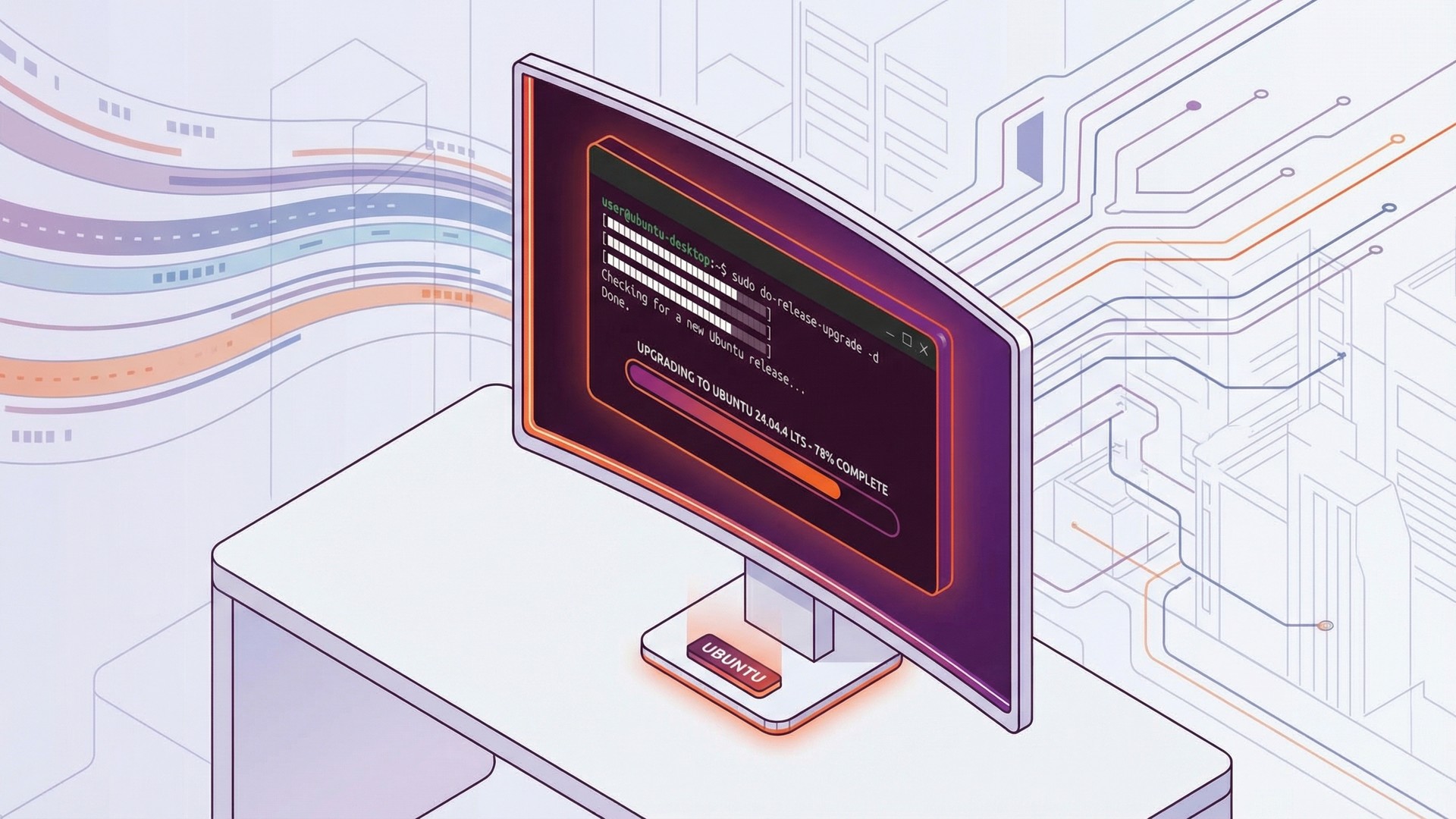
Once your system reboots, open the terminal again. We will now use the dedicated do-release-upgrade to Ubuntu 24.04.4 command, which is Canonical’s official script for handling major distribution upgrades safely. Run the following:
The tool will check for a new release and begin calculating the changes required to upgrade to Ubuntu 24.04.4. It will present you with a summary of how many packages will be removed, newly installed, and upgraded, along with the total download size. Type
|
1
|
y
|
and press Enter to confirm.
During the process, you may see prompts asking whether you want to keep your modified configuration files or replace them with the package maintainer’s versions. Unless you specifically remember modifying a system config file (like SSH or Apache configs), it is generally safer to hit Enter to keep your existing configurations or press
|
1
|
Y
|
to accept the new defaults. Let the process run uninterrupted.
Step-by-Step upgrade to Ubuntu 24.04.4 from the GUI (Update Manager)
If you prefer a graphical interface over the command line, Ubuntu’s Software Updater makes the process incredibly straightforward. This is the recommended path for standard desktop users.
First, open the application menu and search for Software & Updates. Navigate to the Updates tab. At the bottom of this window, look for the dropdown menu labeled “Notify me of a new Ubuntu version”. Ensure this is set to “For long-term support versions”.
Next, open the Software Updater application. It will automatically check for new updates. If your current system is fully updated, a prompt will appear stating: “The software on this computer is up to date. However, Ubuntu 24.04.4 LTS is now available (you have …)”.
Click the Upgrade… button. A release notes window will pop up, explaining the new features of the Noble Numbat release. Click Upgrade again. The graphical tool will then fetch the release upgrade tool, prepare the new software channels, and begin downloading the packages. You can expand the “Terminal” view within the GUI to watch the background processes. Once the installation is complete, you will be prompted to restart your computer.
Special Considerations: Upgrading from Ubuntu 22.04 LTS to 24.04.4
Ubuntu follows a strict LTS-to-LTS upgrade path. Because 24.04.4 is the latest point release of the 24.04 series, users currently sitting on Ubuntu 22.04 LTS (Jammy Jellyfish) can upgrade directly without having to pass through interim releases like 23.10.
When making this two-year jump, expect massive changes. You will be transitioning from GNOME 42 to GNOME 46, which introduces a completely revamped quick settings menu, drastically improved Wayland support, and a much faster file manager (Nautilus). Additionally, default applications like Thunderbird are now packaged as Snaps by default. The upgrade process handles this migration automatically, seamlessly transitioning your profile data from the old
|
1
|
.deb
|
package to the new Snap container.
Enabling the HWE Kernel Stack
One of the main reasons to perform this upgrade is to take advantage of modern hardware support. If you installed Ubuntu 24.04 when it first launched, you might still be on the original General Availability (GA) kernel. To ensure you are utilizing the Ubuntu 24.04 HWE kernel 6.17, you can manually force the system to track the Hardware Enablement stack.
Open your terminal and execute the following command to install the HWE stack for desktop environments:
If you are running a headless server, you only need the kernel:
After installation, a reboot is required. This new kernel brings better power management for 2026 laptops, refined scheduling for hybrid architectures (like Intel’s P-Core/E-Core designs), and native driver support for the newest peripherals.
Post-Upgrade Verification
After your system reboots into the new environment, it is crucial to verify that the upgrade was successful and that you are indeed running the correct versions. We need to use a specific check Ubuntu version command to confirm the OS release.
Open your terminal and type:
The output should clearly state
|
1
|
Description: Ubuntu 24.04.4 LTS
|
and
|
1
|
Codename: noble
|
.
Next, verify that your new HWE kernel is active by typing:
This command should return a kernel version string beginning with
|
1
|
6.17
|
. If both of these outputs match your expectations, your system has been successfully modernized!
Troubleshooting Common Upgrade Issues
Even with careful preparation, you might encounter some bumps along the road when you upgrade to Ubuntu 24.04.4. Here are the most common issues and how to fix them.
1. “No new release found” Error
If the
|
1
|
do-release-upgrade
|
command returns “No new release found,” the rollout might still be propagating through the global update servers. You can bypass this delay by forcing the updater to check for the development/latest release flag using the
|
1
|
-d
|
switch:
Note: Only use this if you are certain 24.04.4 has been officially released for your upgrade path.
2. Broken Packages or Dependency Conflicts
If the upgrade aborts midway due to package errors, do not panic and do not reboot. Try to fix the broken dependencies using the package manager’s built-in repair functions:
2
3
sudo dpkg --configure -a
sudo apt update && sudo apt upgrade
3. Not Enough Disk Space
If the updater complains about insufficient space in
|
1
|
/boot
|
, you likely have too many old Linux kernels installed. You can automatically remove unused kernels with:
Frequently Asked Questions (FAQ)
Q: Will upgrading delete my personal files?
A: No, an OS upgrade only touches system files and software packages. Your
|
1
|
/home
|
directory remains intact. However, having a backup is always strictly recommended as a fail-safe.
Q: Can I pause the upgrade process once it starts?
A: No. Once the package extraction and installation phase begins, interrupting the process can cause catastrophic system failure. Ensure a stable power and network connection before starting.
Q: How long does the upgrade take?
A: This depends on your internet speed and system performance. On a modern machine with a 100 Mbps connection, expect 30-60 minutes for the full process.
Q: Is it better to do a fresh install or an upgrade?
A: If your current system is clean and well-maintained, an in-place upgrade is perfectly safe. A fresh install is only recommended if you are experiencing significant issues on your current installation or want a completely clean slate.
Conclusion
Taking the time to properly upgrade to Ubuntu 24.04.4 is one of the best investments you can make for your system in 2026. With the powerful new HWE kernel 6.17, refreshed Mesa 25.2 graphics stack, and months of accumulated security patches, you are setting your machine up for years of reliable, performant, and secure operation. Whether you chose the terminal method with the do-release-upgrade command or the graphical Software Updater, the important thing is that your system is now current, patched, and ready for the demands of modern computing. Happy upgrading!
- About the Author
- Latest Posts

Mark is a senior content editor at Text-Center.com and has more than 20 years of experience with linux and windows operating systems. He also writes for Biteno.com