Windows 11 Update Stuck? How to Fix It Fast in 2026 (Complete Guide)

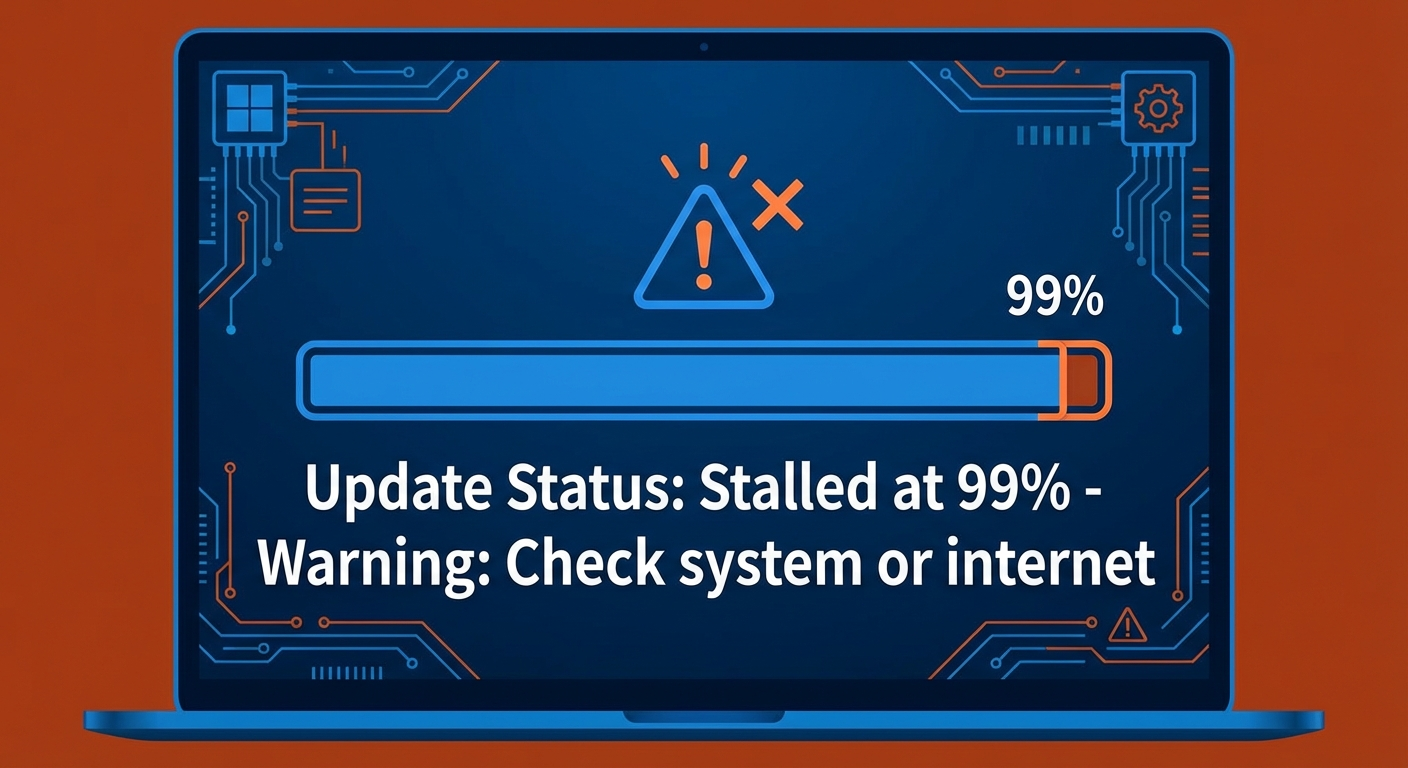
Is your Windows 11 update stuck at 0%, 99%, or somewhere in between? Staring at a frozen update progress bar is one of the most frustrating Windows experiences. This complete guide walks you through every solution to get your system updated and running smoothly.
Staring at a frozen update progress bar is one of the most frustrating Windows experiences. Is your Windows 11 update stuck? If you’re staring at a frozen progress bar at 0%, 99%, or any percentage in between, this complete guide will walk you through every solution—from quick fixes to advanced troubleshooting—to get your system updated and running smoothly.
Why Do Windows 11 Updates Get Stuck?
Understanding the root causes helps you choose the right fix and prevent future issues:
- Corrupted update files: Download interruptions create incomplete or damaged files
- Insufficient disk space: Windows 11 updates require 10-20GB free space
- Conflicting software: Third-party antivirus or optimization tools can block updates
- Network connectivity issues: Unstable internet causes incomplete downloads
- Driver incompatibilities: Outdated drivers may conflict with new Windows components
- Background processes: Other programs using system resources during installation
Understanding Update Types
Windows 11 delivers different types of updates:
Cumulative Updates (Quality Updates): Released monthly on Patch Tuesday (second Tuesday). These include security patches and bug fixes. They’re mandatory and usually 500MB-2GB.
Feature Updates: Major Windows versions released annually (e.g., 23H2, 24H2). These are 3-5GB and install new features. They require longer installation times.
Driver Updates: Hardware compatibility updates delivered through Windows Update. Usually small but can cause conflicts.
Definition Updates: Windows Security antivirus definitions. These are small and frequent.
Quick Fixes (Try These First)
Wait It Out
Sometimes updates simply take longer than expected:
- At 0%: Windows is preparing files—wait 30-60 minutes
- At 99%: Final configuration is happening—wait 2-3 hours
- Do not force restart unless you’ve waited at least 3 hours at 99%
- Feature updates can take 1-3 hours on older hardware
Hard Restart Your PC
If the update is completely frozen (no progress for hours):
- Hold the power button for 10 seconds to force shutdown
- Wait 30 seconds (allows capacitors to discharge)
- Power on your PC
- Windows may automatically resume the update or roll back changes
- Check Windows Update again to see if it continues
Common Error Codes and Their Meanings
| Error Code | Meaning | Solution | ||
|---|---|---|---|---|
|
Update failed to download | Clear SoftwareDistribution folder | ||
|
Component store corruption | Run DISM and SFC scans | ||
|
Update service not running | Restart Windows Update services | ||
|
File not found | Run Windows Update troubleshooter | ||
|
CBS log corruption | Use In-Place Upgrade |
Advanced Solutions
1. Run Windows Update Troubleshooter
Windows includes a built-in diagnostic tool:
- Go to Settings → System → Troubleshoot
- Click Other troubleshooters
- Find Windows Update and click Run
- Wait for the troubleshooter to detect and fix issues
- Restart your PC when prompted
- Try updating again
2. Clear Update Cache (SoftwareDistribution)
Corrupted cache files are the most common cause of stuck updates:
- Press Win + R, type
1services.msc
, press Enter
- Find Windows Update service, right-click, select Stop
- Also stop Background Intelligent Transfer Service (BITS)
- Press Win + R, type:
1C:\Windows\SoftwareDistribution\Download
- Delete all files and folders inside the Download folder
- Return to Services and restart both services
- Try Windows Update again
3. Reset Windows Update Components
A complete reset of all update-related services:
- Open Command Prompt as Administrator
- Stop these services by running each command:
1net stop wuauserv1net stop cryptSvc1net stop bits1net stop msiserver
- Rename software distribution folders:
1ren C:\Windows\SoftwareDistribution SoftwareDistribution.old1ren C:\Windows\System32\catroot2 catroot2.old
- Restart the services:
1net start wuauserv1net start cryptSvc1net start bits1net start msiserver
- Restart your PC
4. Run System File Checker (SFC) and DISM
Fix corrupted system files that prevent updates:
- Open Command Prompt as Administrator
- Run:
1sfc /scannow
(takes 10-15 minutes)
- After completion, run:
1DISM /Online /Cleanup-Image /RestoreHealth
- DISM downloads healthy files from Windows Update—ensure internet connection
- Restart after both complete
- Try updating again
5. Check Disk for Errors (CHKDSK)
File system errors can block updates:
- Open Command Prompt as Administrator
- Type:
1chkdsk C: /f /r
- Press Enter—you’ll be asked to schedule for next restart
- Type
1Y
and press Enter
- Restart your PC—CHKDSK will run before Windows loads
- This can take 1-3 hours depending on drive size
6. Temporarily Disable Antivirus
⚠️ Warning: Only disable antivirus temporarily and re-enable immediately after.
- Right-click your antivirus icon in the system tray
- Select Disable or Pause protection (choose 1-4 hours)
- Try Windows Update again
- Re-enable antivirus immediately after testing
7. Manual Update Installation
If a specific update keeps failing:
- Go to Settings → Windows Update → Update history
- Find the failing KB number (e.g., KB5034441)
- Visit Microsoft Update Catalog
- Search for the KB number
- Download the version matching your system (x64 for most modern PCs)
- Run the downloaded .msu file manually
Nuclear Option: In-Place Upgrade
When nothing else works, an in-place upgrade repairs Windows while keeping your files:
Step-by-Step In-Place Upgrade
- Visit Microsoft’s Windows 11 download page
- Download the Windows 11 Installation Assistant or Media Creation Tool
- Run the tool and accept the license terms
- Select Upgrade this PC now
- Choose Keep personal files and apps (NOT “Keep nothing”)
- Wait for the download (3-5GB)
- The installation will begin—your PC will restart several times
- Process takes 1-2 hours depending on hardware
Benefits:
- Repairs all system files without deleting data
- Bypasses stuck updates by installing the latest version directly
- Keeps all installed programs and settings
- Usually resolves persistent update issues
How to Check Your Windows Version
To determine which updates you need:
- Press Win + R, type
1winver
, press Enter
- Note your Version (e.g., 23H2) and OS Build (e.g., 22631.3007)
- Compare with latest version on Microsoft’s Windows 11 release page
- Some PCs may not be eligible for latest updates due to hardware requirements
When to Contact Microsoft Support
Contact professional support if:
- Updates fail repeatedly after trying all solutions above
- You see specific error codes not listed in this guide
- Your system won’t boot after update attempts
- You’re on a managed corporate network—contact your IT department
- You suspect hardware failure (failing hard drive, RAM issues)
Microsoft Support: https://support.microsoft.com/contactus
Prevention Tips for Future Updates
- Keep at least 20GB free space on your C: drive
- Run Disk Cleanup before major updates
- Disable antivirus temporarily during large updates (re-enable after)
- Use a stable Ethernet connection instead of WiFi for downloads
- Keep device drivers updated through manufacturer websites
- Don’t force shutdown during updates unless absolutely necessary
- Enable automatic updates for security patches
Extended FAQ
Q: Is it safe to force shutdown if update is stuck at 99%?
A: Only after waiting 3+ hours. Forced shutdowns during updates can corrupt Windows. If stuck indefinitely, you may have no choice, but be prepared for potential repair needs.
Q: How long should Windows 11 updates take?
A: Cumulative updates: 15-45 minutes. Feature updates: 1-3 hours. First boot after installation may take additional 15-30 minutes for “Getting things ready.”
Q: Can I skip an update if it keeps failing?
A: Security updates should never be skipped. For feature updates, you can pause updates for up to 5 weeks in Settings → Windows Update → Pause updates.
Q: Why does my update keep failing with the same error?
A: Persistent errors usually indicate corrupted system files or incompatible drivers. Run DISM, SFC, and consider an in-place upgrade.
Q: Will I lose data if I reset Windows Update components?
A: No, clearing the SoftwareDistribution folder only removes update cache files. Your documents, apps, and settings remain untouched.
Q: Can I uninstall a Windows update if it causes problems?
A: Yes, within 10 days: Settings → Windows Update → Update history → Uninstall updates. After 10 days, you’ll need to restore from a backup or reinstall.
Q: What’s the difference between Feature and Quality updates?
A: Quality updates (monthly) are security/bug fixes—mandatory and small. Feature updates (annual) add new capabilities—they’re larger and take longer to install.
Related Issues
If you’re experiencing other Windows 11 problems, check our guides on:
Conclusion
Stuck Windows 11 updates are common but fixable with the right approach. Start with patience—wait 2-3 hours at 99%. If truly frozen, work through the solutions methodically: troubleshooter first, then cache clearing, component reset, and finally DISM/SFC scans.
The in-place upgrade is your nuclear option—it’s time-consuming but repairs Windows completely while preserving your data. For persistent issues across multiple update attempts, this is often the most reliable solution.
Remember: Regular maintenance (monthly disk cleanup, driver updates, sufficient free space) prevents most update problems before they occur.
- About the Author
- Latest Posts

Mark is a senior content editor at Text-Center.com and has more than 20 years of experience with linux and windows operating systems. He also writes for Biteno.com