Systemd Service Management Tutorial (2026): Complete Guide for Linux Admins

Managing services on modern Linux distributions has never been easier thanks to systemd. This systemd service management tutorial will walk you through everything you need to know about creating, managing, and troubleshooting services on Ubuntu, Debian, RHEL, and other systemd-based systems in 2026. Whether you’re a beginner or experienced system administrator, this guide covers essential commands, best practices, and real-world examples to help you master systemd service management.
What is Systemd and Why Should You Care?
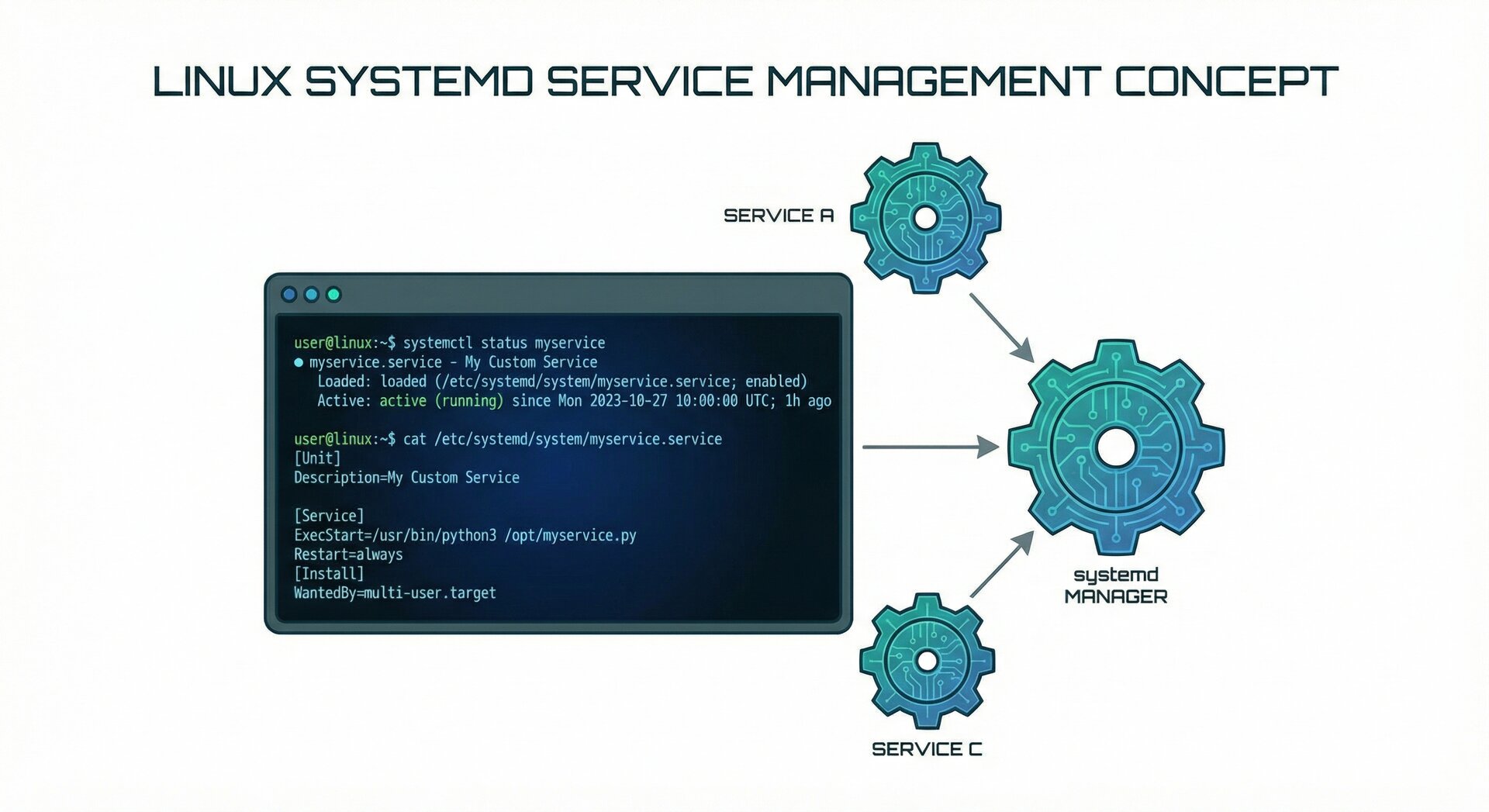
Systemd is the standard init system and service manager on most modern Linux distributions. It replaced the traditional SysV init system and offers significant improvements including parallel service startup, automatic restarts, cgroup resource management, and comprehensive logging through journald. Understanding systemd is crucial for any Linux administrator working with production systems in 2026.
Unlike older init systems, systemd uses unit files to define how services behave. These configuration files are simple, human-readable, and powerful. Unit files live in
1 | /etc/systemd/system/ |
(for custom services) or
1 | /lib/systemd/system/ |
(for package-installed services).
Essential Systemctl Commands Every Admin Must Know
The primary tool for systemd service management is
1 | systemctl |
. Here are the most important commands you’ll use daily:
Starting and Stopping Services
To start a service immediately:
To stop a running service:
To restart a service (useful after config changes):
To reload configuration without full restart:
Enabling Services at Boot
Starting a service doesn’t mean it will start automatically after reboot. To enable auto-start:
To enable AND start in one command (time-saver!):
To disable auto-start:
Checking Service Status
The most useful troubleshooting command shows detailed status, recent logs, and process information:
Quick checks for scripting:
2
systemctl is-enabled nginx # Returns: enabled or disabled
Listing Services
To see all running services:
To find failed services (critical for troubleshooting!):
To list all service unit files:
Creating Your First Custom Systemd Service
One of the most powerful features of this systemd service management tutorial is learning to create custom services. Let’s build a simple service that runs a backup script every time the server boots.
Step 1: Create Your Service Script
First, create a simple bash script:
Add your backup logic:
2
3
4
5
# Simple backup script
DATE=$(date +%Y-%m-%d)
tar -czf /backups/backup-$DATE.tar.gz /var/www/html
echo "Backup completed: $DATE" | logger -t backup-service
Make it executable:
Step 2: Create the Unit File
Now create the systemd unit file:
Add this configuration:
2
3
4
5
6
7
8
9
10
11
12
13
14
15
16
17
18
19
20
21
Description=Daily Backup Service
After=network.target
Wants=network.target
[Service]
Type=simple
ExecStart=/opt/backup/backup.sh
WorkingDirectory=/opt/backup
User=root
Group=root
Restart=on-failure
RestartSec=10
StartLimitBurst=5
StartLimitIntervalSec=60
StandardOutput=journal
StandardError=journal
SyslogIdentifier=backup-service
[Install]
WantedBy=multi-user.target
Understanding Unit File Sections
[Unit] Section: Defines metadata and dependencies.
1 | After=network.target |
ensures the service starts after networking is available.
[Service] Section: Defines how the service runs. Key directives include:
-
1Type=simple
: The default for foreground processes
-
1ExecStart
: The command to run
-
1Restart=on-failure
: Auto-restart if the process exits with error
-
1RestartSec=10
: Wait 10 seconds before restart attempts
-
1StartLimitBurst=5
: Maximum restart attempts
[Install] Section: Defines how enabling works.
1 | WantedBy=multi-user.target |
means the service starts in multi-user mode (normal boot).
Step 3: Activate Your Service
After creating or modifying unit files, always reload the systemd daemon:
Now enable and start your service:
Check that it’s running:
Advanced Service Management Techniques
Using Systemd Timers for Scheduling
Instead of cron, systemd timers offer better integration and logging. To run our backup daily, create a timer unit:
Add timer configuration:
2
3
4
5
6
7
8
9
Description=Daily Backup Timer
[Timer]
OnCalendar=daily
Persistent=true
[Install]
WantedBy=timers.target
Enable the timer (not the service!):
List active timers:
Resource Control and Security Hardening
Systemd allows fine-grained resource and security controls directly in unit files. Add these directives to
1 | [Service] |
section for production services:
2
3
4
5
6
7
8
9
10
11
MemoryMax=500M
CPUQuota=50%
# Security hardening
PrivateTmp=yes
NoNewPrivileges=yes
ProtectSystem=strict
ProtectHome=read-only
ReadOnlyPaths=/
ReadWritePaths=/var/log/myapp
These settings prevent memory leaks from crashing your server and restrict filesystem access for compromised services. Learn more about securing your Linux server with UFW firewall and Ubuntu server hardening best practices.
Troubleshooting Failed Services
When services fail, systemd provides excellent diagnostic tools. This is where your systemd service management tutorial knowledge really pays off.
Using Journalctl for Log Analysis
View logs for a specific service:
Follow logs in real-time (like
1 | tail -f |
):
Filter by time period:
Show only error messages:
Common Service Failures and Fixes
Problem: Service won’t start
Solution: Check syntax with
1 | systemd-analyze verify /etc/systemd/system/myservice.service |
Problem: Service keeps restarting
Solution: Check logs with
1 | journalctl -u myservice -n 50 |
and look for error messages. Adjust
1 | RestartSec |
and
1 | StartLimitBurst |
.
Problem: Service times out on start
Solution: Increase timeout with
1 | TimeoutStartSec=300 |
in
1 | [Service] |
section.
Problem: Dependencies not working
Solution: Use
1 | systemctl list-dependencies myservice.service |
to debug dependency chains.
Best Practices for Production Environments
After years of managing production Linux systems, here are essential best practices from this systemd service management tutorial:
1. Use Drop-In Files for Overrides
Never edit package-provided unit files directly. Use drop-in overrides instead:
This creates
1 | /etc/systemd/system/nginx.service.d/override.conf |
which survives package updates.
2. Always Set Resource Limits
Prevent runaway processes from impacting other services. Set at minimum:
-
1MemoryMax=
– Maximum RAM usage
-
1TasksMax=
– Maximum process/thread count
-
1CPUQuota=
– Maximum CPU percentage
3. Implement Proper Logging
Always set
1 | StandardOutput=journal |
and
1 | StandardError=journal |
with a unique
1 | SyslogIdentifier= |
. This makes troubleshooting infinitely easier.
4. Use Dependencies Correctly
Common dependency directives:
-
1After=
– Start after specified units (most common)
-
1Before=
– Start before specified units
-
1Requires=
– Hard dependency (fail if dependency fails)
-
1Wants=
– Soft dependency (continue even if dependency fails)
5. Test Before Production
Always test unit file syntax and service behavior:
2
3
4
sudo systemctl start myservice.service
sudo systemctl status myservice.service
journalctl -u myservice.service -n 50
6. Monitor Service Health
Set up monitoring for critical services. Use
1 | systemctl is-active |
in monitoring scripts or integrate with tools like Nagios, Prometheus, or Zabbix.
Real-World Example: Running a Python Web App as a Service
Let’s create a production-ready service for a Flask application:
2
3
4
5
6
7
8
9
10
11
12
13
14
15
16
17
18
19
20
21
22
23
24
25
26
27
28
29
30
31
32
33
34
35
36
37
38
Description=Flask Web Application
After=network.target postgresql.service
Wants=postgresql.service
[Service]
Type=notify
User=webapp
Group=webapp
WorkingDirectory=/opt/webapp
Environment="FLASK_ENV=production"
Environment="DATABASE_URL=postgresql://localhost/myapp"
ExecStart=/opt/webapp/venv/bin/gunicorn --bind 127.0.0.1:8000 --workers 4 --threads 2 --timeout 120 --access-logfile - --error-logfile - wsgi:app
Restart=always
RestartSec=5
StartLimitBurst=5
StartLimitIntervalSec=300
# Resource limits
MemoryMax=1G
CPUQuota=200%
TasksMax=256
# Security hardening
NoNewPrivileges=yes
PrivateTmp=yes
ProtectSystem=strict
ProtectHome=yes
ReadWritePaths=/opt/webapp/logs
ReadWritePaths=/opt/webapp/uploads
# Logging
StandardOutput=journal
StandardError=journal
SyslogIdentifier=webapp
[Install]
WantedBy=multi-user.target
This configuration includes database dependencies, resource limits, security hardening, and proper logging—everything needed for production deployment.
Migrating from Cron to Systemd Timers
Many admins still use cron for scheduled tasks, but systemd timers offer advantages:
- Better logging through journald
- Dependencies – only run if other services are healthy
- Randomized delays – prevent thundering herd problems
- Missed run catching –
1Persistent=true
runs missed tasks after downtime
Convert a cron job like
1 | 0 2 * * * /opt/scripts/cleanup.sh |
to a systemd timer:
Create
1 | /etc/systemd/system/cleanup.service |
:
2
3
4
5
6
Description=Nightly Cleanup Task
[Service]
Type=oneshot
ExecStart=/opt/scripts/cleanup.sh
Create
1 | /etc/systemd/system/cleanup.timer |
:
2
3
4
5
6
7
8
9
10
Description=Nightly Cleanup Timer
[Timer]
OnCalendar=*-*-* 02:00:00
Persistent=true
RandomizedDelaySec=300
[Install]
WantedBy=timers.target
Enable:
1 | sudo systemctl enable --now cleanup.timer |
Performance Optimization Tips
Parallel Service Startup
Systemd starts services in parallel by default, but poor dependency chains can serialize startup. Use
1 | systemd-analyze plot > boot.svg |
to visualize your boot process and identify bottlenecks.
Socket Activation
For services that are rarely used, socket activation delays startup until first connection. This saves memory and speeds up boot.
Reducing Journal Size
If journal logs grow too large, configure retention in
1 | /etc/systemd/journald.conf |
:
2
MaxRetentionSec=1month
Then restart journald:
1 | sudo systemctl restart systemd-journald |
Additional Resources and Further Learning
This systemd service management tutorial covers the essentials, but there’s always more to learn. Here are authoritative resources:
- Official systemd.service documentation – The canonical reference for unit file options
- DigitalOcean’s systemd essentials guide – Practical examples and troubleshooting
- Red Hat systemd documentation – Enterprise-focused best practices
For related Linux administration topics, explore our guides on upgrading to Ubuntu 24.04 LTS and managing server infrastructure.
Conclusion: Master Systemd for Modern Linux Administration
Understanding systemd service management is no longer optional for Linux administrators in 2026—it’s essential. This comprehensive systemd service management tutorial has equipped you with the knowledge to create, manage, troubleshoot, and optimize services on any systemd-based distribution.
Key takeaways:
- Master essential
1systemctl
commands for daily operations
- Create custom services with proper unit file structure
- Use systemd timers instead of cron for better integration
- Implement resource limits and security hardening in production
- Leverage journalctl for effective troubleshooting
- Follow best practices to avoid common pitfalls
Start applying these techniques today, and you’ll find that managing services becomes more reliable, debuggable, and maintainable. Whether you’re running Ubuntu servers, RHEL systems, or any modern Linux distribution, systemd service management is your foundation for reliable infrastructure.
What services will you create first? Share your systemd experiences and questions in the comments below!
- About the Author
- Latest Posts

Mark is a senior content editor at Text-Center.com and has more than 20 years of experience with linux and windows operating systems. He also writes for Biteno.com